How to Boot Into Safe Mode in Windows 11 and 10
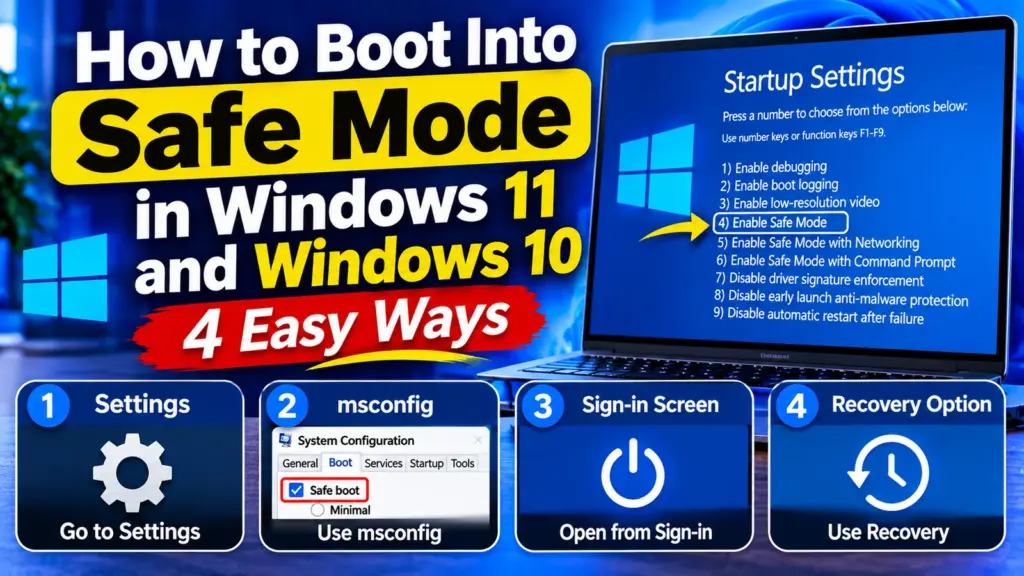
Safe Mode starts Windows with only the basic drivers and services. It is useful when a driver, a program or malware stops Windows from working normally. This guide shows four ways to start it, how to tell you are in it, and how to get back to a normal start if it does not go as planned.
The method matches Microsoft’s page Windows startup settings. Windows 10 and 11 use the same Startup Settings menu, although the Settings path to reach it differs (see Method 1).
When to use Safe Mode
- To remove a faulty graphics driver or program
- To run a malware scan (see remove a virus or malware)
- To uninstall a recent update that caused a crash
- To work around a PC that crashes or restarts at start-up
The Safe Mode options
- Safe Mode (4 or F4): the basic one, with no network.
- Safe Mode with Networking (5 or F5): adds the network, so you can download a driver or tool.
- Safe Mode with Command Prompt (6 or F6): opens a command window instead of the desktop.
Step-by-step: start Safe Mode
Method 1: From Settings (Windows still works)
- Windows 11: open Settings > System > Recovery. Windows 10: open Settings > Update & Security > Recovery.
- Next to Advanced startup, select Restart now. Save your work first, because the PC restarts at once.
- On the blue screen choose Troubleshoot > Advanced options > Startup Settings > Restart.
- When the numbered list appears, press 4 (or F4), 5 (or F5) or 6 (or F6). Use the number keys if the function keys control volume or brightness.
If Startup Settings is not in the list: choose See more recovery options first. If it is still missing, open Windows Terminal as administrator and run reagentc /info. A line saying Windows RE status: Disabled means the recovery environment is off. Use Method 2 instead.
Method 2: With msconfig
- Press Windows + R, type
msconfigand press Enter. - Open the Boot tab, tick Safe boot and choose Minimal (or Network for networking).
- Select OK, then Restart.
Important: this method keeps starting in Safe Mode every time until you undo it. When you finish, open msconfig again and untick Safe boot (see “How to leave Safe Mode” below).
Method 3: From the sign-in screen or Start menu
On the sign-in screen, select the power icon, hold Shift and choose Restart. Keep holding Shift until the blue “Choose an option” screen appears. You can do the same from Start > Power when Windows is running. Then follow the Troubleshoot steps from Method 1.
Method 4: When Windows will not start
- Turn the PC on. As soon as the maker’s logo or the Windows logo appears, hold the power button until it switches off.
- Repeat this twice more. On the third start Windows shows Preparing Automatic Repair and then the recovery screen. Only use this if Windows will not start by itself, because it forces a power cut.
- Choose Advanced options > Troubleshoot > Advanced options > Startup Settings > Restart and press 4, 5 or 6.
If the recovery screen never appears, start from a Windows installation USB, choose your language, then Repair your computer and follow the same Troubleshoot path. See how to create a recovery drive if you do not have one yet. If the PC hangs on a spinning circle before any of this, see Windows 11 that hangs on the loading screen.
How to tell you are in Safe Mode
- The words Safe Mode appear in all four corners of the screen.
- The picture looks plain, with a black or solid background, large icons and low resolution. That is normal: Windows uses a basic display driver.
- Do not rely on System Information (
msinfo32) to confirm Safe Mode. Use the four corner labels instead.
What you can do in Safe Mode
- Uninstall drivers and programs in Settings > Apps and in Device Manager (right-click Start).
- Run a scan with a second-opinion malware scanner.
- Use System Restore (see how to use System Restore).
- Remove a recent update in Settings > Windows Update > Update history > Uninstall updates.
Microsoft Defender may not run fully in Safe Mode, so run its full and offline scans after you restart normally.
How to leave Safe Mode
- If you used msconfig: open it again, untick Safe boot on the Boot tab, select OK and restart.
- If you used the Startup Settings menu: just restart. The next start is normal.
- If the PC keeps coming back in Safe Mode after a restart, open Terminal as administrator and run
bcdedit /deletevalue {current} safeboot, then restart. This removes the safe-boot flag that msconfig or a tool left behind. If the command says the element was not found, the flag is not set and the cause is something else, such as a failing start-up that triggers recovery. Use Startup Repair then.
If Safe Mode will not start or does not help
- Safe Mode also crashes or restarts: the cause is deeper than a driver. Try Startup Repair or System Restore from the recovery screen. Older guides also mention Last Known Good Configuration, which Windows 11 no longer offers, so use these tools instead. Then see fix No Bootable Device. If the crash shows a blue screen with the stop code CRITICAL_PROCESS_DIED, see what the CRITICAL_PROCESS_DIED stop code means.
- A BitLocker key screen appears: Windows asks for the recovery key because the start-up settings changed. Find it at account.microsoft.com/devices/recoverykey on another device. Without the key you may not be able to enter Safe Mode.
- The PC works in Safe Mode but not normally: a start-up program, service or driver is the cause. Remove or roll back what you changed last, and see update or reinstall graphics drivers.
- The keyboard does nothing at the numbered screen: use a wired keyboard in a USB port at the back of a desktop. Some wireless receivers do not work that early.
More help
For other start-up problems, search by symptom in the PC repair guides on PC Repair Atlas.
FAQ
Is it safe to stay in Safe Mode? Yes, but many programs and devices will not work, so leave it when you finish.
Can I use the internet in Safe Mode? Only in Safe Mode with Networking.
Will Safe Mode delete my files? No. It only changes what loads at start-up.