Fix ADVAPI32.dll Errors in Windows 10 and 11
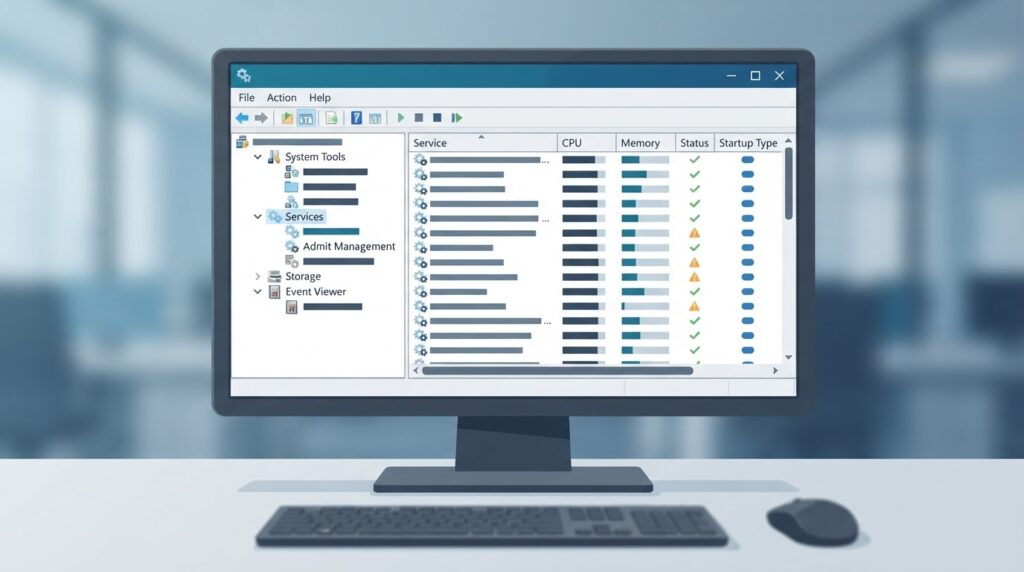
A ADVAPI32.dll error may appear during starting a service, installer or administrative utility. Start by recording the exact error and what you were doing. A missing DLL, a procedure entry point error and an application crash can have different causes. The steps below help you distinguish them before making system changes.
What does ADVAPI32.dll do?
ADVAPI32 exposes Windows security, registry and service-related APIs. A failure here is not automatically evidence of a damaged registry.
1. Identify the failure and its scope
Record the precise error: Access Denied points toward permissions or policy, while a missing entry point may indicate incompatible software. On a work-managed PC ask the administrator before changing permissions or running administrative repair commands.
For a crash, press Windows + R, enter perfmon /rel and select the failure in Reliability Monitor. Record the application, faulting module, exception code and file path when available. A module name indicates where an exception was detected; the original cause may be elsewhere. For a launch error, save the full dialog including the application and dependency name. Do not run a program again if the file comes from an untrusted source.
2. Choose a targeted repair
Check whether the installer is signed and obtained from the vendor. If a service fails, inspect its corresponding Service Control Manager event and the service's documented dependencies. Do not change ownership of system folders or reset all service permissions.
Make one change at a time and repeat the same test after each change. Install legitimate updates from Windows Update or the software vendor, and save work before restarting. If an update is implicated, use a supported rollback or vendor fix rather than replacing individual DLLs. On a managed computer, follow your organization's support process.
3. Repair protected Windows components if indicated
If the error affects several unrelated programs or Windows itself reports a missing or corrupt system file, save important data and open Terminal or Command Prompt as administrator. Run the following commands separately, waiting for DISM to finish before starting SFC.
DISM.exe /Online /Cleanup-image /Restorehealth
sfc /scannow
DISM can repair the Windows component store; SFC checks protected system files. Restart if repairs were made. If either command fails, keep its exact error and use Microsoft's supported recovery options. If scans are clean and only one application fails, continue investigating that application rather than repeatedly running system-wide repairs.
How to verify the fix
Restart the affected service only if it is safe to do so, or reopen the installer and confirm the original permission or entry-point error is gone.
Frequently asked questions
Is ADVAPI32.dll safe to delete or replace? No. A legitimate Windows system file is part of a serviced operating system. A similarly named file in an unexpected download folder is not automatically legitimate; scan it with Windows Security and check its origin.
Will a registry cleaner solve this? No general registry cleaner can establish why a particular DLL failed or restore a compatible protected binary. Use the diagnostic evidence and official repair mechanisms.
What if the error returns? Record whether the exception, module path or affected program changed. Repeated failures in unrelated programs may justify broader stability diagnostics; consistent failure in one program is useful evidence for its support team.
Official references and related guides
Microsoft documentation for Windows APIs · Microsoft system file repair · Windows service errors · Bad Image troubleshooting · PC Repair Atlas