concrt140.dll Missing or Not Found? Repair the Visual C++ Runtime in Windows 10 and 11
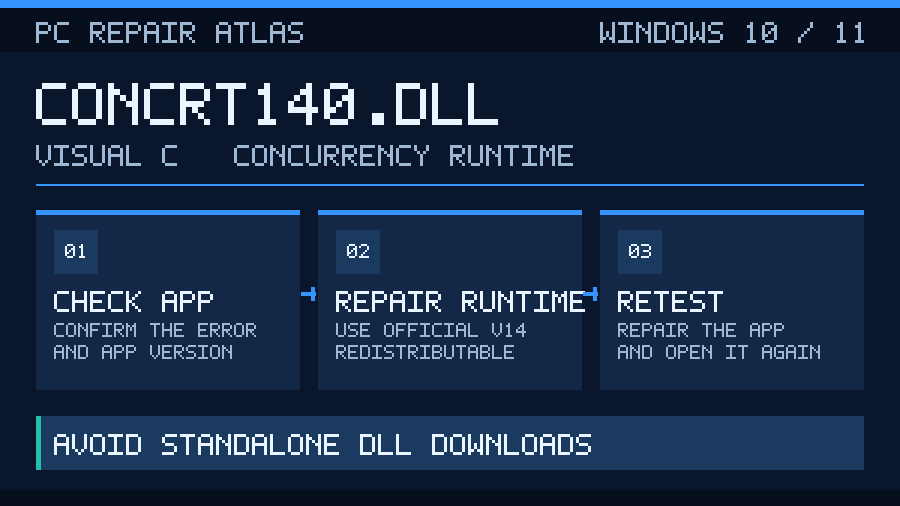
An editor, utility or game refuses to launch and names concrt140.dll; another application may open normally. An entry-point error after an app update can instead mean that the application is loading an incompatible copy.
Start with the exact error and the affected application. Do not install a replacement DLL from a download directory or run registry repair as a substitute for restoring the correct component.
Quick diagnosis: choose the right repair
| What you see | First action |
|---|---|
| Missing file at startup | Repair the v14 runtime |
| Only one app fails after an update | Repair the application |
| Bad Image with an app-folder path | Check publisher installation |
What is concrt140.dll?
The Microsoft Concurrency Runtime is part of the Visual C++ v14 runtime family. Native applications can use it to coordinate parallel work and schedule tasks. It is not a graphics driver or a Windows registry database. A program compiled to load this library dynamically will fail to start if the appropriate runtime is unavailable.
1. Identify the application architecture
Check the publisher’s requirements for the installed application. A 32-bit application needs the x86 redistributable even on 64-bit Windows; a native 64-bit application needs x64. Both may be present legitimately. On ARM64, follow the vendor’s package instructions. Do not remove unrelated runtime versions merely because multiple packages appear in Installed apps.
2. Repair the v14 package
Open Settings > Apps > Installed apps in Windows 11 (Apps & features in Windows 10). Find the Microsoft Visual C++ v14 redistributable matching the application. If Modify or Repair is available, use it. Otherwise use the current applicable Microsoft installer linked below or the publisher’s installer. Close the failing application before the operation and restart if requested. If setup reports that a newer version exists, do not force a downgrade.
3. Investigate an application-local copy
If the error names a DLL beside the program executable, the application may ship its own runtime. Verify the program files using the official installer or launcher. Back up local project files and settings first. A globally installed runtime may not replace an incompatible file that the application loads from its own directory. If a recently installed plug-in introduced the problem, disable it using the application’s own controls and retry.
If the official installer does not solve the problem
Record whether setup completed, the exact remaining error, and the affected application version. If a second application works, prioritize the original software’s prerequisites and installation rather than making system-wide changes. Windows system-file repair is appropriate only if you also have evidence of damaged Windows components; it is not a reliable way to install a missing optional redistributable. Avoid registry edits, renaming files or running regsvr32 on runtime libraries.
How to verify the repair
- Restart the affected application from its normal shortcut; restart Windows first if an installer or update requests it.
- Repeat the specific task that previously failed, using a test file or disposable save when possible.
- Check whether the original error has disappeared. If a different error appears, capture its full text before attempting another repair.
- Keep a record of the change that worked so you can reverse unrelated changes if necessary.
If an error remains, contact the application publisher with the Windows version, application build, exact error, file path and steps already attempted. Do not include private documents or license keys in diagnostic reports. Windows 10 support and update eligibility vary by edition and servicing program; use a supported configuration where possible.
Frequently asked questions
Will a registry cleaner fix this error?
No. The supported fix is to restore the correct runtime or application files.
Should I install Visual Studio?
No. End users generally need only the redistributable, not the developer IDE.
Can I uninstall the x86 runtime?
Not just because Windows is 64-bit. Other 32-bit programs may depend on it.
Related PC Repair Atlas guides
- DLL Errors & Fixes Library
- Fix missing DLL errors in Windows
- Repair Windows system files with SFC and DISM
- MSVCP140 and VCRUNTIME140 runtime errors