Fix D3D12Core.dll Errors in Windows 10 and 11
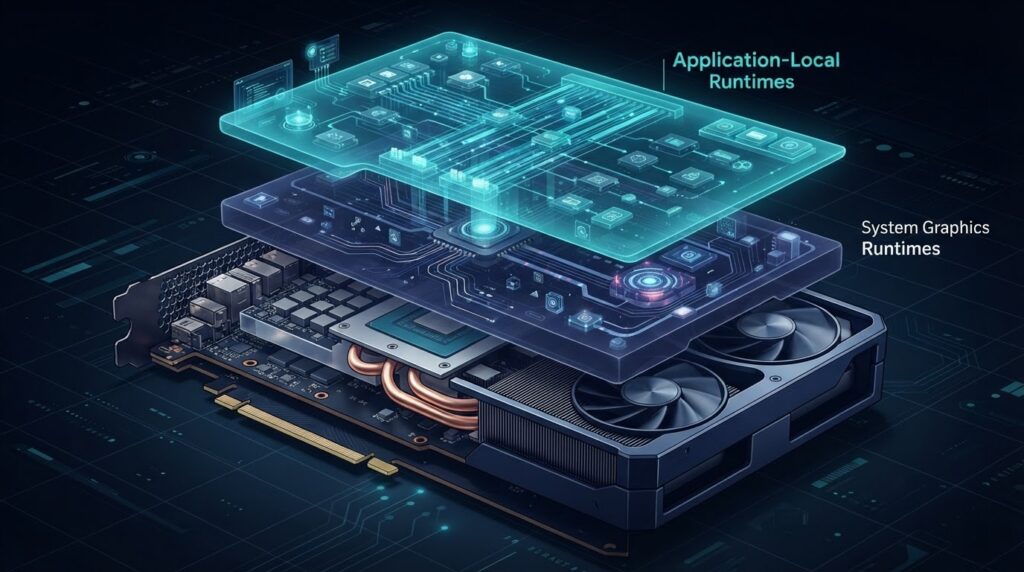
A d3d12core.dll error can occur when a DirectX 12 game or graphics application loads the wrong runtime, encounters an incompatible graphics driver or cannot read its own files. The most important distinction is whether the failing file belongs to Windows or to the application. Do not replace either copy with a DLL from a download website.
What does D3D12Core.dll do?
D3D12Core.dll contains core Direct3D 12 runtime functionality. Microsoft’s DirectX Agility SDK lets developers ship compatible runtime components alongside their applications. Consequently, a game can legitimately have its own D3D12Core.dll as well as the copy supplied by Windows. Those versions are not interchangeable merely because their filenames match.
Read the error before you repair
Record whether Windows says the DLL was not found, reports a Bad Image error, or names it in an application crash. Open Reliability Monitor by running perfmon /rel and inspect the failure details. Look for the faulting module path. A path inside a game's installation directory suggests a different repair route from a system-folder path. If the game reports device removed or device hung, treat that as a possible graphics workload or driver failure rather than proof of a corrupted runtime.
1. Restore the application's original files
Close the game and its launcher. Use the launcher's verify or repair feature to restore missing or modified files. Remove unsupported graphics mods, DLL injectors or overlays using their own removal instructions; temporarily disable optional overlays for one controlled test. Do not move runtime components into System32 or replace a bundled file with the Windows copy. If verification fails, back up saved games and reinstall the program from its official source.
2. Verify Windows and graphics compatibility
Press Win + R, run winver, and compare your Windows release against the game's requirements. Run dxdiag and review each Display tab for the driver and supported feature levels. The DirectX version displayed on the System tab does not guarantee that the graphics adapter supports every feature a particular game requires. If the developer offers a supported DirectX 11 mode, try it to narrow the issue, but do not use unofficial launch flags.
Update the compatible graphics driver using Microsoft's driver guidance or the manufacturer's official installer. On a hybrid-graphics laptop, make sure the game is assigned to the intended adapter. If the problem began after a driver update, test the previous supported driver. Undo GPU overclocks and undervolts before repeating a device-lost crash.
3. Treat application-local runtime mismatches differently
If the DLL is in a game-specific DirectX folder, it is often part of the developer's runtime distribution. A newer runtime downloaded independently may not match the other components the game expects. Use the exact package supplied by the game publisher. Developers should check their Agility SDK version, application SDK path and matching debug/runtime layers; players should not need to configure these values.
Repair Windows files only when the evidence points to Windows
Save your work, restart, and install applicable Windows servicing updates. Open Terminal or Command Prompt as administrator. Run DISM first, then SFC, waiting for each to finish. An interrupted repair can leave you without a useful result.
DISM.exe /Online /Cleanup-Image /RestoreHealth
sfc /scannow
If SFC repairs files, restart and repeat the original failing action. If it cannot repair everything, use our guide to SFC that cannot fix corrupt files rather than manually replacing protected DLLs. See Microsoft's system-file repair instructions.
Confirm the result and collect evidence
After restarting, load the same game level or project and play long enough to reproduce the previous failure. If it still fails, record the game version, Windows build, graphics adapter, driver version, crash code and exact module path. If other games work, send those details to the publisher. If multiple graphics-intensive programs fail, investigate GPU stability, temperatures and driver compatibility.
Frequently asked questions
Will the old DirectX End-User Runtime fix D3D12Core.dll? Not generally. The legacy package supplies certain older optional libraries, not a universal replacement for the Windows Direct3D 12 runtime or a game's Agility SDK distribution.
Is D3D12Core.dll the same as d3d12.dll? No. They are related Direct3D components but serve different roles. Replacing one with the other cannot solve a missing-file error.
Related troubleshooting and official references
Explore the DLL Errors & Fixes library, Direct3D core DLL troubleshooting, and the PC Repair Atlas home page for other Windows repair options. Technical reference: Microsoft's DirectX Agility SDK guide.
Windows 10 reached the end of standard support on October 14, 2025. Update availability depends on the edition and any applicable extended support; consider a supported Windows version if your current system cannot receive required fixes.