Fix DXVA2.dll Errors and Video Playback Crashes in Windows
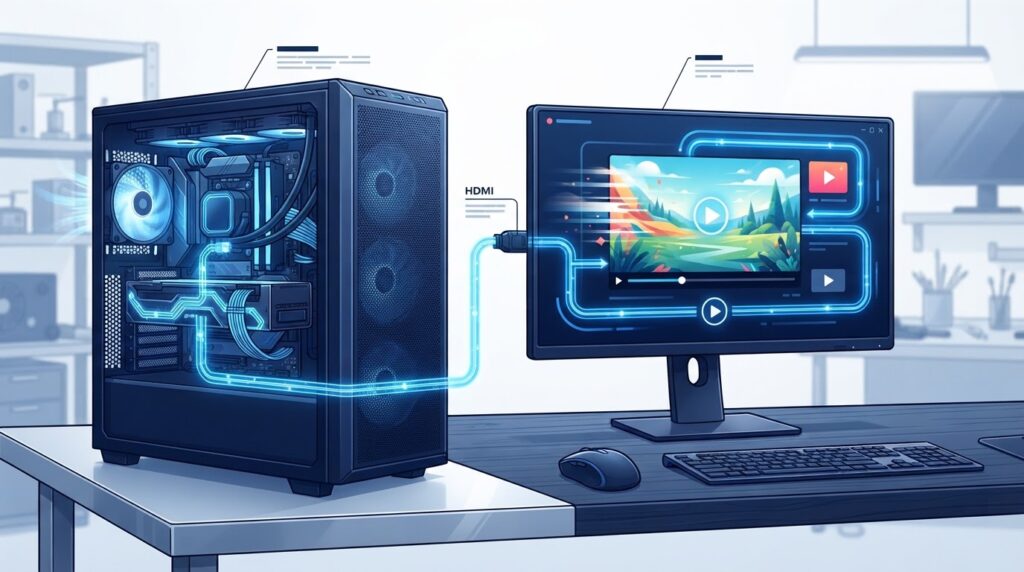
A dxva2.dll crash during video playback, streaming or editing can indicate a problem in the hardware-accelerated video path. It is not necessarily a damaged DLL. The most useful first comparison is whether the same video works without hardware decoding.
What is dxva2.dll?
DXVA2.dll provides DirectX Video Acceleration 2.0 interfaces used by compatible video software and display drivers to offload certain decoding and processing tasks to the GPU. Actual acceleration depends on the codec, graphics adapter, driver and application's implementation.
1. Establish whether the problem depends on hardware decoding
Use a known-good local video to avoid confusing buffering or network faults with a decoder crash. In the player's documented settings, temporarily disable hardware video decoding or acceleration if that option is available. Restart the player and retry the same video. If software decoding works, investigate graphics and decoder compatibility; expect higher CPU use while acceleration is disabled.
2. Compare the affected video with other formats
Try an ordinary supported H.264 video and the original problem clip. Note resolution, codec and bit depth if the player displays them. An older GPU may support hardware acceleration for some formats but not newer profiles or higher resolutions. If one particular file fails in several players, try a backup or obtain a fresh copy rather than changing Windows files.
3. Check the graphics driver and application
Use the PC manufacturer's supported graphics driver for laptops, especially systems with switchable graphics. For desktops, use the official adapter driver. If playback crashes began immediately after an update, consider a supported rollback. Update the player or editor and temporarily disable optional video overlays. Test a single change at a time to avoid losing the original cause.
4. Inspect the crash and repair the system only if needed
Run perfmon /rel and open the relevant application failure. Save the faulting module path, exception code and application version. A failure in a third-party decoder or display driver may need a vendor fix. If the error reports a missing Windows copy of dxva2.dll, or several programs fail with related system-file errors, install Windows updates and run the integrity checks below.
Repair Windows system files safely
Back up important files and open Terminal or Command Prompt as administrator. Run the first command, wait for it to complete successfully, and then run the second. Restart after repairs and test again. If either command reports an unresolved error, record it rather than downloading replacement DLLs.
DISM.exe /Online /Cleanup-image /Restorehealth
sfc /scannow
See Microsoft's system file repair instructions for details. If the issue remains limited to one application, a clean system scan is a reason to return to application-specific troubleshooting.
How to verify the repair
Replay the original video from beginning to end or repeat the editing operation that previously failed. If acceleration was disabled for testing, turn it back on when appropriate and repeat the test. Watch for stuttering, black frames or a new crash. Test a second application to distinguish a player-specific fix from a system-wide one.
Frequently asked questions
Does DXVA2.dll being named in a crash mean my GPU is broken? No. Software, driver and decoder incompatibility can produce similar symptoms. Should I permanently disable hardware acceleration? It can be a temporary workaround, but increases CPU load and may reduce performance. Will downloading a new DLL fix unsupported video hardware? No; a DLL cannot add decoding features the adapter does not support.
Related repair resources
Microsoft DirectX Video Acceleration 2.0 documentation · Update or reinstall graphics drivers · Troubleshoot application error 0xc000007b · PC Repair Atlas