Ieframe.dll Error in Windows 10 and 11: Legacy App Fixes
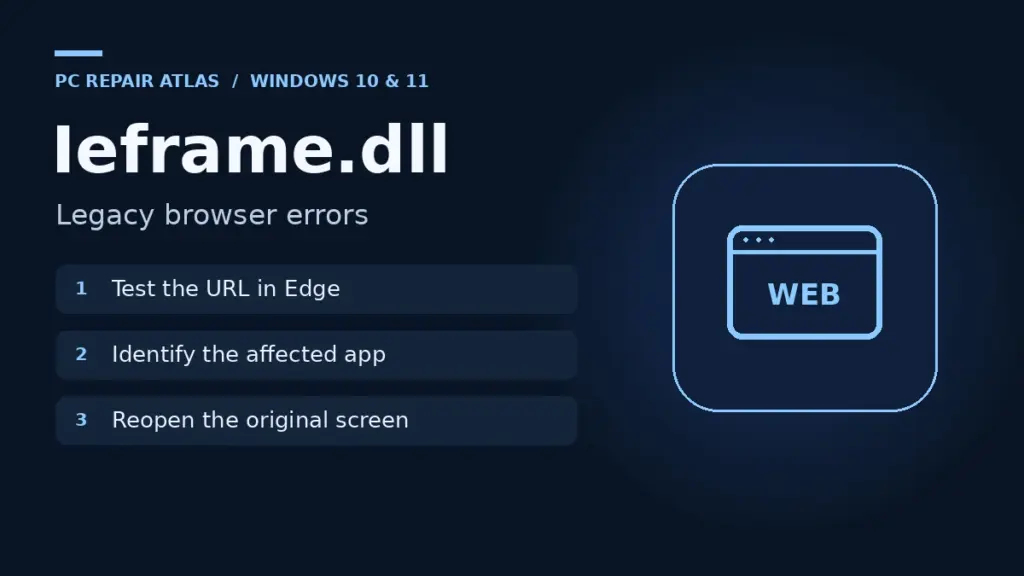
An ieframe.dll error can turn up when a desktop program opens an embedded sign-in screen, Help page or intranet page. Record which screen fails and whether the rest of the program stays open. Older Windows programs can use Internet Explorer components to display content even on a PC where the Internet Explorer desktop app is unavailable.
Choose your first check
| What you see | Where to start |
|---|---|
| One embedded page fails while Edge loads it | Repair or update the desktop app and share the affected screen with its vendor. |
| One company page fails only in IE mode | Ask IT to check its enterprise site-list entry and the exact page. |
Separate an embedded page from a browser problem
If you know the destination, open its normal HTTPS address in Edge. If it loads in Edge and the embedded screen fails, record that distinction for the app vendor. If the page also fails in Edge, compare another trusted site. For an intranet page, confirm your approved network or VPN is connected. Stop at a certificate warning and report the exact message.
Check a managed Edge IE-mode site
Look for the IE-mode indicator in the Edge address bar. If your organization expects the site to open in IE mode and it does not, ask IT to check the site-list entry. For a desktop app, install the vendor’s supported update or use its repair option. Test the original screen again. Avoid changing browser security settings to make an older page load.
What to collect after a crash
Use View reliability history and look for the event at the time of the failure. Record the faulting application, module and exception code. If one embedded screen is affected, note whether another screen in the same app works. Those details give the vendor a narrower reproduction than a report that only names the DLL.
When to repair Windows files
If multiple Windows features fail and the error points to a damaged system file, install applicable Windows updates and restart. In an administrator Command Prompt, run DISM.exe /Online /Cleanup-Image /RestoreHealth. When it completes successfully, run sfc /scannow. Record the final result and check Microsoft’s repair guidance if either command reports an error. Avoid downloading a replacement DLL separately.
Verify the fix
Open the same app, visit the same screen and finish the full task, such as signing in or opening Help. Confirm the app stays open and the original error is gone.
Related guides include MSHTML.dll rendering errors and the DLL Errors & Fixes library.
Microsoft reference: Edge IE-mode troubleshooting.