Fix MFC140U.dll Errors in Windows 10 and 11
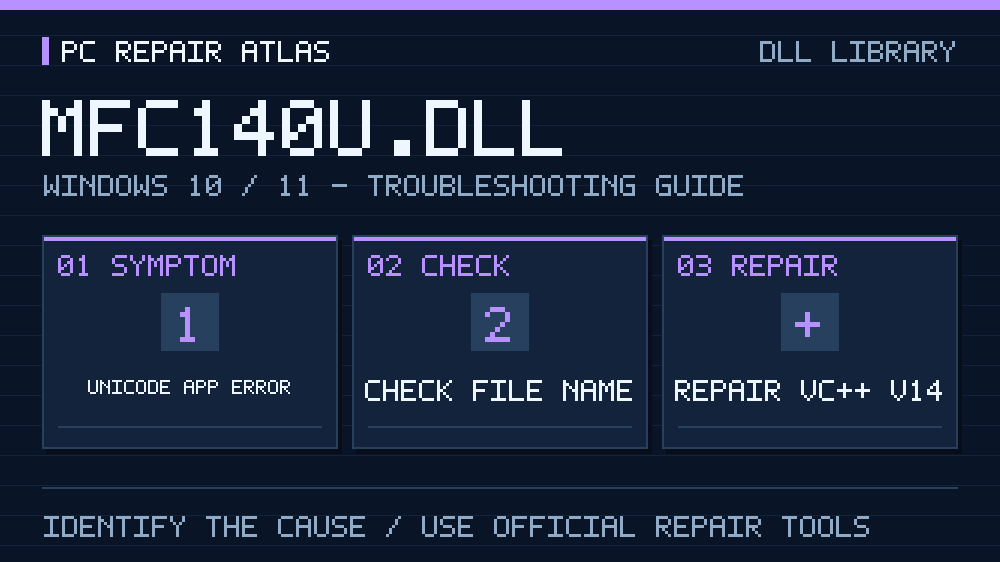
When a MFC140U.dll error appears while starting a Unicode MFC application or opening its dialogs, start with the exact message. Windows can report a missing library, an incompatible binary, a missing entry point or an application crash. Replacing a DLL without identifying the type of failure may introduce new problems.
What is MFC140U.dll?
MFC140U is the Unicode variant of the Microsoft Foundation Classes runtime from the Visual C++ v14 family. It is not interchangeable with MFC140.dll.
1. Collect evidence before changing files
Check whether the app reports the U-suffixed name or the non-Unicode name. If the problem only happens after opening a document with non-Latin characters, test a known-good sample; that pattern may indicate an app-specific defect rather than a missing runtime.
For an application crash, press Windows + R, type perfmon /rel and select the red failure entry in Reliability Monitor. Save the application name, version, faulting module path and exception code. Check whether a recent software or driver installation coincides with the start of the problem. Test a second unrelated application where practical; one reproducible app failure calls for a different approach from widespread Windows instability.
2. Repair the appropriate component
Repair the supported Visual C++ redistributable for the app's architecture and the official application installation. If a recent update triggered an entry-point error, check vendor patches and supported versions. Do not rename another MFC DLL.
Save open work and back up important files before installing or removing software. Make one supported change at a time, then repeat the original operation. Obtain installers from the official publisher or trusted device manufacturer. If the computer is managed by an organization, leave restricted settings and permissions to its IT administrator.
3. Rule out broader system corruption
A missing application runtime is not normally restored by Windows system file checking alone. If separate evidence suggests Windows itself is damaged, you can use the following commands from an administrator Terminal or Command Prompt. Wait for DISM to complete before running SFC.
DISM.exe /Online /Cleanup-image /Restorehealth
sfc /scannow
These tools address the Windows component store and protected Windows files, respectively. Restart if repairs were made, and keep the output if a scan cannot complete. If both scans are clean, return to the affected application, driver or runtime instead of repeatedly repairing Windows. Do not obtain individual DLLs from untrusted file download sites.
Confirm the fix
Start the application and test a normal dialog plus a trusted document containing Unicode characters if relevant.
Frequently asked questions
Can I replace MFC140U.dll manually? Avoid doing so. Dependencies and versions need to match. Use the official installer, Windows servicing or the supported repair procedure for the component.
Does a DLL error prove that the registry is damaged? No. A registry cleaner cannot replace a missing runtime or identify an application's programming fault. Use the actual error and targeted repair steps.
What should I do if it comes back? Record the new failure details and compare them with the original. If the same application still fails, contact its publisher with the exact Windows build, application version and crash details. If unrelated programs begin failing, consider a broader stability check.
Official documentation and related repair guides
Official component documentation · Microsoft system file repair · Related PC Repair Atlas troubleshooting guide · Bad Image troubleshooting · PC Repair Atlas