PrintConfig.dll Error in Windows 10 and 11: Safe Fixes
What is PrintConfig.dll?
PrintConfig.dll is a Windows printer configuration component. Microsoft's documentation for the version 4 print driver model explains that it provides shared configuration functionality, including handling printer capabilities and print settings. A failure involving the file may appear when opening a print dialog, selecting duplex printing or sending a job. It is not automatically a sign of a missing Windows DLL; a printer-specific configuration or driver problem may be the trigger.
Find out which printing operation fails
Try printing a short plain-text document rather than a large PDF or image. Then test Microsoft Print to PDF, if installed, and one physical printer. Record which printer, application and settings produce the problem. If only one device fails, focus on its queue and driver. If all devices fail, Windows print components or the calling application may be involved. Check Event Viewer under Applications and Services Logs > Microsoft > Windows > PrintService for relevant events; the Operational log may need enabling before it collects new events. Record the event time and error details, not just the DLL name.
1. Reset job settings without changing the driver
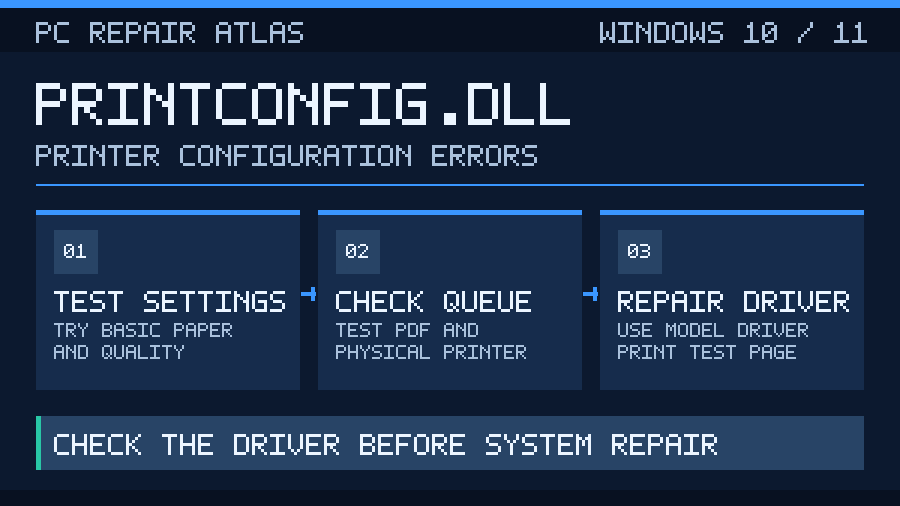
Open the affected printer's preferences and select a supported paper size, standard quality and single-sided printing. Disable advanced finishing options for a test. If a basic job succeeds but an advanced one does not, the printer may advertise a feature that the current driver or device configuration cannot handle. Re-enable features individually to identify the failing setting. On a shared office printer, do not change the server's default preferences without coordinating with the administrator.
2. Check the print queue and connection
Open Settings > Bluetooth & devices > Printers & scanners on Windows 11, or Settings > Devices > Printers & scanners on Windows 10. Select your printer and open the queue. Cancel a stuck job you own and retry. Verify that the printer is online, has paper, and is connected through the correct USB or network connection. A printer responding to a network ping is not proof that its print queue is configured correctly. If necessary, restart the Print Spooler service after confirming that other users are not printing; restarting it can interrupt active jobs. Do not manually clear spool files unless the normal queue controls fail and you understand the impact.
3. Repair or reinstall the affected printer
Check the manufacturer's support site for a driver matching your exact model and Windows version. If the current driver was recently updated, compare its release notes for known printing issues. Before removing the printer, record its connection details, preferences and any special port configuration. Re-add it using Windows' supported printer setup or the manufacturer's installer. For compatible devices, an inbox IPP class driver may be an alternative, but check that it supports the functions you need. Microsoft's printer driver installation guidance can help with supported driver selection. Do not download a loose PrintConfig.dll or copy a system DLL from another computer.
4. Repair Windows if multiple printers fail
If the print dialog fails across several applications and queues, install applicable Windows updates and restart. If there are additional signs of system corruption, run DISM /Online /Cleanup-Image /RestoreHealth in an elevated terminal, followed by sfc /scannow. These commands address Windows component integrity rather than printer firmware, network access or missing vendor software. Preserve any errors instead of repeating the commands indefinitely. For broader Windows corruption symptoms, follow our DISM and SFC repair guide. For organization-managed print queues, request administrator assistance before changing drivers or security policies.
Verify normal printing
Print a Windows test page, then the document that originally failed. Compare paper size, orientation and duplex settings. Check whether a new PrintService event appears at the test time. If only a particular driver or finishing option reproduces the failure, report the model, driver version and settings to the vendor. For ordinary queue or connectivity problems, use Microsoft's printer troubleshooting instructions.
Related troubleshooting and official references
See our Spoolss.dll guide, Win32spl.dll printing guide and DLL Library. Microsoft documents the version 4 driver configuration architecture and print settings constraints.