Sfc.dll Error in Windows 10 and 11: File Checker Fixes
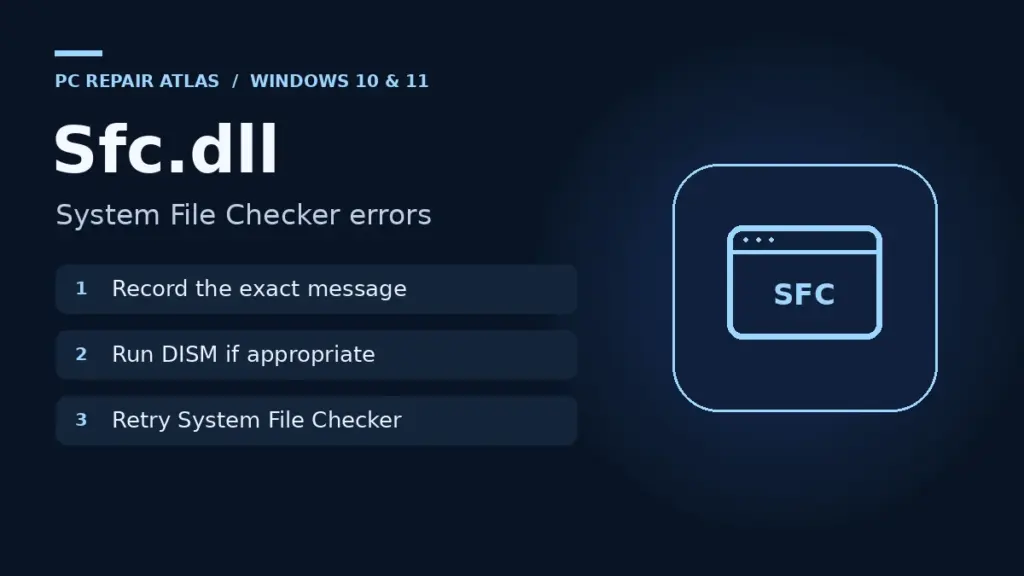
Seeing sfc.dll in an error does not tell you whether System File Checker is broken. Write down what you ran. A third-party maintenance utility failing on startup and an elevated sfc /scannow command returning an error need different tests.
Choose your first check
| What you see | Where to start |
|---|---|
| Only a third-party utility reports sfc.dll | Test the built-in Windows checker independently. |
| The built-in checker cannot repair files | Keep the last status and review Microsoft’s repair instructions. |
Identify which tool failed
If a third-party program shows the message, close it and run the built-in checker separately from an administrator Command Prompt. Do not use DLL download sites or copy a file from another computer. If the built-in checker works, use the third-party vendor’s supported update or repair.
Use the supported repair order when Windows files are affected
Install applicable Windows updates and restart. Run DISM.exe /Online /Cleanup-Image /RestoreHealth from an elevated Command Prompt. After that completes successfully, run sfc /scannow. Let it reach its final result and keep the exact message.
Read the result before repeating a scan
When SFC reports no integrity violations, focus on the program that originally failed. If it reports files repaired, restart and retest. If it reports that it could not repair some files or could not start, keep the message and review Microsoft’s supported next steps. Repeating the same command without addressing its error may provide no new information.
Verify the fix
Run the original operation again after restarting. If your original issue was the checker itself, confirm the Windows command now completes and logs a final result.
Related guides include Sfc_os.dll protected Windows file troubleshooting and the DLL Errors & Fixes library.
Microsoft reference: Microsoft’s System File Checker repair instructions.