Urlmon.dll Error in Windows 10 and 11: App Fixes
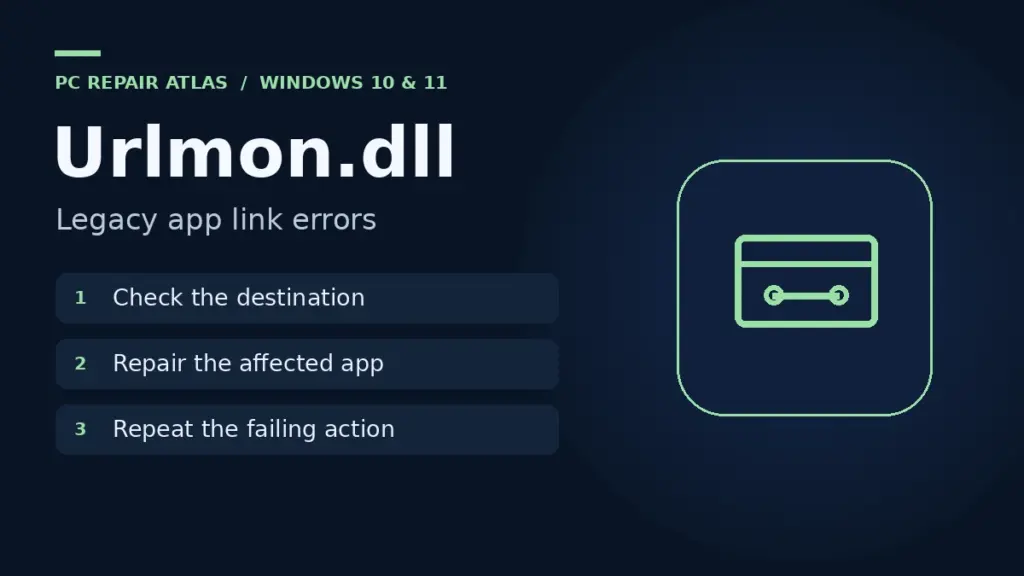
If a Windows app crashes with urlmon.dll in the error report, record what it was doing. Opening embedded help, loading a sign-in page and opening an external link are different tests. Use the action that triggers the error to narrow down what needs repair.
What urlmon.dll does
Urlmon.dll is a Windows component associated with the URL Moniker APIs. Older Windows apps may rely on these APIs to work with resources addressed by URLs. A failure can be tied to the calling app, a specific destination or Windows itself. Seeing the module in a crash report helps identify the failing code path.
1. Test the same destination separately
If the app displays a normal HTTPS address, open the known address in an up-to-date browser. Check whether the site loads, prompts for sign-in or shows a certificate warning. Stop at any warning and share it with the site or network administrator. If the browser works and one app still fails, focus on that app’s embedded web component and updates.
If both fail, check whether another trusted site works. For an internal address, confirm you are on the required network or connected through the approved VPN. Use the domain and error code when asking IT to investigate. Omit passwords, private links and sign-in tokens when sharing diagnostic details.
2. Repair the affected app
Check for an update that supports your version of Windows. Use the vendor’s repair option or supported installer, and save any application settings the installer may replace. Retest the exact same link and a second known link within the app, if available. If built-in help works but one sign-in screen fails, tell the vendor which screen and endpoint are affected.
For a crash, use View reliability history to find the event for the correct app and time. Record the faulting application, module name and exception code. That helps the vendor distinguish a crash from an ordinary network failure.
3. Check Windows if the problem affects several apps
If several Windows features fail or the error explicitly says a Windows system file is corrupt, install applicable updates and restart. Open Command Prompt as administrator. Run DISM.exe /Online /Cleanup-Image /RestoreHealth. After it completes successfully, run sfc /scannow and note the result. If SFC repaired files, restart and retest the original action. Follow Microsoft’s System File Checker instructions if it reports files it could not repair. Avoid copying a replacement DLL from a download site or another PC.
If the error occurs only on one network
Retest using an approved connection and the same app version. Check whether the error appears before sign-in, during sign-in or after the app requests a specific resource. A work app that runs from home only when the company VPN is connected may be behaving as designed. If the same URL requires a different sign-in in a browser, tell the administrator that the two clients reach different stages. Keep the exact steps and time of the failure. Keep any full address containing session information out of screenshots or public support requests.
Verify the fix
Restart the affected app, repeat the original action and confirm the embedded screen, help file or link works end to end. A browser test confirms only the browser path. For managed apps, share the app version and the exact failing action with your administrator if the embedded path still fails.
See WinINet.dll troubleshooting and the DLL Errors & Fixes library.
Microsoft’s URL Monikers overview and URL Moniker API reference explain how Windows apps use these APIs.
See also MSHTML.dll rendering errors.