Wer.dll Error in Windows 10 and 11: Crash Report Fixes
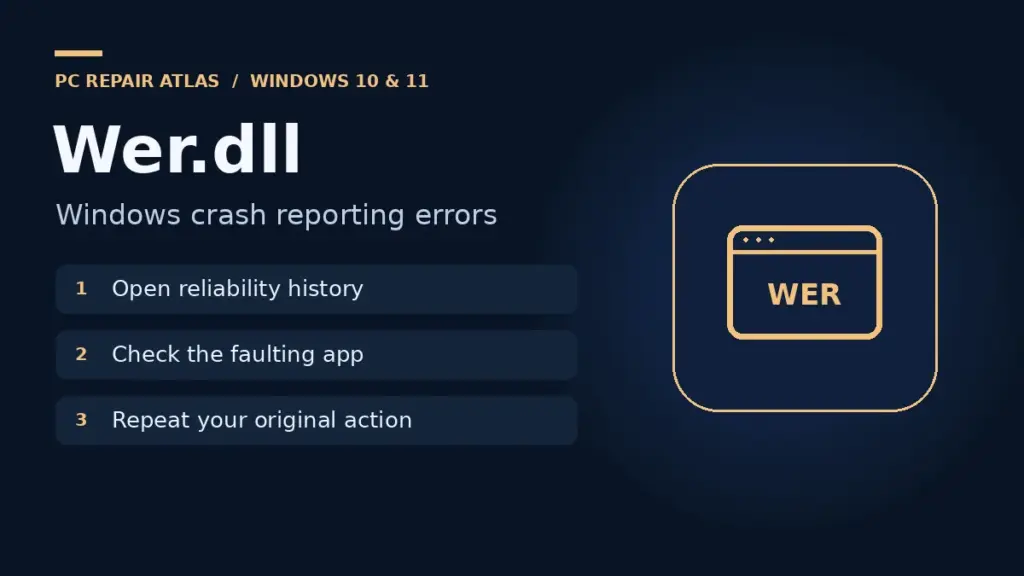
Wer.dll is associated with Windows Error Reporting. A report can appear after an app crashes or stops responding. If you see a wer.dll error after the app has already failed, start by identifying the original crash and its timing.
Choose your first check
| What you see | Where to start |
|---|---|
| Only one app consistently produces a crash entry | Update or repair that app first. |
| Multiple unrelated apps fail | Check common hardware, drivers or recent Windows changes. |
Read the application failure in Reliability Monitor
Search for View reliability history. Locate the failure near the time the app closed and open its technical details. Record the application and faulting module, exception code and timestamp. If two entries appeared around the same time, keep both and note which action came first.
Compare apps before making system changes
Repeat a simple version of the original action if it is safe to do so, after saving your work. If one app consistently fails, check its vendor’s current release and repair options. If several unrelated apps fail, record whether they depend on the same hardware, driver or document type before focusing on Windows.
Keep privacy and reporting settings intact
You can use the local failure details without changing crash reporting or sharing a full dump. If a vendor requests diagnostics, use its approved channel and review what the file contains first. A work PC may already have reporting settings managed by the organization.
When to repair Windows files
If multiple Windows features fail and the error points to a damaged system file, install applicable Windows updates and restart. In an administrator Command Prompt, run DISM.exe /Online /Cleanup-Image /RestoreHealth. When it completes successfully, run sfc /scannow. Record the final result and check Microsoft’s repair guidance if either command reports an error. Avoid downloading a replacement DLL separately.
Verify the fix
Repeat the original operation in the affected app and confirm it succeeds. If the app still exits, compare the new Reliability Monitor entry with the old one and give support any change in the faulting module.
Related guides include Wevtapi.dll Windows Event Log troubleshooting and the DLL Errors & Fixes library.
Microsoft reference: Microsoft’s Windows Error Reporting overview.