wldap32.dll Errors in Windows 10 and 11: Safe Fixes
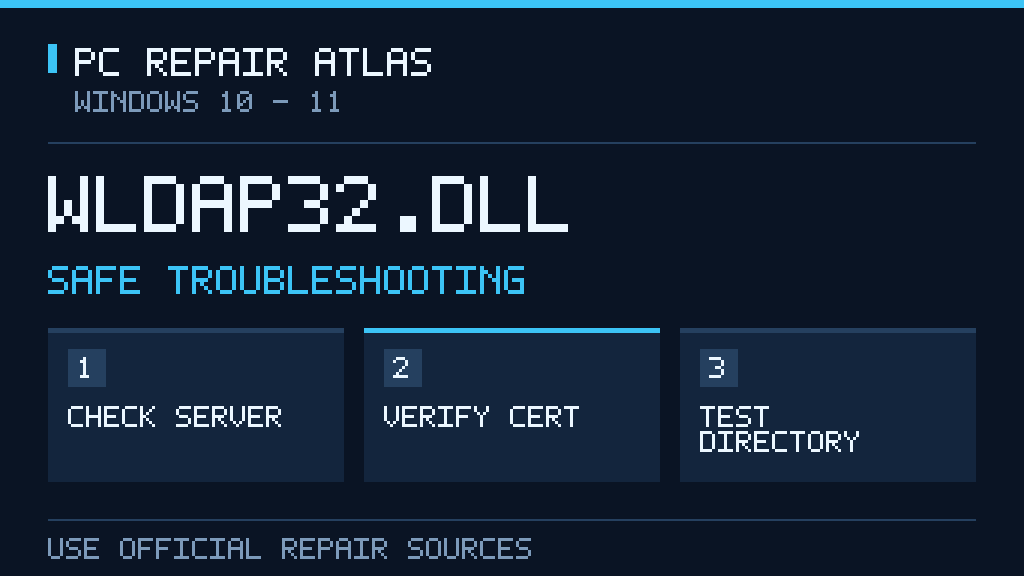
A directory-enabled application cannot connect or crashes during sign-in. When Windows 10 or 11 explicitly names wldap32.dll, preserve the full message before attempting a repair. A library load failure, an error returned by a functioning API and a crash that happens inside a module require different investigations.
What is wldap32.dll?
wldap32.dll is associated with Windows LDAP client API. In a crash report, its presence identifies a component involved in the failure, not necessarily the defective part. If the file is a Windows component, manually substituting an older copy can create a version mismatch with the rest of the operating system.
1. Gather component-specific evidence
Check the directory server name, connection status and certificate validity for encrypted LDAP. A rejected login is distinct from a load failure.
If the application actually closes unexpectedly, use Windows + R, enter perfmon /rel and open the failure at the matching time. Record the application version, faulting module path and exception code. If the failure is a dialog instead, copy its complete text. Check whether a recent application, Windows or driver update preceded the issue. Do not include credentials or personal data when sending logs to support.
2. Repair the affected feature
Use the application’s supported LDAP configuration and check the organization’s certificate and directory requirements. Do not disable LDAP signing or certificate validation.
Save open work and back up application settings before repairing software. Make only one change, then repeat the operation that failed. For managed computers, obtain approval from IT before modifying drivers, services or shared resources. Do not uninstall unrelated packages or perform a broad registry cleanup in response to a single file name.
3. If Windows reports Bad Image or a missing file
Use the affected application's repair or reinstall option from its official source. Check whether the file named by the message is under the Windows directory or an application folder. The folder alone does not establish authenticity. If you suspect an unexpected file, use Windows Security to scan it instead of executing it. See the Bad Image troubleshooting guide for a separate error path.
4. Repair Windows only when the evidence supports it
If protected system files are missing, or multiple unrelated Windows features are failing, follow Microsoft's system file repair instructions. Open Terminal or Command Prompt as administrator, run DISM, allow it to finish, and then run SFC.
DISM.exe /Online /Cleanup-image /Restorehealth
sfc /scannow
Restart after repairs if requested and record the final messages. A successful SFC scan does not prove a driver, third-party application or network configuration is working. If it reports no integrity violations, return to the component-specific checks above.
Verify the repair
Test an authorized directory lookup or login and confirm the expected result. Repeat the test after a restart if the symptom previously returned on reboot. If the same error persists, contact the software vendor or administrator with the exact message, Windows build (winver) and the steps already tried.
Frequently asked questions
Can I download wldap32.dll separately? Avoid standalone DLL sites. Restore the matching component through Windows servicing or its original supported installer.
Will a registry cleaner fix the problem? A DLL name does not establish registry damage. First determine whether the failure is in the application, its configuration, a device, or Windows itself.
Official documentation and related reading
Microsoft Windows API documentation · Related DLL repair guide · PC Repair Atlas
Directory sign-in failures can involve LDAP, name resolution or the Windows authentication layer. Related guides: NETAPI32.dll troubleshooting; DNSAPI.dll troubleshooting; DLL Library. Official reference: Microsoft networking API overview.