CPU and Motherboard Compatibility: How to Check Before You Buy
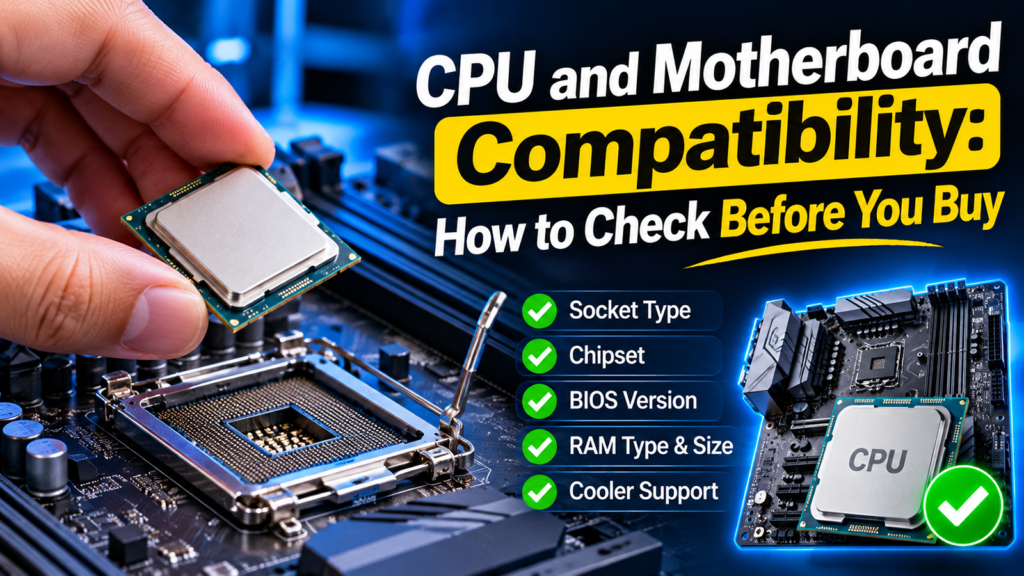
Buying a CPU that does not work with your motherboard is an expensive mistake. Compatibility depends on more than the shape of the socket: the chipset, the BIOS version, the RAM type and even the cooler matter. This guide gives you a checklist to run before you buy, and shows how to read the details from your current PC.
Step-by-step compatibility check
Step 1: Match the CPU socket
The CPU and motherboard must use the same socket. Examples are AM4 and AM5 on AMD, and LGA 1700 and LGA 1851 on Intel. Always read the socket from the maker's specification page, because one brand uses several sockets over the years.
To see what you have now, press Windows + R, type msinfo32 and press Enter. Note Processor, BaseBoard Manufacturer, BaseBoard Product and BIOS Version/Date. Search the board's product name on the maker's website to find its page.
Step 2: Check the motherboard's CPU support list
The same socket does not guarantee support. Open the motherboard's product page and look for CPU Support or CPU Compatibility. It lists the supported processors and the minimum BIOS version each needs.
You should see: your exact CPU model in the list with a BIOS version next to it. If the CPU is not listed, do not assume it works. Ask the board maker or choose a different CPU.
Step 3: Check the BIOS version
Compare your BIOS Version from msinfo32 with the minimum version in the support list. If yours is older, the board may need a BIOS update before it recognises the new CPU. Some boards have a BIOS Flashback or similar feature that can update the BIOS without a CPU. Warning: a failed BIOS update can leave a board unusable, so follow the maker's steps and update your BIOS safely. Do not update the BIOS unless you need it.
Step 4: Match the RAM type
A motherboard supports either DDR4 or DDR5, not both, and the slots are shaped differently. Check the memory type, the maximum speed and the memory support list on the product page. If a new board uses a different type from your old RAM, you must buy new RAM.
Step 5: Check the chipset features you need
The chipset decides features such as overclocking, the number of USB ports and M.2 slots, and PCIe speeds. A lower-end chipset can run the CPU but may limit overclocking or expansion. Make sure the board has what you need. Note that the CPU itself can also be locked, so check whether overclocking is possible with that model.
Step 6: Check the motherboard size against the case
The main sizes are ATX, micro-ATX and mini-ITX. The case must support the motherboard's size. Also check the number of drive bays and the graphics card length the case can hold.
Step 7: Check the cooler
Make sure the cooler supports your CPU socket (some older mounting kits do not fit a newer socket) and fits the case. Check the cooler's height against the case width, and check that tall RAM does not touch a large air cooler. The cooler maker's compatibility page lists supported sockets.
Step 8: Check the power connectors and wattage
The power supply needs the right connectors: the 24-pin main cable, the CPU power cable (4+4 or 8 pin, and sometimes two) and the PCIe power cables for the graphics card. See how many watts your power supply needs.
Step 9: Use a compatibility checker, then confirm
A tool such as PCPartPicker flags many compatibility problems when you build a parts list. Still confirm the CPU support list and BIOS version on the motherboard maker's website, because the checker may not know every detail.
If you already bought mismatched parts
If the PC does not start after installing a new CPU, check the BIOS version first. Do not force a CPU into a socket, since bent pins or contacts can void the warranty. See PC won't boot after a hardware upgrade, motherboard beep codes and upgrading your motherboard.
More help
See the PC repair guides home page for related build and repair guides, and how to build your first PC for the assembly steps.
FAQ
Can I use a new CPU on an old motherboard with the same socket? Sometimes, but only if the board's support list includes it and the BIOS is updated.
Do I need a new RAM kit with a new motherboard? If the new board uses a different type (DDR4 vs DDR5), yes.
Do I need to reinstall Windows after changing the motherboard? Often a repair or a fresh install is needed, because the storage drivers differ. Your Windows licence may also need reactivating (see Windows not activated).