What Do Motherboard Beep Codes Mean? How to Diagnose Startup Beeps
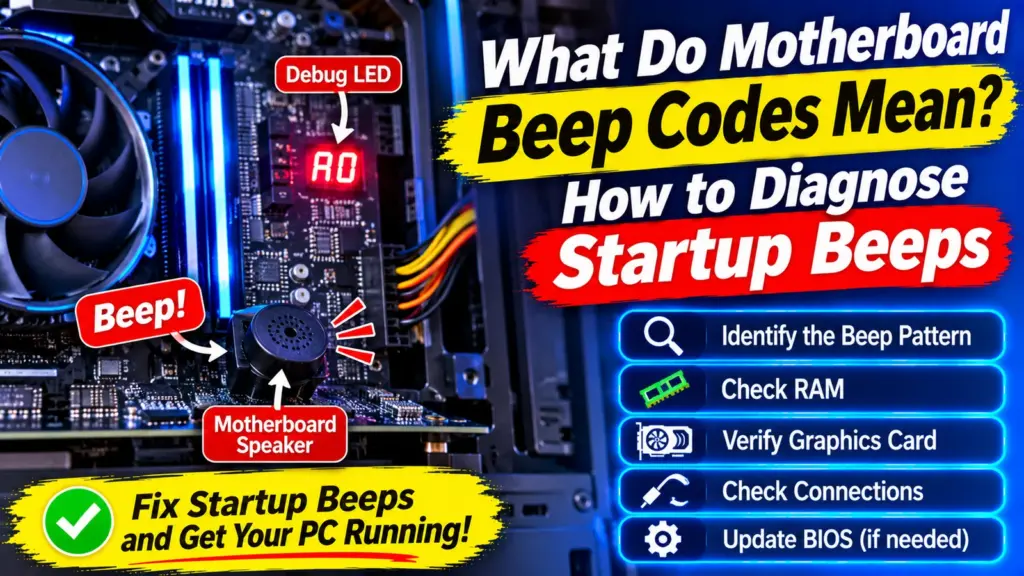
Startup beeps come from the power-on self-test, called POST. The firmware runs it before Windows loads, and it can report a fault even when the monitor stays black. There is no universal beep list: the meaning of a pattern depends on the computer or motherboard maker, the model and the BIOS version. The same pattern can mean different things on two machines, so a pattern is a clue to check first, not a verdict on which part is dead.
If your PC has no case speaker or onboard buzzer, it cannot beep at all, so silence tells you nothing. Many newer boards use small diagnostic LEDs (labelled CPU, DRAM, VGA and BOOT) or a two-digit Q-Code display instead. Those are explained in the motherboard manual and are often more precise than beeps. The manual or the maker’s support page for your exact model always wins over any chart on a third-party site, including this one.
Before you start
Shut the PC down, switch off the power supply switch at the back, unplug the cable, then press the power button for about 10 seconds to drain leftover charge. Touch bare metal on the case before handling parts. Never open the power-supply unit itself. On a laptop, do not open the case unless the warranty and the maker’s service manual allow it.
Step-by-step: diagnose startup beeps
Step 1: Check that the beep comes from the PC
Monitors, UPS units, USB hubs and some printers also beep. Unplug every USB device except the keyboard, then restart and listen again. Next, rule out a stuck key: unplug the keyboard and start the PC with no keyboard attached. A key held down (or something resting on the keyboard) can trigger a keyboard error beep.
You should see: the beeps stop or change. If they stop, plug devices back in one at a time to find the culprit. If nothing changes, carry on.
Step 2: Write down the exact pattern
Count the beeps and note which are long and which are short, for example “1 long, 3 short”. Also note whether the fans spin, whether the keyboard Caps Lock light responds and whether the monitor shows anything at all. Any diagnostic LED that stays lit is part of the pattern. Record it before you touch anything.
Step 3: Look the pattern up in your maker’s own documentation
Find your exact model name (see how to check your PC specs), then open its manual or support page and search for “beep codes”, “POST codes” or “debug LED”. These official pages are a good start:
- Dell laptop beep codes and LED diagnostic codes and Dell desktop beep codes
- ASUS: how to use the buzzer to troubleshoot display issues and ASUS motherboard troubleshooting with Q-LED indicators (for ASUS motherboards)
- Lenovo: beep symptoms during startup on ThinkCentre
For HP, MSI, Gigabyte, Acer, ASRock or any other maker, search that maker’s support site for your model plus “beep codes”, or open the motherboard manual PDF. Some makers publish no beep list for a model and use LEDs or an error screen instead. Dell, for example, says a PC that passes POST may give a single beep, some PCs give none or two, some need a speaker connected to be heard, and PCs without a beep pattern use LEDs.
You should see: your pattern named in the maker’s page, usually with a part to check (memory, graphics, processor or board). If you find no listing for your model, treat the beeps only as a sign that POST did not finish and follow Steps 4 to 8, changing one thing at a time. Do not rely on a code chart copied from a general website, because it may belong to a different BIOS.
Step 4: Reseat the RAM
RAM is the most common cause of POST failure, and it is a safe place to start whatever the pattern. With the PC unplugged, press the clips on each memory slot to release the stick, pull it straight out, then push it back in firmly until both clips click. Then:
- Start with one stick in the slot your manual recommends (usually the second slot from the CPU).
- If it still fails, swap in the other stick, then try each stick in a different slot.
You should see: the beeps stop and the PC reaches the BIOS or Windows. If one stick works and another does not, that stick or its slot is the fault. Test it with how to check if RAM is failing once the PC starts.
Step 5: Check the graphics path
Power down and reseat the graphics card until it clicks in. Make sure every PCIe power plug is fully inserted. If your processor has integrated graphics, remove the card, plug the monitor into the motherboard’s video port and try again. For a PC that powers on but shows no picture, see PC turns on but shows no display.
You should see: a picture on the motherboard output. If that works, the card, its power cable or its slot is the suspect. For a card-related black screen, see 10 fixes for a black screen. If it still beeps with no card, go back to the RAM.
Step 6: Undo the most recent change
If the beeping began after you added or moved a part, put the old parts back and check each connector, including the 24-pin and the CPU power cables. The guide for a PC that will not boot after a hardware upgrade walks through this in order.
Step 7: Clear the CMOS only by the manual’s method
Warning: do this only with the PC unplugged and only the way your manual describes. Never short jumpers or pins by guesswork. A bad memory overclock or an incorrect BIOS setting can stop POST. Most boards have a Clear CMOS button or jumper, or you can remove the coin cell for several minutes with the power cable unplugged. If the coin cell is worn out, see how to replace a CMOS battery. Resetting also removes your custom settings (boot order, XMP or EXPO), so note them if you can.
You should see: the board boot to a “settings have been reset” message or the BIOS screen. If it still fails, note which diagnostic LED stays on and contact the maker.
Step 8: Update the BIOS only when the PC is stable
Warning: a failed BIOS flash can leave a board unusable. Before any BIOS update, back up your important files and write down your current BIOS version and settings. Do not update the BIOS to chase a beep code on an unstable PC. If you need it, follow how to update a BIOS safely.
When the code is not enough
A pattern points to an area, not proof that one part is dead. A memory code can come from a bad slot or poor CPU socket contact. A graphics code can come from a loose power plug or a bad monitor cable. Change one thing at a time and write down each result. If the PC still beeps with the minimum parts fitted (CPU, one RAM stick, motherboard, power supply, and a graphics card only if the CPU has no integrated graphics), the motherboard, CPU or power supply is the likely fault. Use how to test a power supply safely and how to tell if a motherboard is failing before you buy anything.
More help
Start with the main page for PC repair guides if the symptom you see does not match the beeps. If the PC will not power on at all, use PC won’t turn on or show anything on screen.
FAQ
Is one short beep bad? Not necessarily. On many PCs it means POST passed, and Dell says so for its own PCs. Check your maker’s page.
Are beep codes the same on every PC? No. They depend on the maker, the model and the BIOS, and some PCs use LEDs or on-screen messages instead.
Why does my PC beep but still start Windows? It may be a non-critical warning such as a keyboard, fan or temperature alert. Check the BIOS hardware monitor page and your maker’s documentation.
Can I ignore repeated beeps? No. Repeated beeps during a failed start usually mean POST cannot finish.
Can a keyboard cause startup beeps? Yes. A stuck key or a faulty keyboard can cause a keyboard error. Unplug it and try again.
My PC never beeps. Is that a problem? Not by itself. Many boards have no speaker or buzzer fitted.