How to Tell if a Motherboard Is Failing
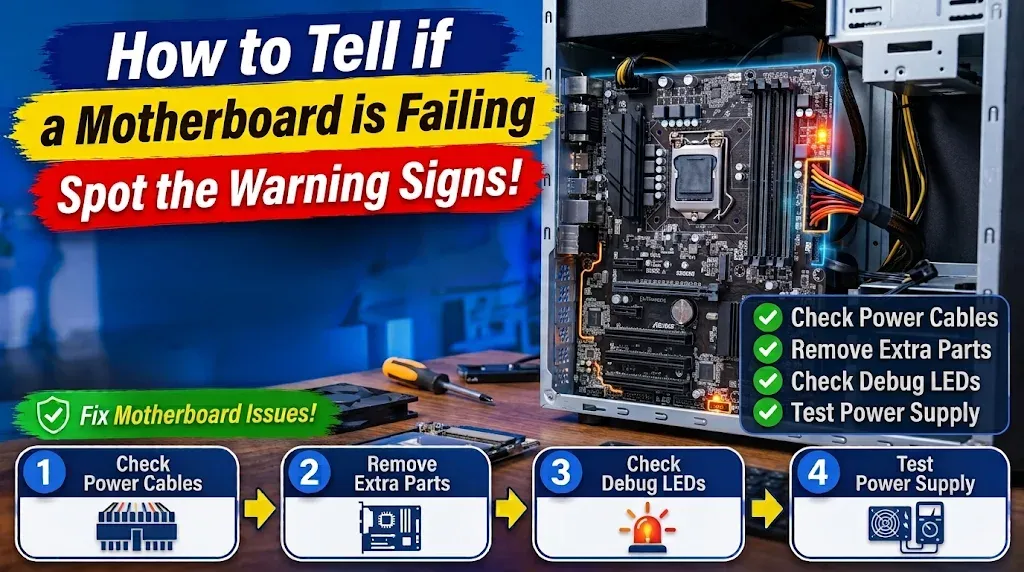
A motherboard is rarely the first part to blame. A dead PC, a black screen or repeated restarts can also come from a loose power cable, faulty RAM, the graphics card, the processor, a drive or the power supply. The reliable way to tell is to remove variables and test only the essentials, one change at a time.
Safety: never open the power supply. Stop and do not keep starting a PC that smells burnt, makes smoke or has visibly damaged parts.
Step-by-step: check for a motherboard fault
Step 1: Look for obvious physical damage
With the PC off, the power supply switched off and the cable unplugged, look over the board in good light. Look for scorch marks, corrosion, cracked connectors, leaking or bulging capacitors (tops domed or leaking brown fluid) and bent pins in the CPU socket if the CPU is out.
- You should see: clean, flat parts with no marks.
- If you find damage: stop here. A burnt or bulging board is not worth more testing. Ask a repair shop or the maker, or replace it (see upgrading your motherboard).
Step 2: Check the main power connections
Reseat the 24-pin motherboard cable and the CPU power cable (4+4 or 8 pin) near the processor, pressing until the latch clicks. Check that the front-panel power-switch lead is on the right two pins of the front-panel header. A weak or failing power supply can imitate a motherboard fault, so see how to test a power supply safely before you replace a board.
- You should see: fans spin and a power light on the board or case when you press the button.
- If nothing happens at all: try another wall socket and power cable, then the power supply test. A faulty power supply is a common cause of these symptoms, so test it before suspecting the board.
Step 3: Start with minimum hardware
Unplug extra USB devices, drives and expansion cards. Leave only the motherboard, the CPU with its cooler, one RAM stick, the power supply and a monitor. Use the motherboard video port if the CPU has built-in graphics. Otherwise keep the graphics card in.
- You should see: the board reach the BIOS screen (a logo, or a message about no boot device). That is a pass: the board, CPU and one RAM stick work.
- If it does not: go to Steps 4 and 5. Then add parts back one at a time until the fault returns. The last part you added is the suspect, not the board.
Step 4: Read the board’s clues
Many boards have small debug lights marked CPU, DRAM, VGA and BOOT, or a two-digit code display. Note which light stays on or which code stays on screen when the start stops. The manual explains each one. For beeps, compare the pattern with the manual and with the startup-beep guide.
- DRAM light: the fault is the RAM or its slot. Go to Step 5.
- CPU light: reseat the CPU power cable and check the CPU is supported by the BIOS version. Do not take the CPU out unless you know how to refit it, because bent pins end the repair.
- VGA light: reseat the graphics card and its power cables, or try the motherboard video port.
- BOOT light: the board found a problem with the drive or the boot order. This often means the board is fine.
Step 5: Reseat and test RAM
Test one RAM stick at a time, in the slot the manual names for a single stick. Then repeat with each other stick and each slot. If Windows starts, a software memory check is covered in how to test RAM with Windows Memory Diagnostic.
- One stick starts and another does not: that stick is faulty.
- Every stick fails in one slot but works in another: the slot is the fault, and you can run without it.
- No stick works in any slot: the fault is the board or the CPU. Go to Step 6.
If the PC powers on but never shows a picture, also work through the no-display checklist.
Step 6: Consider the board only after the other tests
A motherboard becomes the likely cause when a known-good power supply and RAM have been tested, the board still cannot reach the BIOS, a CMOS reset did not help (see PC won’t boot after a hardware upgrade for how), and its lights point to the board or the CPU. If you can, test the same parts in another working board, or a known-good CPU and RAM in yours.
Before you buy a replacement, confirm the CPU socket, the RAM type (DDR4 or DDR5), the case size and what the change means for your Windows licence.
If the board is fine
If the PC reaches the BIOS but Windows will not start, the fault is the drive or Windows, not the board. See Fix No Bootable Device.
More help
For other hardware faults, search by symptom in the PC repair guides on PC Repair Atlas.
FAQ
Can a bad motherboard turn on fans but show no picture? Yes, but so can faulty RAM, a graphics problem or missing CPU power. Fans spinning do not prove the board is healthy.
Can a motherboard be repaired? Sometimes, but board-level repair needs specialist tools and is often less practical than replacement for a home PC.
Should I update the BIOS to fix a suspected dead board? Only if the board can start reliably and the maker’s instructions apply to your case. Do not interrupt a BIOS update on an unstable PC.