How to Test RAM With Windows Memory Diagnostic
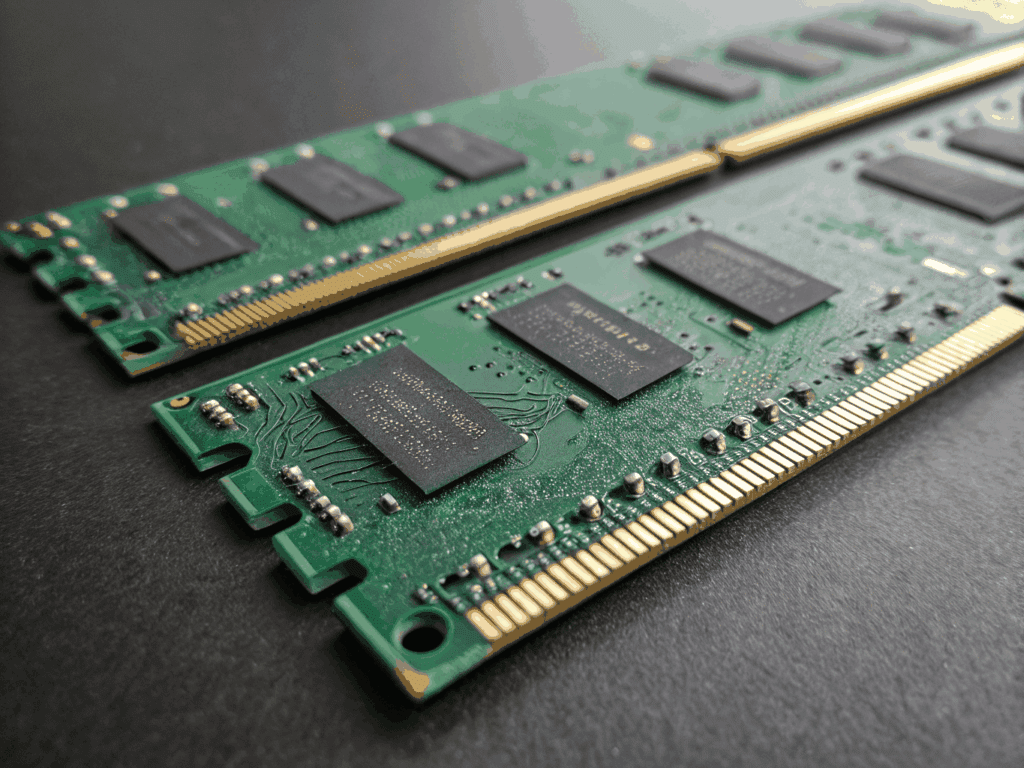
Faulty or unstable RAM can cause blue screens, program crashes, random restarts and corrupted files. Windows Memory Diagnostic is a built-in first check. It restarts the computer and tests the installed memory before Windows loads, so save your work before you begin.
The tool can find some memory problems, but a clean result does not prove the RAM is perfect. Intermittent faults and unstable memory profiles can need a longer test. This guide covers both the quick test and the longer one, and what to do with each result.
Signs that RAM may be the cause
- Blue screens with different stop codes each time, or codes such as MEMORY_MANAGEMENT. Microsoft's page on unexpected restarts and stop code errors lists MEMORY_MANAGEMENT as an example stop code.
- Random restarts, freezes or crashes that happen in different programs.
- Files that become corrupt, or Windows Update and installs that fail for no clear reason.
- The PC will not start after you added or moved memory sticks.
These signs also come from drivers, drives and overheating, so a memory test is one step of the search, not the whole answer. If you are unsure, start with the blue-screen guide. If your blue screens show IRQL_NOT_LESS_OR_EQUAL, our IRQL_NOT_LESS_OR_EQUAL fix guide covers the other checks in a safe order.
Step-by-step: run the Windows memory test
Step 1: Save open work
The test restarts the PC. Save documents, close games and make sure no update or file transfer is running. On a laptop, plug in the charger, because the longer test can take a long time.
Step 2: Start Windows Memory Diagnostic
Press Windows + R, type mdsched.exe and press Enter (or search Start for Windows Memory Diagnostic). Choose Restart now and check for problems. If you cannot restart yet, choose Check for problems the next time I start my computer.
Step 3: Choose the test type and let it finish
The PC restarts to a blue screen titled Windows Memory Diagnostic. It runs the Standard test by default. Press F1 to see the options. Microsoft documents this sequence: press F1, use the arrow keys to change Test mix from Standard to Extended, then press F10 to apply the settings and continue the memory test. Use the Tab key to move between the other options. Microsoft describes Standard as the default and Extended as more thorough but slower.
| Option | Choices | What it does |
|---|---|---|
| Test mix | Basic, Standard, Extended | How many different test patterns run. Extended runs the most. |
| Cache | Default, On, Off | Whether the processor cache is used during the test. Leave it on Default unless you have a reason to change it. |
| Pass count | 0 to 15 (default 2) | How many times the whole test repeats. More passes find faults that appear only now and then. |
Basic, Cache and Pass count appear on the same F1 screen, but Microsoft's page names only Standard and Extended.
- Basic: the shortest test, which finds only obvious faults.
- Standard: the default. Microsoft gives no run time. How long it takes varies with the amount of RAM, the memory speed and the PC, so more memory means a longer wait.
- Extended: takes much longer than Standard. Use it if the Standard test passes and the PC still crashes, and plan to leave the PC alone until it is done. The percentage can sit still for a long time during this test, so do not switch the PC off unless it stays at the same number for a very long time.
You should see: a progress bar for the test, a Pass counter and a line Status that says Testing in progress or No problems have been detected yet. If it finds an error during the test, the status line changes to say that problems were detected, and the test keeps running. Do not switch the PC off while the progress bar is moving. The PC restarts into Windows when the test finishes.
Step 4: Find the result
Windows may show a notification after sign-in. It often appears briefly, or not at all. To read it later, right-click Start and open Event Viewer. Then choose Windows Logs > System, select Find on the right and search for MemoryDiagnostics-Results. Open the newest entry.
- “The Windows Memory Diagnostics Tool … completed successfully … no memory errors”: the test found no fault. Go to Step 6.
- A message that memory errors were detected: go to Step 5.
- No entry at all: the test may have been interrupted, or the entry was not written. Run it again and let it finish.
- Event ID 2001: Microsoft's page says Event ID 2001 means no memory errors were detected. Read the full message text of the newest MemoryDiagnostics-Results entry: a message saying hardware errors were detected means a problem was reported. Do not depend on other event ID numbers.
To open the same result in Terminal, run Get-WinEvent -FilterHashtable @{LogName='System'; ProviderName='Microsoft-Windows-MemoryDiagnostics-Results'} | Select-Object -First 1 | Format-List Message.
If the blue screen you saw showed the MEMORY_MANAGEMENT stop code, read our guide to fixing the MEMORY_MANAGEMENT blue screen as well, because a clean memory result does not rule out drivers or system files.
Step 5: Act on an error result
Do not trust the PC for anything important until this is solved. Back up your files first. Then shut it down, unplug it, press the power button once to drain any remaining power and touch bare metal on the case to discharge static before you handle the sticks. Reseat the RAM, and test one module at a time in the slot the manual names for a single stick, then each other module and each slot. Laptops with soldered memory cannot be tested this way: use the maker’s support.
- Errors follow one stick wherever it sits: that stick is faulty. Replace it.
- Errors occur only in one slot with any stick: the slot, or a bent pin in the CPU socket, is the cause. Run without that slot.
- Errors occur only when two sticks are in: they may not work together at the set speed. Turn off XMP or EXPO, or use a matched kit.
- Errors with every stick in every slot: a power, CPU or board fault is possible. See how to tell if a motherboard is failing.
Use the failing-RAM guide for a second tool (MemTest86 from a USB drive), which is more thorough, before you buy replacements.
Step 6: If there are no errors but the PC still crashes
- Run the Extended test (Step 3), with a higher pass count if you can leave the PC overnight. Faults that appear only after minutes of heavy work need it.
- Turn off XMP or EXPO in the BIOS, if you recently turned it on, and test again. An unstable memory profile can pass a short test and still crash during gaming. See how to enable XMP or EXPO safely.
- Blue screens also come from drivers, storage and Windows files. Read the stop code and follow the blue-screen repair guide. Run SFC and DISM and check drive health.
- Look at the crash history on the days the problem happened. See how to use Reliability Monitor.
More help
For other crashes and errors, search by symptom in the PC repair guides on PC Repair Atlas.
FAQ
How long does Windows Memory Diagnostic take? It varies. Microsoft gives no figure, and the time depends on the amount of RAM, the memory speed, the PC and the test type. The Extended test takes much longer than Standard.
Does a clean result mean the RAM is definitely good? No. It is a useful first test, but intermittent or setting-related faults can still need more testing.
Can bad RAM cause freezing without a blue screen? Yes. Random freezes are a common symptom, although they have other possible causes too.
Can I run Windows Memory Diagnostic from inside Windows without restarting? No. The test needs exclusive use of the memory, so it runs before Windows loads.
Is it safe to run? Yes. It only reads and writes test patterns to memory that is free and does not change your files.
Sources
- Troubleshooting Windows unexpected restarts and stop code errors (Microsoft Support): stop codes such as MEMORY_MANAGEMENT and the general steps around them.
- How to fix Error 0xA: IRQL_not_less_or_equal (Microsoft Support): the Windows Memory Diagnostic steps (F1, Extended, F10) and Event ID 2001.
Microsoft's page (linked in Sources) documents the F1, Standard, Extended and F10 steps and the Event ID 2001 message. It gives no run time, and it does not name the Basic, Cache or Pass count options. These steps have not been run on every PC.