How to Enable XMP or EXPO for Your RAM Safely
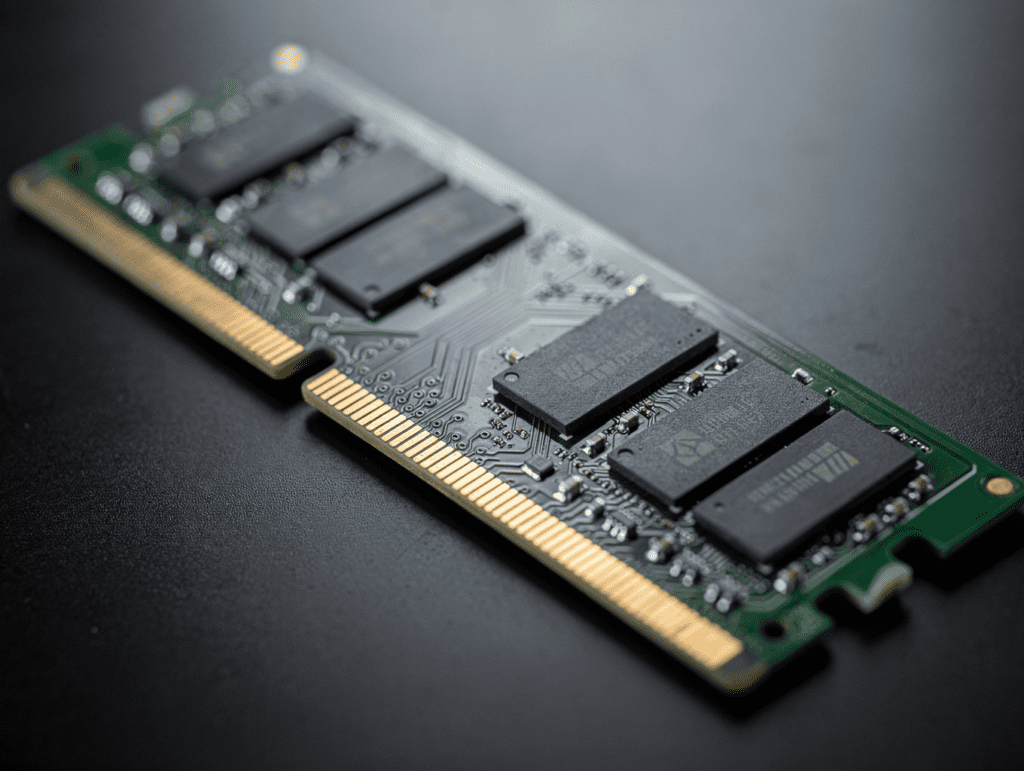
Many RAM kits are sold at a speed higher than the basic default speed a motherboard picks on first start. XMP and EXPO are memory profiles stored on the RAM that set its rated speed, timings and voltage. XMP is common on kits aimed at Intel PCs and EXPO on kits aimed at AMD PCs. Many boards also accept the other type (AMD boards call XMP support DOCP or A-XMP), but not every combination is guaranteed.
Switching a profile on is easy, but it is still an overclock of the memory. Both CPU makers state a maximum memory speed they support, and a profile above that is technically outside the spec. How that affects your warranty varies by maker, so check yours. Make one change at a time and test stability after each.
Step-by-step: enable the profile
Step 1: Check the RAM is seated, matched and in the right slots
Use modules from the same kit where possible. With two sticks, use the slots your motherboard manual recommends (usually the second and fourth slots from the CPU) so they run in dual channel. Four sticks, or mixed kits, often cannot reach the rated speed. The RAM upgrade guide explains the layout. Check the current speed first: open Task Manager > Performance > Memory and note Speed, so you can tell whether the change worked.
Step 2: Enter the BIOS or UEFI setup
Warning: before you change any BIOS setting, back up your important files and write down or photograph the current settings (including the speed you noted in Step 1), so you can restore them if the PC will not start.
Restart and press the setup key (commonly Delete or F2) repeatedly while the logo shows. Alternatively, in Windows 11 go to Settings > System > Recovery > Advanced startup > Restart now, then Troubleshoot > Advanced options > UEFI Firmware Settings. Warning: do not turn the PC off while a BIOS or update screen is working, and save your settings with the key shown at the bottom of the screen.
Step 3: Find the memory profile setting
Look for XMP, EXPO, DOCP, A-XMP or AI Overclock Tuner. It is usually on the first (Easy Mode) screen or under an Overclocking, Tweaker or Memory page. Choose Profile 1 (the kit's first rated profile) rather than typing in timings or voltage by hand.
You should see: the displayed memory speed and timings change to the rated values, for example 6000 for DDR5-6000. If there is no such setting, your board may not support profiles. Check the manual.
Step 4: Save and restart
Save and exit. The first start can take a minute or more with a blank screen while the board trains the memory, and it may restart once. Wait at least a few minutes before deciding it is stuck.
Step 5: Confirm the speed in Windows
Open Task Manager > Performance > Memory and read Speed. It should match the profile, allowing for the way some tools show DDR memory (a tool like CPU-Z may show half the figure, such as 3000 MHz for DDR5-6000, because of double data rate). If the speed did not change, go back to the BIOS and check the profile was saved, and make sure the sticks are in the recommended slots.
Step 6: Test for stability
Use the PC normally, play a game, or run a memory test (see how to test RAM with Windows Memory Diagnostic, and how to check if RAM is failing for a longer test). Blue screens, game crashes, apps closing for no reason, file errors or a failed start after switching it on can mean the profile is not stable on your PC. If so, try a lower memory speed or disable the profile. Do not raise voltage manually. Blue screens with a MEMORY_MANAGEMENT stop code are covered in the MEMORY_MANAGEMENT blue screen guide.
If the PC will not start after enabling XMP or EXPO
Wait through the first training, which can take several minutes on some boards. Many boards fall back to safe settings after a few failed starts. If it repeatedly fails, power off, unplug and use the board’s documented Clear CMOS method (a button, jumper or removing the coin cell for several minutes, as the manual describes). Then boot with defaults, and try again with fewer sticks or with the profile off. Updating the BIOS can improve memory support, but it carries risk. Do it only when the memory maker or board maker lists the fix, and follow the safe BIOS-update guide.
If your BIOS settings, including the memory profile, keep resetting after every shutdown, the motherboard battery may be flat. See how to replace a CMOS battery and fix a clock that keeps resetting.
More help
For other upgrade and repair problems, see the PC repair guides. To decide how much memory you need at all, read how much RAM you need.
FAQ
Does XMP or EXPO make a PC faster? It can improve memory performance, especially with integrated graphics and some CPU-limited tasks. The effect varies by application.
Is XMP or EXPO safe? A supported profile is usually a sensible starting point, but no memory overclock is guaranteed to work on every system.
Should I enable a profile on mixed RAM sticks? It is less reliable. A matched kit gives the best chance of stable rated speeds.
Why is my RAM still slow after enabling XMP? Check dual channel, the slots used and the memory speed your CPU supports. Some boards limit speed when all four slots are filled.