How to Check If Your RAM Is Failing (and Test It)
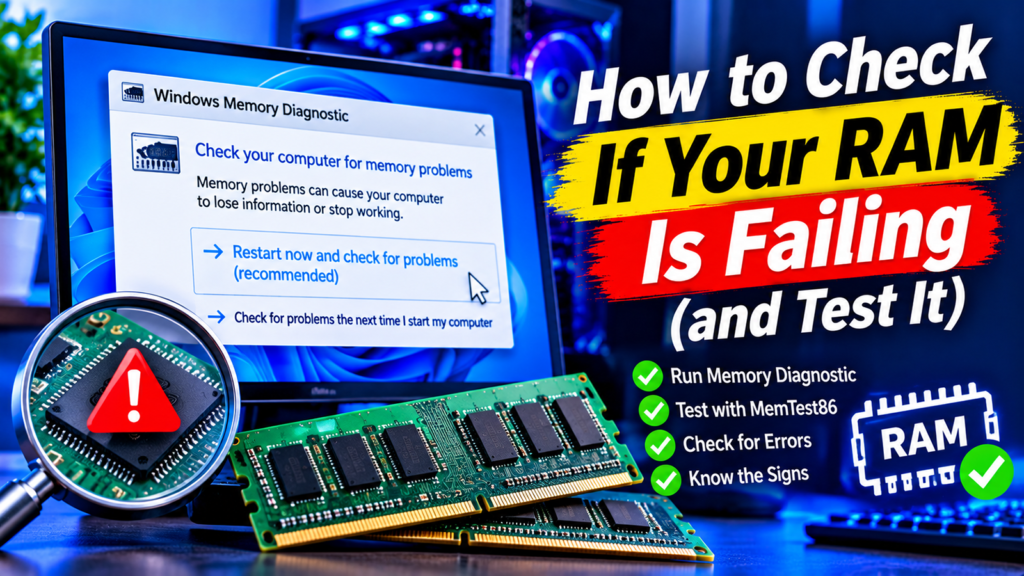
Failing RAM can cause crashes that seem random: blue screens, programs closing, corrupted files or a PC that will not start. Because the symptoms look like many other problems, testing is the only way to be sure. This guide shows how to check if your RAM is failing, with two reliable tests, how to find the bad stick or slot, and what to do if the tests pass but the crashes continue.
Symptoms of bad RAM
- Random blue screens, often with messages such as MEMORY_MANAGEMENT or PAGE_FAULT_IN_NONPAGED_AREA (see the MEMORY_MANAGEMENT blue screen guide, and the IRQL_NOT_LESS_OR_EQUAL guide for another common stop code)
- Random restarts or freezes, especially under load
- Programs crashing for no clear reason
- Corrupted files or failed installations
- The PC does not start, or beeps and shows no picture
These signs can also come from drivers, a failing drive or overheating, so test before you buy new RAM. See blue screen errors.
Before you start
- Back up important files, since unstable memory can corrupt data.
- If you changed or overclocked the RAM recently, turn off XMP or EXPO in the BIOS first. An unstable memory profile looks exactly like bad RAM (see how to enable XMP or EXPO safely).
Step-by-step: test your RAM
Step 1: Run Windows Memory Diagnostic
Press Windows + R, type mdsched.exe, press Enter and choose Restart now and check for problems. The PC restarts, tests the memory and boots into Windows. The full walk-through, including how to read the result in Event Viewer, is in how to test RAM with Windows Memory Diagnostic.
A pass here is not proof that the RAM is good, because this quick test can miss faults. Any error means the memory or its settings are faulty. If the test passes and the problems continue, go to Step 2.
Step 2: Run MemTest86
MemTest86 runs from a USB drive, outside Windows, and is a more thorough test. It erases the USB drive, so use an empty one.
- On another PC, or on this one, download the free MemTest86 USB image from the MemTest86 website (memtest86.com) and unzip it.
- Plug in an empty USB drive. Run the included imageUSB tool as administrator, select the USB drive, and write the image.
- Restart the PC with the USB drive plugged in and open the one-time boot menu (usually F12, F11 or Esc at the logo). Choose the USB drive. MemTest86 starts by itself.
- Let it run until it finishes its passes and shows a result. Do not stop it early. A full run can take from one hour to many hours, so overnight is fine.
- The end screen says PASS or shows an error count. Any reported error means the memory or its settings are faulty.
If the PC will not boot the USB drive, check the BIOS boot order and that the USB drive is listed. MemTest86’s website explains Secure Boot and legacy-mode settings if it still does not start.
Step 3: Find which stick or slot is bad
- Shut down, switch off the PSU, unplug the PC and remove all RAM sticks.
- Test with one stick in the slot recommended in your motherboard manual, using MemTest86.
- Repeat for each stick, then try the same stick in another slot.
If one stick fails in every slot, the stick is bad. If every stick fails in one slot only, the slot may be damaged: leave it empty. If every stick fails in every slot, the fault may be the motherboard or the CPU’s memory controller, which needs a technician.
Step 4: Reseat the RAM and try default settings
Press each stick in until both clips click. Run the test again with XMP or EXPO off. If errors only appear at the profile speed, the memory is not stable at that speed with your CPU and board. Leave the profile off, or lower the memory speed one step in the BIOS. Do not raise memory voltage to force it.
Step 5: Replace faulty RAM
Buy a replacement with the same type (DDR4 or DDR5) and a speed your CPU and motherboard support. Check the motherboard’s memory support list. Many RAM kits have a long warranty, so check whether you can get a replacement from the seller or maker. If you replace one stick of a pair, a matched new kit is safer than mixing.
Step 6: Repair the damage
After replacing bad RAM, run sfc /scannow in an administrator Command Prompt to repair damaged Windows files, and check important documents. See how to repair Windows system files with SFC and DISM.
If the RAM tests pass but the crashes continue
A pass lowers the chance that RAM is the cause, but a short test can miss rare faults. Next:
- Run MemTest86 for more passes (overnight), or test one stick at a time over several days of normal use.
- Check the drive: how to check hard drive or SSD health.
- Check heat: how to fix a PC that keeps overheating.
- Check the power supply: how to test the power supply safely.
- Read the blue screen code with the blue screen guide.
More help
For other hardware problems, search by symptom in the PC repair guides on PC Repair Atlas.
FAQ
Can I mix different RAM sticks? It can work, but sticks with different speeds or timings run at the slowest settings, and mixing may cause instability. A matched kit is safer.
Does Windows Memory Diagnostic catch everything? No. MemTest86 is more thorough.
Is it safe to keep using a PC with failing RAM? Failing RAM can corrupt files and tends to get worse. Back up your files and replace it soon after it fails a test.