How to Fix a PC That Keeps Overheating
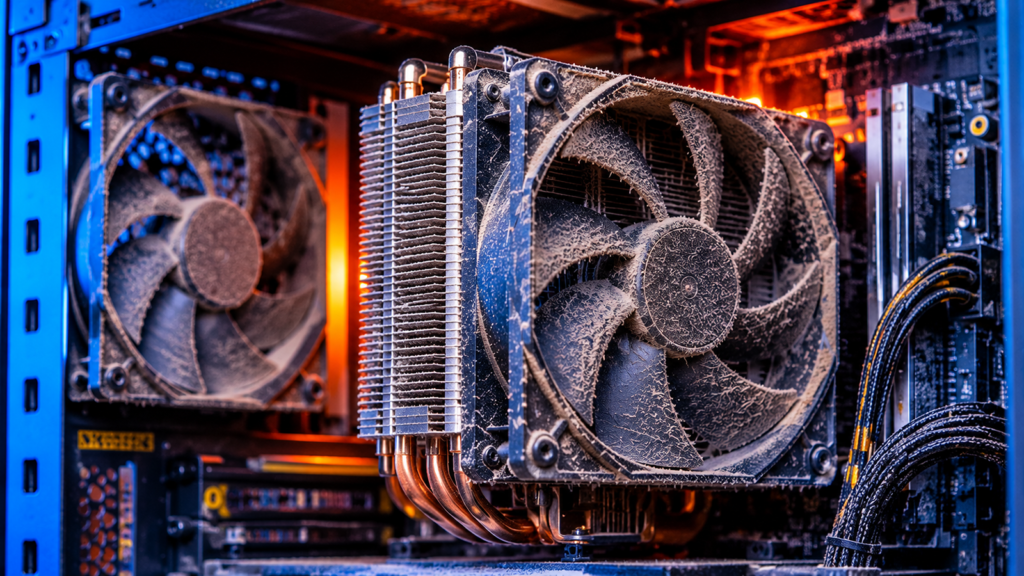
If your PC keeps overheating, it slows itself down to protect its parts (this is called thermal throttling) and may shut off suddenly. You may notice loud fans, a hot case or laptop base, games that stutter after a smooth start, or random restarts under load. The good news is that overheating often comes from dust, poor airflow or old thermal paste. All three are fixable at home.
Signs your PC keeps overheating
- Fans run at full speed, even when you are only browsing.
- The PC shuts down or restarts during games, video editing or updates.
- Performance drops after a few minutes of heavy use.
- The case, laptop keyboard or exhaust air feels very hot.
- Temperature readings sit close to the maximum for your CPU or GPU.
Before you start
What you need
- A free temperature tool such as HWiNFO, HWMonitor or Core Temp (see how to check CPU and GPU temperature)
- Compressed air or an air blower, a soft brush and a Phillips screwdriver
- For step 6 only: thermal paste, 90% or higher isopropyl alcohol and a lint-free cloth
Safety first
- Shut down, unplug and let the PC cool before you open it.
- Touch bare metal on the case to discharge static.
- Hold fan blades still while using compressed air so they do not spin too fast and get damaged.
Step-by-step: stop the overheating
Step 1: Read your temperatures
Before you change anything, note the CPU and GPU temperatures at idle and under load. Use the same game or benchmark for every test, and read the method in how to check CPU and GPU temperature. Laptops often run hotter than desktops. The safe maximum differs by model, so look up your CPU and GPU on the manufacturer’s specification page.
Two signs say heat is the problem. Temperatures reach the maximum within seconds, or stay near it. Or, in HWiNFO’s sensors window, the rows named Thermal Throttling (or Core Thermal Throttling) change from No to Yes while you play. If neither happens and the PC still restarts, heat is probably not the cause (see "When the problem is not heat" below).
Step 2: Clean the dust
Dust on fans, filters and heatsink fins traps heat. Power off and unplug, then open the side panel. Blow dust out of the filters, the CPU cooler fins, the graphics card fans and the PSU grille in short bursts. Follow our guide on how to clean your PC’s interior. Then repeat the test from Step 1: a drop of several degrees means dust was part of the cause.
Step 3: Check every fan
- Start the PC with the side panel off. The CPU cooler fan and the case fans should spin all the time.
- Graphics-card fans may be still at idle on purpose. Many cards stop their fans at lower temperatures, and the exact point varies by card. Start a game or benchmark: the fans should spin up as the card warms. A card that gets hot, close to the maximum on its specification page, with its fans still stopped may have a fan or fan-control fault. The full checks are in how to fix graphics card fans that are not spinning.
- A case or CPU fan that does not spin may be plugged into the wrong header or may be dying. Check its cable, then replace it.
- For an all-in-one (AIO) liquid cooler, check that the pump is running (you can often feel a faint vibration on the hoses) and the radiator is not clogged with dust.
- Open the BIOS/UEFI and check the fan settings. Write down the current values first so you can restore them. A very quiet fan curve may let temperatures climb. See how to set a custom fan curve in the BIOS.
Step 4: Improve airflow
- A normal layout pulls cool air in through the front and exhausts warm air out the back and top.
- Do not leave a desktop in a closed cabinet or push it against a wall.
- Tidy cables that block the path of the air.
- On a laptop, keep the vents free. Use it on a hard surface or a cooling stand, not a bed or a blanket. In Windows, set the power mode to Balanced instead of Best performance as a test.
Repeat the test from Step 7 after the changes. Lower temperatures under the same load mean the airflow change helped.
Step 5: Check what is using the CPU
Open Task Manager (Ctrl + Shift + Esc) and sort by CPU. A runaway program, or hidden malware, can keep the processor busy and hot. If the PC is also slow, read our guide on how to diagnose a slow PC, and how to fix high CPU usage.
You should see: the programs using the most CPU at the top of the list. If one program stays there while the PC is idle, note its name before you close or remove it.
Step 6: Reapply thermal paste if needed
Thermal paste between the CPU and the cooler dries out over the years. Consider replacing it if the PC is several years old or if temperatures jumped after a move or a cooler change. Also consider it if the CPU hits very high temperatures even though the cooler is clean. The full routine is in how to apply thermal paste on a CPU. In short:
- Remove the cooler following its manual, loosening the screws a little at a time in a cross pattern. If it feels stuck, gently twist it a few degrees to break the seal before lifting. Never pull it straight up with force, because on some CPUs the processor can come out of the socket with it.
- Wipe the old paste off the CPU and the cooler with isopropyl alcohol and a lint-free cloth.
- Apply a pea-sized dot of new paste in the center of the CPU. Very large CPUs may need a different pattern, so check the paste or cooler maker’s instructions.
- Refit the cooler, tightening the screws a little at a time in a cross pattern so the pressure is even.
- Reconnect the fan cable to the CPU fan header.
On a laptop, check the warranty first. Opening it can void the warranty, so ask a technician if you are not sure, or read how to repaste a laptop CPU and GPU before you decide.
Step 7: Test again, and decide what next
Run the same game or benchmark from Step 1 and compare the temperatures. A drop of several degrees means the fix worked. If temperatures are unchanged:
- Check that the cooler is mounted flat and all screws are tight. A cooler that is not flat gives poor contact.
- Check that the cooler is strong enough for the CPU (see how to choose a CPU cooler).
- If the PC is a laptop and it is still too hot after cleaning, contact the maker or a repair shop. Do not run it hot for long periods.
When the problem is not heat
A PC that shuts down while idle with normal temperatures points to a different cause, such as a failing power supply. To check it, follow how to test a PC power supply safely. If the PC does not start at all, see our guide on PCs that will not turn on or show a picture. For other symptoms, search by problem on the PC Repair Atlas homepage.
If the PC freezes or stops responding while temperatures look normal, the cause may be memory, drivers or storage rather than heat. Read why a computer keeps freezing for the common causes and how to check each one.
If the only odd thing is a laptop battery that stops charging at a set level while plugged in, that is often a battery charge limit, not heat. Read more about laptop battery charge limits.
FAQ
What temperature is too hot for a CPU? It depends on the model. Check the maximum on the manufacturer’s page, and treat readings that stay near it as too hot.
How often should I clean my PC? Check the filters and fans every few months, and clean when you see dust building up.
Does a cooling pad help a laptop? It can help a little, but cleaning the vents and fans usually does more.