Graphics Card Fans Not Spinning? Causes and Fixes
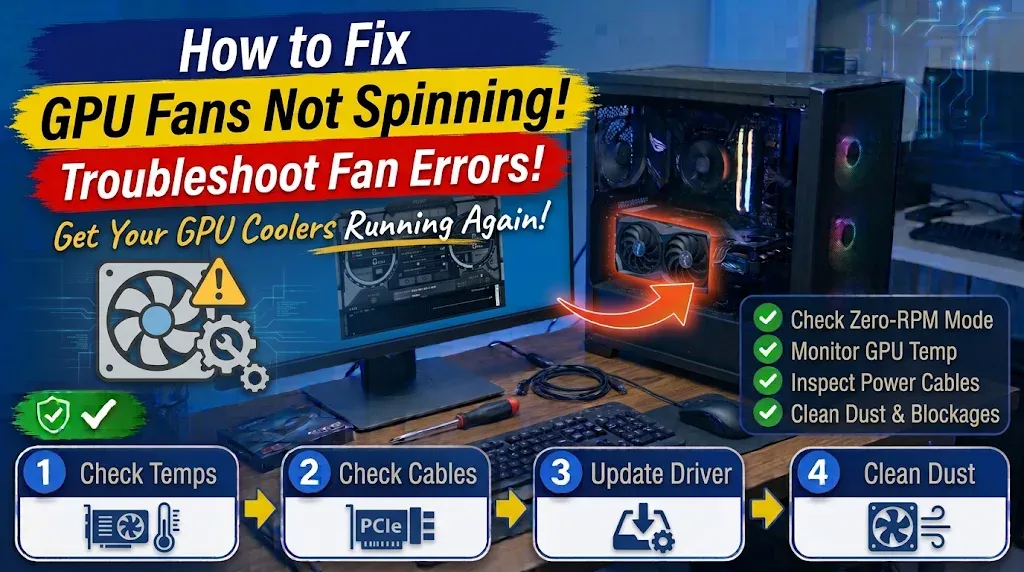
If your GPU fans not spinning worries you, do not panic yet. Many modern graphics cards stop their fans at idle and low temperatures on purpose (often called zero-RPM or semi-passive mode). The real problem is a card that gets hot while its fans stay off, or a fan that will not start when the card is under load. This guide shows how to read the fan speed and the temperature, tells you when it is normal and takes you through the checks in a safe order.
Safety first
- If the card is hot (the temperature keeps climbing under load) and the fans are still at 0 RPM, stop the game or the test at once.
- Shut down and unplug the PC before you touch anything inside, and touch the metal case first to discharge static.
- Do not remove the card’s cooler. It can void the warranty and is easy to get wrong.
Step-by-step: check the fans
Step 1: Read the fan speed and the temperature
Task Manager shows the graphics card’s load, but fan speed needs a sensor tool. Use the graphics driver’s own software, or a free monitoring tool such as HWiNFO, and look at GPU Temperature and GPU Fan (in RPM or percent). See how to check CPU and GPU temperature in Windows and how to monitor GPU usage and VRAM.
You should see: at idle, a cool card and fans at 0 RPM on a card with zero-RPM mode. That is normal. A card with fans at 0 and a temperature that is already high is not. Compare the readings with the maker’s specification for your model.
Step 2: Put the card under load and watch
Start a game or a graphics benchmark and watch the sensor for a few minutes. The fans normally start when the card warms up, though the exact temperature differs by card. Check the maker’s page for your model.
You should see: the fan speed rising as the temperature rises. If the temperature climbs and the fans stay at 0, stop the test and continue below. If the fans start, nothing is wrong.
Step 3: Reset fan settings in software
If you use tuning or fan-control software, reset the fan curve and any custom profile to the defaults, and turn off any setting that holds the fans at zero or in silent mode. Close the tool, restart and test again.
You should see: the fans reacting to the temperature again. If a custom curve was the cause, the problem is solved.
Step 4: Update or reinstall the graphics driver
Fan control relies on the driver. Install the latest driver as a clean installation (see how to update or reinstall graphics drivers), restart and test under load again.
Step 5: Check the power connections
Shut down, switch off the power supply and unplug the PC. Press the power button once to drain any leftover charge. Check that every power cable on the card is fully clicked in and that each plug has its own cable from the power supply, if possible. Check that the card is firmly seated in its slot (see how to install a graphics card).
You should see: plugs that sit flush with no gap, and a card that does not wobble. A loose plug can leave the card running with less power and without fan control. If you doubt the power supply, see how to test a PC power supply safely.
Step 6: Look for a blocked fan
With the PC off and unplugged, check that no cable touches the fan blades and that dust or a loose item is not jamming them. Clean carefully with short bursts of compressed air while you hold the blades still with a plastic stick or a pen, since a fan that spins freely from the air can generate a current and be damaged (see how to clean your PC’s interior).
Step 7: Turn a blade gently by hand
With the PC off and unplugged, turn one blade slowly with a finger.
You should see: a smooth turn with a little free spin. A fan that is stiff, grinds, clicks or stops at once has a worn bearing and is failing. Do not force it.
Step 8: Check the card’s switch and the second BIOS
Some cards have a small switch for a second BIOS or a quiet mode. Check the manual, switch off the PC before you move it and try the other position.
Step 9: Test the card in another slot or PC
If you can, test the card in another PC or another slot. If the fans work there, your PC’s power or motherboard is the cause. If they still fail, the card is faulty.
Step 10: Repair, replace or claim the warranty
If a fan is dead or the card runs hot with the fans off, ask the maker about the warranty. Some cards have replaceable fans. Meanwhile, do not run the card under heavy load, because heat can lead to crashes and artifacts (see GPU artifacts and screen glitches and how to fix a PC that keeps overheating). You can add case airflow while you wait (see how to replace a noisy case fan).
More help
For more graphics card and cooling guides, visit the PC Repair Atlas homepage. To change how fast fans run, see how to set a custom fan curve, and if games crash from heat, see how to fix a black screen while gaming.
FAQ
Is it normal for GPU fans to stop at idle? On many cards, yes. They start again when the card warms up.
How hot is too hot? It differs by card, so check the maker’s specification. A card whose temperature keeps climbing under load while its fans stay off needs attention.
Can I run the PC with a dead GPU fan? Only for light use at low temperatures, and only for a short time. Repair or replace it soon.
Why does only one fan spin? Some cards run fewer fans at low load. If a fan stays at 0 under heavy load while the others spin, it is faulty.