WHEA_UNCORRECTABLE_ERROR in Windows 11: How to Find the Failing Hardware
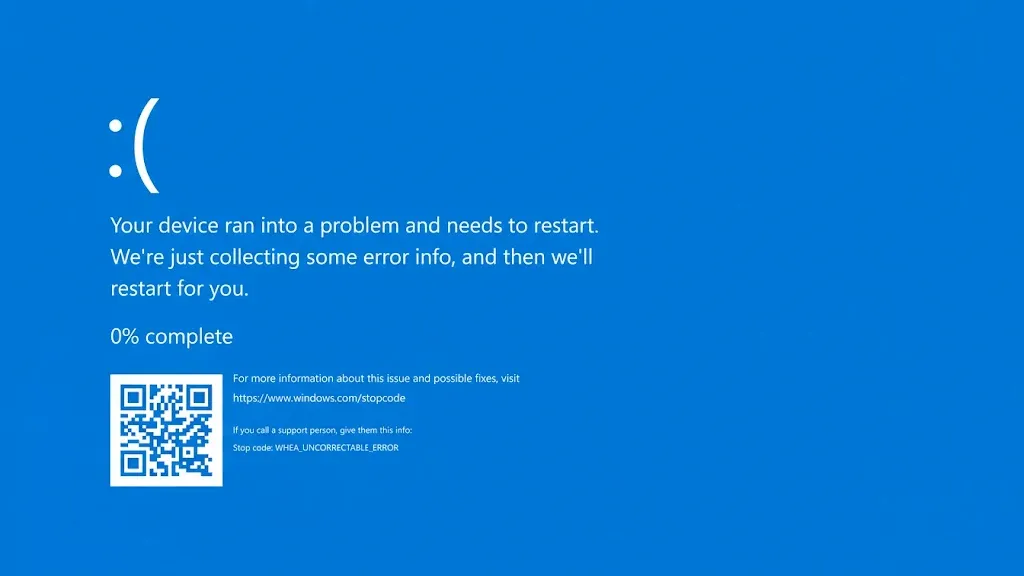
The stop code WHEA_UNCORRECTABLE_ERROR in Windows 11 (bug check 0x00000124) is a blue screen raised by the Windows Hardware Error Architecture (WHEA). It means the processor, the motherboard or a device on it reported a fatal hardware fault. Unlike a blue screen caused by a buggy app, this one usually points to an unstable overclock or undervolt, heat, a loose part, a weak power supply or a failing component.
Windows often restarts within seconds, so the fastest route is to read the log it saves, then change one thing at a time. For other stop codes, see our guide to understanding and fixing blue screen errors (BSOD). If your PC restarts with no blue screen at all, read Windows 11 random restarts: 9 Event Viewer checks. For other faults, browse our PC repair guides.
Safety Warnings Before You Start
- Back up important files now. If an SSD or RAM stick is failing, repeated crashes can corrupt files or stop Windows from starting. See how to back up your Windows PC while it still boots.
- Power off and discharge static before you touch parts. Shut down, switch off the power supply, unplug the cable and touch bare metal on the case before you reseat an M.2 SSD, RAM or graphics card.
- Be careful with BIOS updates. A power cut or crash during a BIOS flash can leave a motherboard unable to start. Flash only with steady power (a laptop on its charger, a desktop ideally on a UPS). The one common exception is described in Fix 2 and Fix 8.
- Never open a power supply unit. Its capacitors can hold dangerous voltage even when it is unplugged.
Quick Diagnosis: What Does Your Crash Pattern Point To?
| What you see | Likely cause | Start with |
|---|---|---|
Stop code Parameter 1 is 0, or WHEA-Logger Event 18 names Processor Core | CPU voltage or clock instability, unstable RAM speed, heat, or a failing CPU | Fixes 1, 2 and 3 |
Parameter 1 is 4, or the component is PCI Express Root Port | A PCIe device (NVMe SSD or graphics card) losing contact: loose seating, heat or a fault | Fixes 1, 3 and 4 |
The component is Memory | Unstable RAM profile or a faulty RAM stick | Fixes 2 and 6 |
| Blue screen sticks at 0% and restarts | Possibly a drive or power problem that stops Windows saving a dump | Fixes 4 and 7 |
| Crashes only in games or heavy work | Heat, boost instability or a weak power supply | Fixes 2, 3 and 7 |
| Crashes began after a driver or Windows update | A chipset, storage or graphics driver conflict | Fix 5 |
Step-by-Step: Diagnose and Fix WHEA_UNCORRECTABLE_ERROR
Fix 1: Read the Event Log and the Stop Code First
Before you change anything, see which part Windows blamed.
- Press Windows + R, type
eventvwr.mscand press Enter. - Expand Windows Logs and select System.
- In the Actions pane, select Filter Current Log.
- Open Event sources, tick WHEA-Logger and select OK.
- Select the newest entries and read the General tab. Note the Reported by component line.
What the WHEA-Logger entries mean
- Event ID 18 (Error): a fatal hardware error. Windows writes it after the restart that follows the crash. This is the one that matches the blue screen.
- Event ID 19 (corrected, Processor Core): the CPU hit an error and fixed it. It did not crash the PC, but many of them close together suggest instability.
- Event ID 17 (corrected, PCI Express Root Port): a PCIe link had an error and recovered. These warnings appear on many PCs that never crash. Treat them as a clue only if they match your crash times or come in floods.
- Memory errors: corrected memory errors are also logged by WHEA-Logger (commonly as Event ID 47). Event numbers can differ between Windows builds and hardware, so trust the component name more than the number.
- No WHEA-Logger entries: this can happen when Windows crashes before it can write the log. Go to Fixes 2, 3 and 4.
Read the stop code too
In the same System log, filter for the source BugCheck (Event ID 1001). The text reads The bugcheck was: 0x00000124 followed by four numbers in brackets. The first is Parameter 1, which Microsoft says identifies the error source. 0 is a machine check exception (CPU side), 4 is a PCI Express error and 5 is a generic error. Microsoft Learn lists the others on its bug check 0x124 page. Our blue screen guide explains how to read crash dump files.
You can also press Windows + R and run perfmon /rel to compare crash times with recent driver or Windows updates (see how to use Reliability Monitor to find Windows crashes).
You should see: a component name and a Parameter 1 value. Write them down. They tell you which of the fixes below to try first.
Fix 2: Undo Overclocks, Undervolts and RAM Profiles
Factory auto-overclocking, negative CPU voltage offsets (AMD Curve Optimizer, Intel XTU undervolts) and aggressive memory profiles are the most common reversible causes.
- If you use tuning tools in Windows (AMD Ryzen Master, Intel XTU, MSI Afterburner or a motherboard tuning app), reset CPU, GPU and memory settings to Default, then restart.
- Restart again and enter the BIOS / UEFI (usually by pressing Delete or F2 at startup).
- Turn off XMP, EXPO or DOCP so the RAM runs at its base speed. See how to enable XMP or EXPO safely for where it sits on common boards.
- Turn off "Multi-Core Enhancement", "Game Boost" and any manual CPU ratio or voltage settings. Or choose Load Optimized Defaults, after you note your SATA mode and boot order.
- On an AMD Ryzen PC, also set Curve Optimizer and Precision Boost Overdrive back to Auto or Disabled for the test.
- Save and exit (usually F10) and use the PC normally for a few days.
You should see: the blue screens stop if an unstable setting was the cause. If they stop with XMP or EXPO off, leave it off or try a lower memory speed.
Intel 13th or 14th Gen desktop processor?
Intel found that these chips (desktop models of 65 W and above, as Intel describes them) could become unstable because of high operating voltage, a problem it calls Vmin Shift Instability. Intel's fix is a BIOS update with microcode 0x12B or later (0x12F in 2025) and the Intel Default Settings profile. Intel says these updates protect a healthy chip but do not repair one that is already damaged, and it extended the warranty on eligible processors. Check Intel's Vmin Shift page and your motherboard maker's BIOS notes. Intel states that its 13th and 14th Gen laptop chips are not affected in the same way. This is the one case where updating the BIOS is the main fix: go to Fix 8.
Fix 3: Check CPU, GPU and SSD Temperatures
Heat can make processors and SSD controllers fail or drop offline, which can trigger a WHEA fault.
- Download HWiNFO from its official site, hwinfo.com, and run it in Sensors-only mode.
- Compare idle and load temperatures for CPU Package (or Tctl), GPU Temperature and Drive Temperature.
- Look for any sensor labelled Thermal Throttling: Yes.
You should see: steady temperatures well below the limits for your parts. Limits differ, so look up the maximum for your CPU on its maker's page and for your SSD on the drive maker's data sheet. As a rough guide only, many NVMe drives start to slow down somewhere in the 70s to 80s degrees Celsius. If temperatures climb fast under load, clean dust from fans and heatsinks and check that every cooler fan and pump spins. Follow how to check CPU and GPU temperature in Windows and how to fix a PC that keeps overheating.
Fix 4: Reseat the NVMe SSD, RAM and Graphics Card
A slightly crooked M.2 drive or a loose stick can cause intermittent PCIe or memory errors, especially if Event Viewer pointed to PCI Express Root Port.
Laptop warning: do this only if your laptop's maker documents user-replaceable RAM or SSD. Opening a sealed laptop, or one under warranty, can void the warranty. Do not disconnect a laptop battery unless the service manual tells you to. See how to upgrade laptop RAM and SSD first.
- Shut down Windows fully, switch off the power supply, unplug the cable and press the power button for 10 seconds to drain leftover power.
- Touch bare, unpainted metal on the frame to discharge static.
- M.2 SSD: remove the screw, slide the drive out at a slight angle, check the gold contacts for dust, push it back in firmly and refit the screw.
- RAM: open the latches, lift each stick out, then press it straight back until both clips snap shut.
- Graphics card (desktop): unplug its power cables, release the slot latch, reseat the card until it clicks and push every power plug in fully. See how to install a graphics card step by step.
You should see: all drives, the full amount of RAM and the graphics card detected at the next start. If PCIe errors continue, move to Fix 5 and Fix 7.
Fix 5: Update Chipset, Storage and Graphics Drivers
WHEA_UNCORRECTABLE_ERROR is a hardware error, but a damaged chipset, storage or graphics driver can put hardware into a bad power state, and the same driver faults can also cause a SYSTEM_SERVICE_EXCEPTION blue screen, covered in our SYSTEM_SERVICE_EXCEPTION guide.
- Open Settings > Windows Update and install pending updates, including Advanced options > Optional updates.
- On your motherboard or laptop maker's support page, install the latest Chipset driver and the storage or NVMe driver (Intel Rapid Storage or AMD SATA/RAID, where listed).
- Do a clean install of the graphics driver. See how to update or reinstall graphics drivers.
- Avoid "driver updater" programs. Follow how to update drivers in Windows 11 safely.
You should see: the new driver versions in Device Manager. If the crashes began right after a driver update, roll that driver back.
Fix 6: Test the RAM
If Event Viewer logged memory errors, or crashes continue at default BIOS speeds, test the RAM.
- Save your work, press Windows + R, type
mdsched.exeand choose Restart now and check for problems. - After the restart, read the result in Event Viewer under
MemoryDiagnostics-Results. See how to test RAM with Windows Memory Diagnostic. - If it finds nothing but crashes continue, run a longer multi-pass test with MemTest86. See how to check if RAM is failing.
- Test one stick at a time. Power off and unplug the PC, then test each stick alone in the slot your motherboard manual names as the first slot. This helps tell a bad stick from a bad slot.
You should see: either no errors, or errors that follow one stick. A stick that fails a test should be replaced.
If Windows later stops with MEMORY_MANAGEMENT instead of WHEA_UNCORRECTABLE_ERROR, see our guide to fixing the MEMORY_MANAGEMENT blue screen.
Fix 7: Check SSD Health and Power Supply Stability
A failing SSD controller or a power supply that sags under load can cause 0x124 crashes with little warning.
- SSD health: open Settings > System > Storage > Advanced storage settings > Disks & volumes, select your system drive, then Properties and look at Drive health. Windows shows this page for NVMe SSDs only, so on a SATA SSD or hard drive read SMART data instead, as in how to check hard drive or SSD health. If you see a critical warning or media errors, back up your data at once and replace the drive.
- Power supply: in HWiNFO or the BIOS monitor, look at the +12V, +5V and +3.3V readings. The ATX standard allows about 5 percent either way, so +12V should stay roughly between 11.4 V and 12.6 V. These are sensor readings, and they can be off by a few percent, so treat them as a hint and not proof. The more reliable test is to swap in a known-good power supply. See how to test a PC power supply safely.
You should see: a drive that reports healthy and voltages that stay steady under load. Also check that the 24-pin and CPU power cables are seated fully.
Fix 8: Update the Motherboard BIOS
Motherboard and laptop makers release BIOS updates with new CPU microcode (AMD AGESA or Intel microcode) that can fix voltage behaviour, PCIe compatibility and memory stability.
Safety check: update when the PC is stable at default settings, with a laptop plugged in and your 48-digit BitLocker recovery key saved elsewhere (see how to find your BitLocker recovery key). Follow how to update your BIOS safely step by step.
Exception: on an Intel 13th or 14th Gen desktop chip (see Fix 2), the BIOS update is Intel's own remedy, so do it even though the PC is unstable. If the PC crashes within minutes of starting at default settings, ask the motherboard maker for advice before you flash.
You should see: the new BIOS version in the BIOS screen, and fewer or no WHEA errors. Optimized defaults may need to be set again after a BIOS update.
When to Stop and Get Help
- The error happens inside the BIOS screen or during a clean Windows USB install: this points to a physical hardware fault (CPU, motherboard, RAM, SSD or power supply), not to Windows.
- Event Viewer keeps logging
Processor Coreerrors after you removed every overclock, cooled the CPU and updated the BIOS: the processor may be defective. Have it tested or claim warranty. - Your laptop is under warranty and crashes at stock settings: do not open it or repaste the heatsink. Contact the maker and include your Event Viewer details.
- You have spare parts or a second PC: swapping one part at a time (RAM, SSD, power supply, graphics card) is the most reliable way to find the culprit. A shop can do this for you.
Common Mistakes
- Reinstalling Windows first. The error comes from hardware, so a clean install rarely fixes it, and the PC can crash during the install.
- Ignoring the NVMe SSD. People test RAM and swap the graphics card but miss a loose or hot M.2 drive.
- Running
chkdsk /frepeatedly on a crashing drive. Repairing a file system on an unstable PC can make data loss worse. Back up and find the hardware fault first. - Treating every WHEA-Logger entry as a failure. Corrected errors (Events 17 and 19) are common. Look for the fatal Event 18 and the pattern.
Sources
- Microsoft Learn: Bug Check 0x124 WHEA_UNCORRECTABLE_ERROR: the stop code and the table of Parameter 1 values.
- Microsoft Support: Troubleshooting Windows unexpected restarts and stop code errors: Microsoft's general advice for stop code crashes.
- Intel: Core 13th and 14th Gen desktop processor Vmin Shift Instability: Intel's BIOS microcode and warranty information.
More Help
For more blue screen, hardware diagnostic and Windows 11 repair guides, visit the PC Repair Atlas homepage.
FAQ
Can a driver cause WHEA_UNCORRECTABLE_ERROR, or is it always broken hardware?
It is most often caused by unstable settings (overclocks, undervolts, XMP or EXPO), heat, loose connections or a failing CPU, SSD, RAM or power supply. A faulty chipset, storage or graphics driver can sometimes trigger it, which is why Fix 5 is on the list, and a bad driver can also appear as an IRQL_NOT_LESS_OR_EQUAL crash (see our IRQL_NOT_LESS_OR_EQUAL guide).
Why does the blue screen sometimes stay at 0% and restart?
The crash may be happening too fast for Windows to save the memory dump. Some people see this with a drive that disconnects or with power problems, but it can have other causes too. Check the drive's health and temperature, reseat it, and test the power supply.
How do I know which part is causing it?
Read the Reported by component line of the WHEA-Logger events (Fix 1) and Parameter 1 of the BugCheck event. They point to the processor, a PCIe device such as an SSD or graphics card, or memory. Swapping parts one at a time confirms it.
Could Intel 13th or 14th Gen instability cause this?
Yes, on desktop chips, Intel has linked Vmin Shift Instability to crashes. The fix is a BIOS update and Intel's default settings, as described in Fix 2. Intel says damaged chips may qualify for an extended warranty.
Is it safe to keep using my PC if it happens once a week?
Back up your files first, then find the cause. Even occasional hardware errors can corrupt open files or point to a cooling, power or storage problem that gets worse over time.