BitLocker Recovery Key: How to Find It and Fix the Screen
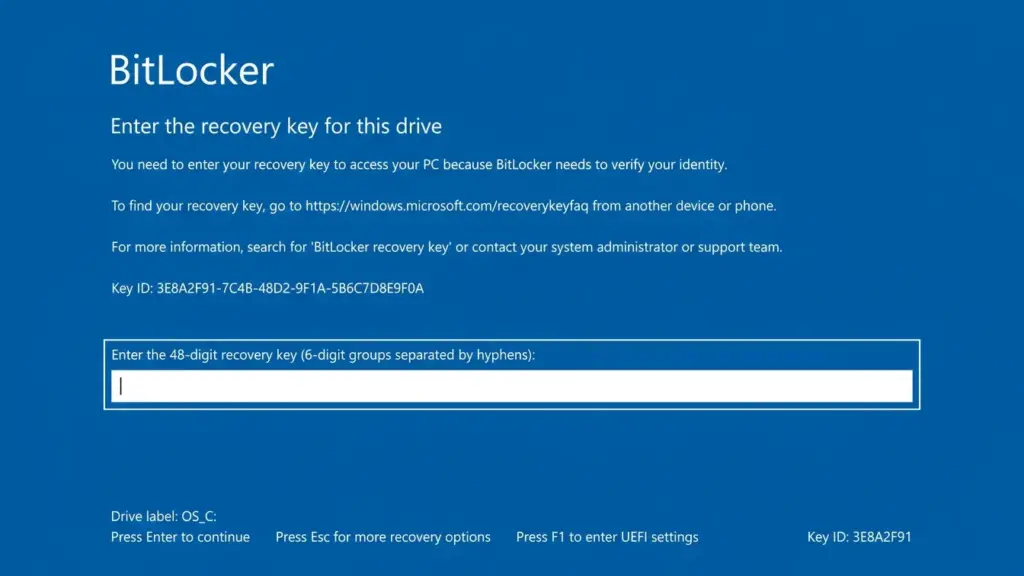
A BitLocker recovery key is the 48-digit number that Windows asks for on a blue or black screen when BitLocker cannot unlock your drive on its own. BitLocker asks for it when it sees a change it does not trust, such as a BIOS update, a TPM or Secure Boot change, a new motherboard, a drive moved to another PC or a changed boot setting. This guide covers your own PC only: where to find the key, how to enter it, how to stop the screen coming back and what to do if the key is lost.
Before you start
- There is no bypass. Microsoft Support cannot retrieve, recreate or skip a lost recovery key, and tools that claim to are scams or malware. The key is the only way in.
- Do not reset or reinstall Windows yet. A reset erases the data on the drive, and it is the last step in this guide.
- Keep the PC plugged in while you work, and keep the key private once you have it.
Step-by-step: unlock the PC and prevent it
Step 1: Read the key ID and the web address on the screen
The recovery screen shows a Recovery key ID. The first 8 characters are what you match against your key. The screen may also show a web address: aka.ms/myrecoverykey points to a personal Microsoft account, and aka.ms/aadrecoverykey points to a work or school account. Write the ID down or take a photo with your phone.
You should see: a line starting with Recovery key ID, and a box where the key goes. If you cannot type, check that the keyboard works (a USB keyboard usually does on this screen).
Step 2: Find the key from another device
- Personal Microsoft account: on a phone or another PC, open aka.ms/myrecoverykey and sign in with the account you used when Windows or BitLocker was set up. Find the key whose ID starts with the same 8 characters as the one on your screen. The page may also list your devices by name.
- Work or school account: open aka.ms/aadrecoverykey and sign in with the work or school account tied to the PC. If you see no link for BitLocker keys, ask your IT team, because they may hold the key.
- Someone else set it up: if another person turned on BitLocker or set up this PC, the key may be on their Microsoft account. They need to sign in and look.
You should see: a 48-digit key (eight groups of six digits) next to a Key ID that matches yours. If the page shows several keys, use only the one whose ID matches. If it shows none, the key was not saved to that account, so try Step 3.
Step 3: Check the other places you may have saved it
- A printout or PDF from when BitLocker was turned on.
- A text file saved to a USB drive or another computer. Open it on a different PC.
- A USB flash drive that holds the key: plug it into the locked PC and follow the prompt.
Step 4: Enter the key
Type the 48 digits into the recovery screen, then press Enter. The hyphens may be added for you.
You should see: Windows starts, sometimes after one more restart. If it says the key is wrong: check the Key ID again, check for a mistyped digit and retry. A key from a different device will not work.
Step 5: Work out why the screen appeared
Think about what changed just before: a BIOS or firmware update, a motherboard or TPM change, a Secure Boot or boot order change, a drive moved from another PC or a big Windows update. If a setting you changed is the cause, putting it back and restarting may stop the screen from coming back. For Secure Boot and TPM settings, see how to enable TPM 2.0 and Secure Boot. To see how Windows records its boot entries, read our guide to the BCD boot configuration store and how to read it with bcdedit.
Step 6: Check that the key is backed up and know where it is
Once Windows is running, sign in with an administrator account and open Settings > Privacy & security > Device encryption (on Windows 10 it is Settings > Update & Security > Device encryption). Microsoft says this option appears only on PCs that meet its requirements, such as a TPM and Secure Boot, so it can be missing on your PC even though BitLocker is on. On editions with the full BitLocker tool, open Control Panel > BitLocker Drive Encryption and choose Back up your recovery key. Save a copy somewhere that is not on this PC, such as your Microsoft account or a printout.
To see the status and the key for the system drive, open Command Prompt as administrator and run these commands:
manage-bde -status C:
manage-bde -protectors -get C:
You should see: Protection Status: Protection On in the first output, and a Numerical Password entry with an ID and the 48-digit password in the second. This shows your key in plain text, so close the window afterwards and do not post it online.
Step 7: Suspend BitLocker before a BIOS update or a hardware change
Before any BIOS update, back up your files and keep a copy of the recovery key. Then, to avoid the screen next time, suspend protection for a short time while you make the change. Suspend only for the update, and turn protection back on straight after, because a suspended drive is not protected.
- Open Control Panel > BitLocker Drive Encryption.
- Select Suspend protection for the system drive and confirm.
- Make the change and restart.
- Select Resume protection.
From an administrator Command Prompt you can use manage-bde -protectors -disable C: before the change and manage-bde -protectors -enable C: after it. Run manage-bde -status C: again to confirm that it says Protection On. For the update itself, see how to update your BIOS safely.
Step 8: If the screen keeps coming back
A repeated request means something keeps changing the boot measurements. Check that the TPM is on and Secure Boot is set as it was, remove any unneeded boot device, and install the latest BIOS for your model. If the PC asks for the key after every restart, note the Key ID each time. If it changes, the protectors may be being recreated, and your maker or IT team should look at the TPM.
Step 9: If you cannot find the key
Nothing can unlock the drive without the key, and its files cannot be recovered. Before you give up, ask whoever owns the account that set up the PC, and check every Microsoft account you have used. If the key is truly lost, the only way to use the PC again is to reset or reinstall Windows, which erases everything on the drive (see how to clean install Windows 11 from USB). Note that resetting while keeping files needs the drive to be unlocked first.
Step 10: Decide whether you need BitLocker
Encryption protects your files if the PC is lost or stolen. If you turn it off, the files are no longer protected, and decrypting can take a while. Back up your files first (see how to back up your Windows PC), and keep the recovery key even if you stay with BitLocker.
More help
For more Windows security and startup guides, visit the PC Repair Atlas homepage. If Windows will not start even after the key is entered, see how to fix no bootable device, and keep a Windows 11 recovery drive for next time.
FAQ
Why did BitLocker ask for the key after a BIOS update? It treated the firmware change as a possible attack on the boot process, so it locked the drive until you proved who you are with the key.
Is there a way to bypass the recovery screen? No, and you should avoid any tool that says it can. Use your key.
Do I lose my files if I cannot find the key? The data on that drive cannot be recovered without the key. A reset makes the PC usable but erases what was on it.
Is the recovery key the same as my PIN or password? No. The PIN or sign-in password is your everyday unlock. The recovery key is the 48-digit backup.