How to Back Up Your Windows PC: Files and System Image
Drives fail, laptops get stolen and malware can lock your files. A backup is the only reliable protection. This guide shows how to back up your Windows PC with a simple plan and the Windows tools that help you follow it, and how to check that a backup can really be restored. A backup you have never tested is only a hope.
Windows 10 note: Windows 10 support has ended (see Microsoft's page). File History, Robocopy and the system image tool work the same way there. Only the OneDrive backup screen in Step 2 looks different.
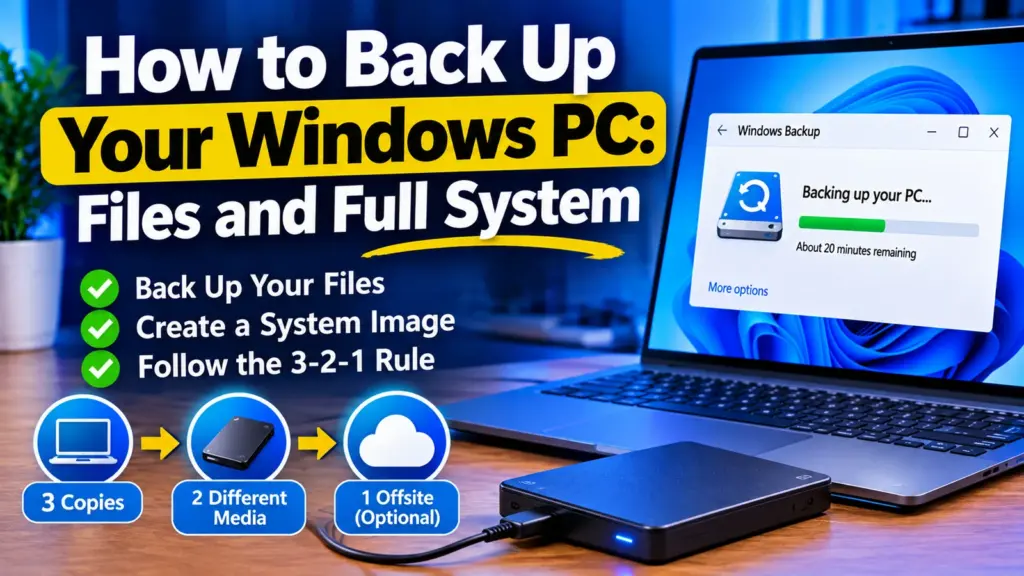
The 3-2-1 rule
- 3 copies of your data (the original and two backups)
- 2 different types of storage (for example the PC and an external drive)
- 1 copy somewhere else (cloud storage, or a drive kept at another location)
What to back up
Documents, Desktop, Pictures and Videos, game saves, email and browser data (many browsers sync bookmarks to your account), and any folder where you keep work. Programs can be installed again, so they matter less than your own files and licence keys.
Step-by-step: back up your Windows PC
Step 1: Copy files to an external drive
The simplest method. Connect the drive and copy your important folders into a backup folder. If the drive is already crowded, you can first tidy an external hard drive safely to make room for the copy. For a repeatable copy, you can use Robocopy in Command Prompt:
robocopy "C:\Users\YourName\Documents" "D:\Backup\Documents" /E /R:2 /W:5 /LOG:"D:\Backup\documents-log.txt"Replace the paths with yours (keep the quotes if a path has spaces). /E copies all subfolders, /R:2 /W:5 stops it getting stuck on a locked file, and /LOG writes a report. Do not use the /MIR option unless you understand it, because it deletes files in the destination that are not in the source.
You should see: a summary table at the end with the numbers of copied files, and a Failed column of 0. Robocopy's exit codes from 0 to 7 mean it finished without a failure (some files were copied, or nothing needed copying), and 8 or higher means some files failed. Open the log to find which ones.
Step 2: Back up folders to OneDrive
On Windows 11, open Settings > Accounts > Windows backup and turn on Manage folder backup for the folders you want (such as Desktop, Documents and Pictures). Your files are kept in the cloud and available on other devices.
Check how much storage your account has. A free Microsoft account includes 5 GB of OneDrive storage, so a large Pictures folder may not fit. When the storage is full, syncing stops and the folders show an error. Windows Backup saves your chosen folders and some settings, but it is not a full image of the PC. If OneDrive stops syncing, see how to fix OneDrive not syncing.
You should see: the status next to each folder change to backed up, and a green check on the files in File Explorer once they are uploaded.
Step 3: Use File History
Connect an external drive, then open Control Panel > System and Security > File History, choose the drive and select Turn on. File History keeps earlier versions of the files in your user folders (Documents, Pictures, Music, Videos, Desktop and offline OneDrive files), which helps if you change or delete a file by accident.
You should see: a message that File History saved copies of your files a short time ago. The first run can take a while. Microsoft documents File History for both Windows 10 and 11, but keep the external drive connected for it to run.
Step 4: Create a full system image (optional)
A system image copies the whole drive, including Windows, programs and settings. Open Control Panel > Backup and Restore (Windows 7) and choose Create a system image. Choose an external drive and let it finish.
Microsoft lists this tool as deprecated: it is no longer updated and may be missing or stop working in a later Windows version. If it is not there or fails, use a reputable third-party backup program that makes disk images, and check its own restore instructions. The image needs a drive at least as large as the used space on the PC.
You do not need every method. A common plan is Step 1 or 2 for your files, plus Step 4 now and then.
Step 5: Protect and test your backups
- Encrypt external drives that you carry around (BitLocker To Go, which can be turned on in Windows Pro, Enterprise and Education). Keep the recovery key somewhere safe.
- Test a restore. Open the backup, copy two or three files to your desktop and open them. For File History, open Control Panel > File History > Restore personal files, pick a folder and restore one file.
- Keep one backup disconnected from the PC, so malware or a power surge cannot reach it.
You should see: the restored files open normally. If a file is damaged or missing, make a new backup now and check the drive with the drive health guide.
Step 6: Make it automatic
Set a regular reminder, or use File History or OneDrive so copies run on their own. A backup you must remember to make is a backup that eventually gets skipped. Check once a month that the last backup date is recent.
How to restore
- A few files: copy them back from the external drive, or restore them from File History or OneDrive (use the OneDrive website to restore deleted files).
- A whole PC from a system image: start the PC from a recovery drive or the Windows recovery menu and choose Troubleshoot > Advanced options > See more recovery options > System Image Recovery (the wording can vary between Windows versions). See how to create a recovery drive before you need it. Restoring an image replaces everything on the drive, so copy any newer files elsewhere first.
Before you repair or reset
Always back up before a reset or clean install, and check the drive you back up to with the drive health guide. If a drive is failing and you cannot read your files, stop writing to it and see how to recover deleted files. If you are handing the PC on, also follow how to clean a Windows PC before selling or giving it away. If you plan to edit the registry, first back up the registry before changes.
More help
For more step-by-step fixes, browse the PC Repair Atlas homepage.
FAQ
Is cloud storage a backup? It can be, but a sync service that mirrors deletions is not a full backup. Keep another copy.
Do I need a system image? It is useful for restoring everything after a drive failure, but file backups matter most.
How often should I back up? Daily or weekly for work files, and before any major change. If you are about to upgrade Windows, clean up a Windows 10 PC before upgrading first.
Can I back up to the same drive? A copy on the same physical drive does not protect you if that drive fails. Use a second drive.