Deleting the wrong file feels worse than it is, because the data is often still on the drive. Your chances are best when you act quickly. This guide shows how to recover deleted files in Windows, from the easiest options to the more technical ones, and it explains why recovery is not always possible.
Windows 10 note: Microsoft ended support for Windows 10 on 14 October 2025 (see Microsoft's end-of-support page). The steps below also work on Windows 10.
First, do this
Stop saving or installing anything on the drive where the file was. New data can overwrite the deleted file. If you can, use another drive for everything you do next. Do not format the drive, run chkdsk on it or reinstall Windows on it until you have tried to get the files back. If Windows offers to format a USB drive that holds files you need, see why your USB drive asks to be formatted. If a PC cleaner or a registry change removed your files, see what to do when a PC cleaner deleted important files.
Step-by-step: recover the files
Step 1: Try Undo
If you just deleted the file in File Explorer, press Ctrl + Z or right-click an empty area and choose Undo Delete. The file should reappear where it was.
Step 2: Check the Recycle Bin
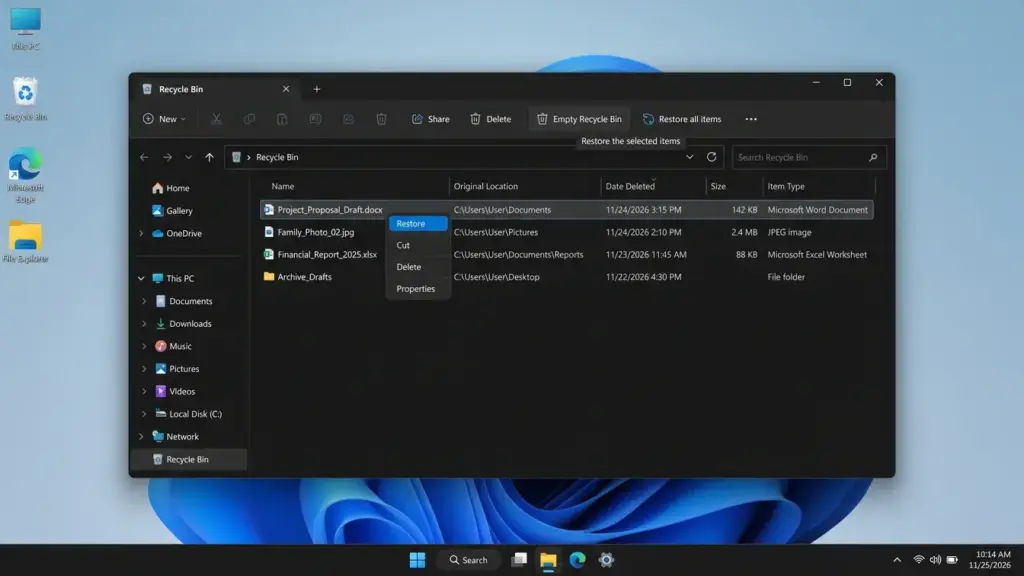
Open the Recycle Bin on the desktop, find the file, right-click it and choose Restore. Files deleted with Shift + Delete, files on USB drives and network drives usually skip the Recycle Bin. A restored file goes back to its original folder. If the file was on a USB or external drive, see how to clean up an external drive without losing files.
Step 3: Use Previous Versions
Right-click the folder that held the file, choose Properties and open the Previous Versions tab. If versions are listed, select one, choose Open to check and then Restore. This works only if System Protection or File History was turned on. If the list is empty, neither was on, so go to the next step.
Step 4: Use File History
Search for Restore your files with File History and open it. Browse to the folder and restore. See how to back up your Windows PC.
Step 5: Check OneDrive and other cloud storage
Sign in to the OneDrive website and open its Recycle bin. Deleted files stay there for a limited time (Microsoft says 30 days for personal accounts and 93 days for work or school accounts, unless the bin is full). Other cloud services have a similar bin. If the deleted file was in a OneDrive folder on your PC that is not syncing, see how to fix OneDrive not syncing.
Step 6: Check your backups
Look in any external drive, system image or cloud backup you made.
Step 7: Use Windows File Recovery
Microsoft's free Windows File Recovery is a command-line tool in the Microsoft Store. It works on local and external drives and USB drives, but not on cloud storage or network shares. Install it, search for Windows File Recovery in the Start menu, and select Yes when asked to allow changes. The recovered files go to a different drive, never the same one: the source and destination must differ. This example looks for deleted files in the Documents folder on drive C and saves them to drive D:
Replace YourName with your user name, and keep the backslash at the end of the folder. When the tool asks to continue, type Y. It saves what it finds in a folder named Recovery followed by the date and time, on the destination drive. You should see a count of recovered files and the path of that folder at the end. Press Ctrl + C to stop it.
Which mode to use (this follows Microsoft's table):
File system
Situation
Mode
NTFS
Deleted recently
/regular
NTFS
Deleted a while ago, after a format, or a damaged drive
/extensive
FAT32 or exFAT (many USB drives and memory cards)
Any
/extensive
For example, to look for photos on a memory card with the extensive mode: winfr E: D: /extensive /n *.jpg. The card needs a drive letter for this. If an SD card does not appear in File Explorer at all, read SD card not showing up in Windows 11 first. The tool's help lists the other options. If you are not sure which file system your drive uses, right-click the drive in File Explorer, choose Properties and read File system (see also FAT32 vs exFAT vs NTFS). If the drive is encrypted with BitLocker, unlock it first. If you cannot find the key, see how to find your BitLocker recovery key.
Step 8: Think about the drive type
On an SSD, a feature called TRIM lets the drive erase deleted data in the background, and it can do so soon after a file is deleted, so recovery may not be possible. A hard drive gives you a better chance, and the sooner you stop using the drive the better.
Step 9: Be careful with recovery programs
Some third-party tools work well, but many free tools bundle unwanted software. Download only from an official site, install on another drive and save recovered files to a different drive.
Step 10: Use a professional service for a failing drive
If the drive makes noise, disappears or shows errors, stop using it. A recovery service may be able to retrieve data (see check hard drive or SSD health).
How to avoid this next time
Turn on File History or OneDrive backup, and keep a separate copy of important files. See how to back up your Windows PC.
Can I recover files after emptying the Recycle Bin? Sometimes, with Previous Versions, a backup or a recovery tool.
Is recovery guaranteed? No. Overwritten data cannot be restored.
Should I keep using the PC? Use it as little as possible until you try to recover the files.