SD Card Not Showing Up or Not Reading in Windows 11? 9 Safe Fixes
An SD card not showing up in Windows 11 usually means File Explorer stays empty even though the card is in your laptop's slot or a USB card reader. It usually comes down to one of four things: a dirty or damaged card or adapter, a missing drive letter, an outdated card-reader driver, or an older reader that cannot read high-capacity SDXC cards.
This guide tests the card, the adapter and the reader in order, so you do not format a card that still holds photos or videos. If the card does appear but asks you to format it, read what to do before you format a disk first. If it appears but is read-only, see how to fix a write-protected drive in Windows 11. For other hardware and storage faults, browse our PC repair guides.
Safety Warnings Before You Start
- Do not format or initialize a card that holds photos, dashcam footage or other files you need. If Disk Management shows the card as RAW or Unallocated, formatting erases the file table and makes recovery harder. Recover your files first with how to recover deleted files in Windows 11 and 10.
- Stop saving new files to the card. New writes can overwrite the data you want back.
- Never push metal pins, tweezers or paperclips into a laptop SD slot or card reader. You can bend the spring contacts or cause a short.
- Use Safely Remove Hardware and Eject Media before you pull the card out. FAT32 and exFAT cards keep no file-system journal, so a card pulled out mid-write corrupts more easily.
Quick Diagnosis: What Happens When You Insert the Card?
| What you see | Likely cause | Start with |
|---|---|---|
| The card works in your camera or phone, but not in Windows | Dirty contacts, a bad microSD adapter, a missing drive letter or the reader driver | Fixes 1, 2, 3 and 5 |
| The card fails in every PC, camera and reader | A physically damaged or dead card | Fixes 1 and 2 |
| The card shows in Disk Management with no drive letter | Windows did not give the volume a letter | Fix 3 |
| The card reader appears with No Media | Windows does not see a card in the slot | Fixes 1, 2, 4 and 5 |
| The card shows as RAW, Unallocated or Not Initialized | A damaged file system or partition table, often from an unsafe eject | Fixes 3 and 9 |
| A card of 64 GB or more fails in an older built-in reader, but smaller cards work | The reader supports SD and SDHC only, not SDXC | Fix 6 |
| A built-in laptop slot never detects any card | A missing driver or a reader turned off in the BIOS | Fixes 5 and 8 |
Step-by-Step: Fix an SD Card Not Showing Up in Windows 11
Fix 1: Cross-Test the Card, the MicroSD Adapter and the Reader
Before you change any Windows setting, find out whether the fault is in the card, the adapter or the reader.
- Check the Lock switch. A full-size SD card or microSD adapter has a small slider on its left edge. Make sure it is pushed fully to one end and not stuck half-way. A locked card normally still shows up and only blocks writing, but a loose slider or a cracked adapter can stop the card seating properly. Try the other end of the slider and insert the card again.
- Swap the microSD adapter. If your microSD card sits in a full-size adapter, try another adapter or a direct microSD USB reader. Adapters can also be the fault.
- Test the card in another device. Try it in your camera, phone or another computer.
- Test a second card in your PC. If another card works in your PC, but this one fails everywhere, the card is faulty. If your card works elsewhere but fails on this PC, continue below.
You should see: a clear answer to which of the three parts is at fault. If the card is dead in every device, stop here: see "When to Stop and Get Help".
Fix 2: Clean the Gold Contacts and Check the Slot
Skin oil, pocket lint and oxidation on the gold contact strip can stop a reader from detecting the card.
- Take the card out of the PC.
- Wipe the gold contacts gently with a clean, dry, lint-free microfiber cloth. Or use a cotton swab lightly dampened (not wet) with 90 percent or stronger isopropyl alcohol, and let it dry for two minutes before you insert the card. Never spray or pour liquid into the slot.
- Shine a flashlight into the slot or reader and look for lint, dust or bent pins. Clear dust with a few short puffs of compressed air from a safe distance.
- Push the card in firmly until it clicks (spring-loaded slots) or sits flush.
You should see: the Windows connect sound, and the card opens in File Explorer. If nothing happens, go to Fix 3.
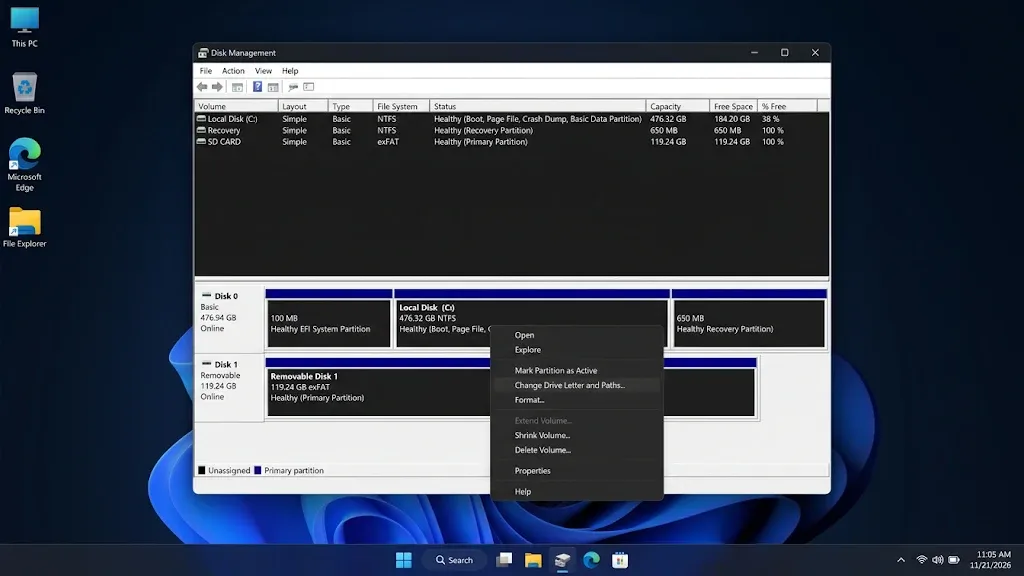
Fix 3: Check Disk Management and Assign a Drive Letter
Windows can detect a card without giving it a drive letter, which hides it from File Explorer.
- Right-click Start and select Disk Management. (Or press Windows + R, type
diskmgmt.mscand press Enter.) - Look in the bottom pane for a Removable disk whose size matches your card. A 64 GB card usually shows a little under 60 GB, because Windows measures gigabytes differently from card makers.
- Read the status and act on what you see:
- A healthy partition with no drive letter: right-click the partition, select Change Drive Letter and Paths, select Add, choose an unused letter and select OK. Pick a letter late in the alphabet, such as R or S. A card that was given the same letter as a mapped network drive can stay hidden until you change it.
- The disk says Offline: right-click the disk label on the left (for example Disk 2) and select Online.
- The reader slot says No Media: Windows sees the reader but no card in it. Reseat the card, repeat Fix 2 and go on to Fixes 4 and 5.
- A window asks you to Initialize Disk, or the disk shows Not Initialized: if you need the files on the card, select Cancel. Initializing can make the files harder to get back. Go to Fix 9.
- The partition shows RAW or Unallocated: the file system is damaged. Do not format if you need the files. Go to Fix 9.
- No Removable disk appears at all: Windows does not see the card hardware yet. Continue to Fixes 4 and 5.
You should see: the card appears in File Explorer under This PC once it has a drive letter. Microsoft describes these steps in Disk Management in Windows.
Fix 4: Try Another USB Port, and Bypass Hubs and Docks
An unpowered USB hub, a front-panel port or a monitor pass-through port may not give a USB card reader steady power.
- Unplug any hub or dock and connect the reader straight to a main USB port. On a desktop, use a rear motherboard port.
- Try a different port on the other side of the laptop.
- If you suspect a damaged port, follow USB port damaged or a Windows problem: 9 tests to tell the difference.
You should see: the card appears in a different port or without the hub. If it does, the hub or the first port was the problem. If the USB card reader itself is not recognized at all, see the USB device not recognized guide.
Fix 5: Reinstall or Update the Card Reader Driver
Built-in laptop card readers usually sit on an internal PCIe or USB connection and show in Device Manager under SD host adapters or Universal Serial Bus controllers.
- Right-click Start and select Device Manager.
- Select View > Show hidden devices.
- Expand SD host adapters, Disk drives and Universal Serial Bus controllers. Look for names such as a Card Reader, an SD Host Controller or USB Mass Storage Device.
- If an entry has a yellow warning triangle, right-click it, select Properties and note the error under Device status.
- Right-click the card reader or SD host adapter, select Uninstall device, leave Attempt to remove the driver for this device unticked and select Uninstall.
- Select Action > Scan for hardware changes, or restart so Windows loads the driver again.
If the reader still shows a warning or is missing: open your laptop or motherboard maker's support page for your exact model and install the latest Card Reader and Chipset drivers. See how to update drivers in Windows 11 safely.
You should see: the reader listed without a warning icon, and the card appearing after a restart.
Fix 6: Check the Card Type (SD, SDHC, SDXC)
Not every reader supports the newer high-capacity standards. These are the capacity ranges the SD Association defines:
| Card label | Capacity range | Reader requirement |
|---|---|---|
| SD | Up to 2 GB | Works in all SD readers |
| SDHC | More than 2 GB, up to 32 GB | Needs an SDHC or SDXC reader |
| SDXC | More than 32 GB, up to 2 TB (64 GB cards and up in shops) | Needs an SDXC reader (often fails in older built-in slots) |
| SDUC | More than 2 TB, up to 128 TB | Needs an SDUC reader |
If a 64 GB, 128 GB or 256 GB SDXC card does not show up in an older slot, while a 16 GB or 32 GB SDHC card works fine, the built-in reader probably does not support SDXC. An inexpensive USB 3.0 SDXC card reader solves this.
You should see: the large card working in the USB reader.
Fix 7: Restart Windows and Turn Off USB Power Saving for the Reader
With Fast Startup on, Shut down can keep a stalled card-reader driver state in memory.
- Save your work and choose Start > Power > Restart. Do not choose Shut down.
- If a USB card reader stops detecting cards after sleep, open Device Manager, expand Universal Serial Bus controllers and double-click each USB Root Hub. On the Power Management tab, untick Allow the computer to turn off this device to save power. Treat this as a test: if it makes no difference, tick the boxes again.
For more sleep-related USB problems, see Windows 11 USB ports stop working after sleep.
You should see: the reader detects the card after a restart and after sleep.
Fix 8: Check That the Card Reader Is On in the BIOS
Some business and consumer laptops (including some Dell, HP, Lenovo and ASUS models) let you turn the built-in SD reader off in the firmware.
- If you use BitLocker device encryption, save your 48-digit recovery key on another device before you change BIOS settings. See how to find your BitLocker recovery key.
- Restart and press the BIOS key at startup (commonly F2, F10, F12 or Delete).
- Look under Security, Onboard Devices, Advanced or I/O Port Access for SD Card Reader, Secure Digital (SD) Card or Card Reader. Menu names differ by maker, and many laptops have no such option.
- If it is set to Disabled, change it to Enabled, save and exit (usually F10) and check Device Manager again. Change nothing else in the BIOS.
You should see: the reader listed in Device Manager and the card detected. If your BIOS has no card-reader option, skip this fix.
Fix 9: Recover Your Files First, Then Format the Card
Use this fix if Disk Management shows the card at its full size but the partition is RAW, Unallocated, Not Initialized or damaged.
- Recover your data first. Windows File Recovery (
winfr) needs a drive letter, so give the card one in Fix 3 if it has none. Copy the recovered files to your PC's internal drive, never back to the card. Follow how to recover deleted files in Windows 11 and 10. SD cards usually use FAT32 or exFAT, which need the extensive mode. - Format the card cleanly. Once the files are safe, or if the card is empty, you have three choices, best first:
- Format it in the camera, phone or dashcam that uses it. This gives the file system that device expects.
- Use the SD Association's free SD Memory Card Formatter. The Association recommends it over the formatting tools built into operating systems, which may not be optimized for SD cards.
- Or use Windows itself as a fallback: open Disk Management, right-click the card's volume and select Format (or New Simple Volume for Unallocated). Check the drive number and size first, so you format the card and not another disk.
- Choose the right file system. Under the SD standard, SDHC cards (up to 32 GB) use FAT32 and SDXC cards (more than 32 GB) use exFAT. Follow your camera's manual if it says otherwise. See FAT32 vs exFAT vs NTFS: which format should you use? before you confirm.
If the card asks for a password: it may have been locked with BitLocker To Go. Enter the password or recovery key. The SD Association's formatter does not format BitLocker To Go cards.
You should see: the card appearing in File Explorer with its full size, empty and ready to use. If formatting fails with an error, or the card shrinks to a few MB, treat the card as failed (see below).
When to Stop and Get Help
- The card shows 0 MB in Disk Management, or the PC freezes whenever you insert it: the card's flash controller has probably failed. Stop trying to format it or run
chkdsk. If the files are important, contact a professional data-recovery service. - A built-in laptop slot is missing from Device Manager and the BIOS, even with the official drivers: the card-reader board or its cable may be loose or faulty. Contact the maker, especially under warranty.
- Your PC is managed by work or school: policies often block SD cards and USB drives to prevent data loss. Ask your IT administrator.
Common Mistakes
- Clicking "Format disk" at once when Windows offers it. Formatting wipes the directory structure. If the card holds photos or videos, check Disk Management and recover files first.
- Forcing a microSD card in without an adapter, or the wrong way round. A bare microSD card can jam deep inside a full-size slot.
- Downloading card-reader drivers from driver websites. Get Realtek, Genesys or BayHub drivers only from your laptop or motherboard maker's support page.
Sources
- Microsoft Support: Disk Management in Windows: bringing disks online, changing drive letters and creating volumes.
- Microsoft Support: Update drivers through Device Manager in Windows: uninstalling, reinstalling and updating drivers in Device Manager.
- SD Association: SD, SDHC, SDXC and SDUC capacity: the capacity ranges and the file system each standard uses.
- SD Association: SD Memory Card Formatter: the official formatting tool, including its BitLocker To Go limit.
More Help
For more storage, USB and Windows 11 troubleshooting guides, visit the PC Repair Atlas homepage.
FAQ
Why does my SD card show in Disk Management but not in File Explorer?
Windows hides volumes that have no drive letter or whose partition is RAW or Unallocated. Right-click the partition in Disk Management and choose Change Drive Letter and Paths > Add.
Why does my laptop not read my 64 GB or 128 GB SD card?
Cards of more than 32 GB use the SDXC standard. Older built-in readers made for SD or SDHC cards cannot read them. A USB 3.0 SDXC card reader usually fixes this.
Is it safe to format an SD card to make it work again?
Only if the card is empty or you have already copied or recovered its files. Formatting erases everything on it.
Where is the SD card reader in Windows 11 Device Manager?
Built-in PCIe readers usually appear under SD host adapters (or Memory technology devices). USB card readers appear under Universal Serial Bus controllers and Disk drives.