FAT32 vs exFAT vs NTFS: Which Format Should You Use?
A blank SD memory card: a general picture, not a screenshot.
FAT32 vs exFAT vs NTFS is the choice you face every time you format a drive. A file system decides how a drive stores files, and the wrong choice can mean a file that will not copy or a drive that other devices cannot read. This guide compares the three and shows how to format a drive in Windows.
The three formats
Format
Biggest single file
Works with
Best for
FAT32
Just under 4 GB
Almost every device
Old devices, small cards, car stereos, some TVs and consoles
exFAT
No limit you will meet in practice
Windows, macOS and many other devices
USB sticks, memory cards, drives shared between Windows and Mac
NTFS
No limit you will meet in practice
Windows fully; macOS reads it but may not write without extra software
Windows system, internal and game drives
FAT32: the oldest. It works on almost every device, but a single file cannot be larger than 4 GB.
exFAT: made for flash drives and memory cards. It has no practical file size limit for most users. It does not keep a journal, so a drive pulled out without ejecting can lose recent changes more easily.
NTFS: the Windows standard. It supports large files, permissions, compression and recovery features, and it is the right choice for Windows system and internal drives.
Which should you use?
Internal drives and game drives in Windows: NTFS.
USB drives and external drives shared between Windows and Mac: exFAT.
Old devices, car stereos, some game consoles and TVs: check the device's manual. FAT32 is often the safest choice, and some devices accept exFAT too.
Camera and SD cards: use the file system the camera sets. Formatting the card in the camera is best. If Windows does not show an SD card at all, see SD card not showing up in Windows 11.
Step-by-step: format a drive
Step 1: Back up first
Formatting erases everything on the drive. Copy anything you need to another drive, and check that the copy opens. If you only need to free up space rather than wipe the drive, see clean up an external hard drive in Windows. If you formatted a drive by mistake, stop using it and see how to recover deleted files.
Step 2: Open the Format dialog
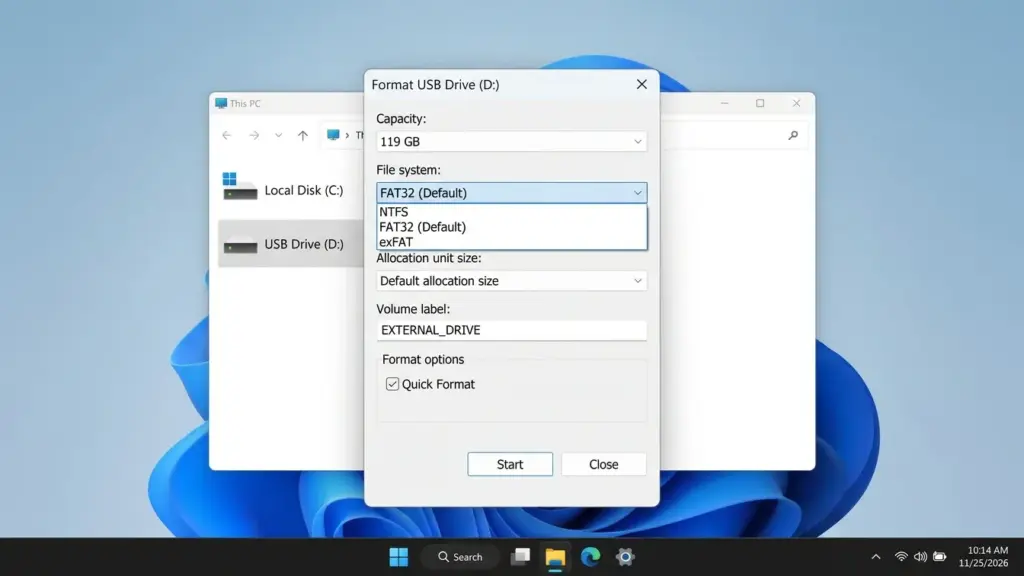
Open File Explorer, right-click the drive and choose Format. You cannot format the drive that Windows is running from. You should see a window with Capacity, File system, Allocation unit size, Volume label and Quick Format.
Step 3: Choose the options
Select the File system (NTFS, exFAT or FAT32).
Keep the default Allocation unit size.
Type a Volume label, which is the drive's name.
Keep Quick Format ticked. A full format (untick it) takes much longer, checks the drive for problems and is not needed for a drive that works.
Step 4: Start the format
Select Start and confirm. Check the drive letter and size first, because a format cannot be undone from the dialog. A message says Format Complete, and the drive opens empty with the new file system under Properties.
FAT32 on a large drive
On most PCs, the Format dialog in File Explorer and Disk Management offers FAT32 only for drives of 32 GB or less. Microsoft announced in 2024 that the limit for the command-line format tool would rise to 2 TB, first in a Windows 11 preview build (Insider build 27686). We could not confirm that change in the regular Windows 11 releases, so do not count on it: on your PC the limit may still be 32 GB. For a larger drive, use exFAT or NTFS, or create a smaller partition. If a device really needs FAT32 on a big drive, check whether the device supports exFAT first, because many newer ones do.
Convert FAT32 to NTFS without losing data
If you have files you cannot move, you can convert in place. Open Command Prompt as administrator and run (change the drive letter):
convert D: /fs:ntfs
You should see a message that the conversion is complete. Microsoft documents this command for FAT and FAT32 volumes only, and says a converted volume cannot be converted back to FAT or FAT32. The command does not list exFAT, so to move from exFAT to NTFS, copy the files off, format the drive as NTFS and copy them back. Back up first, since a power cut during conversion can damage the drive. Do not convert a drive that holds files you cannot afford to lose without a second copy.
Common problems
"The file is too large for the destination file system": the drive is FAT32. Copy the files off, format as exFAT or NTFS and copy them back, or convert FAT32 to NTFS as above.
The Format option is greyed out or fails: the drive may be in use or write-protected. Close programs that use it, and see USB drive write protected.
A drive that asks you to format it when you plug it in: do not format yet. Read the safe checks in the article on a USB drive that says you need to format the disk first.
Can Windows read exFAT? Yes, on all current versions.
Will formatting remove viruses? It removes files on the drive, but scan your PC too.
Is NTFS good for flash drives? It works, but it writes more and is less compatible, so exFAT is usually better.