Slow SSD? Why Speeds Drop and How to Fix Them
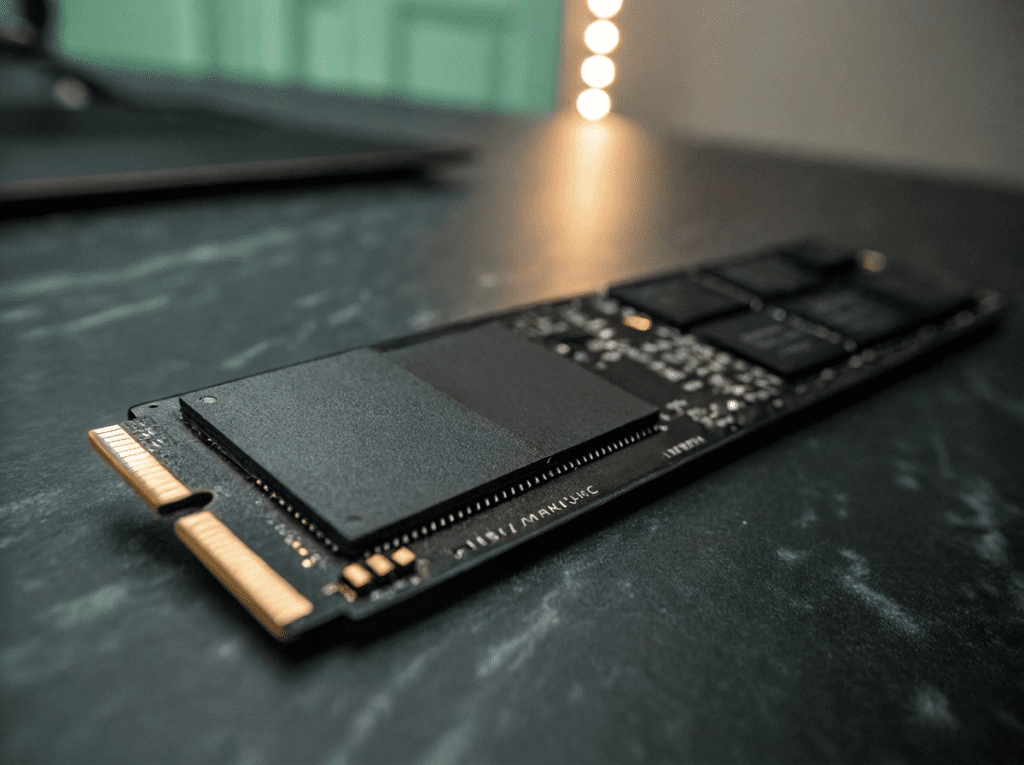
A slow SSD can have simple causes: it is nearly full, it overheats, its firmware or driver is out of date, it sits in a slower slot than it supports, or it only looks slow because you are comparing a short burst with a long copy. This guide measures the drive first, then tests each cause with a result you can read, so you know whether you need a fix or a new drive. It does not change any BIOS or registry setting.
What counts as slow?
Maker figures are best-case numbers. As a rough guide, a SATA SSD reads at about 500 MB/s and an NVMe SSD at several thousand MB/s, but real results depend on the drive and the slot. Many drives are fast for the first few gigabytes and then slow down a lot when their fast cache fills, which is normal. Compare your result with the maker’s specification and with reviews of the same model, and judge a drive slow only when it is far below them in repeat tests.
Step-by-step: find out why the SSD is slow
Step 1: Confirm the drive type and model
Press Ctrl + Shift + Esc, open Performance and select the disk. The model and type (for example SSD (NVMe)) are at the top right. In Settings > System > Storage > Advanced storage settings > Disks & volumes you can also see each drive and its size.
You should see: the drive you expect. If the slow drive is a hard disk, not an SSD, it is normal for it to be slow.
Step 2: Measure the speed
Close other programs, then run a free benchmark such as CrystalDiskMark (see how to benchmark your PC). Run the test twice and note the sequential read and write figures.
You should see: read speeds near the maker’s figure for a healthy drive. If the result is far lower on both runs, continue below. If it is only slow during very long copies, the drive is probably out of fast cache, which is normal.
Step 3: Check the free space
Open Settings > System > Storage. An SSD that is almost full slows down because it has little room to manage writes. As a rule of thumb, keep at least 15 to 20 percent free. See how to free up disk space. If the space keeps running out again after a clean-up, read why the C: drive keeps filling up.
Step 4: Check that TRIM is on
TRIM tells the drive which blocks are free. Open Command Prompt as administrator and run:
fsutil behavior query DisableDeleteNotifyYou should see: a line ending in 0, which means TRIM is on. The setting is named DisableDeleteNotify: 0 enables delete notifications (TRIM) and 1 disables them. Some Windows versions add extra words after the number, such as (Disabled), so read the number itself, not the words beside it. A value of 1 means TRIM is off. Then press Windows + R, type dfrgui and press Enter. In Optimize Drives, check that the drive says Solid state drive and select Optimize, which runs TRIM. Do not defragment an SSD. Before you run a cleaner that claims to optimize an SSD, check which of its features are safe on one. On a hard drive, read how Optimize Drives works and when defragmenting is not needed.
Step 5: Check the temperature
NVMe drives slow down when hot. Check the drive temperature with the maker’s tool or a free tool such as CrystalDiskInfo while you run a long file copy. Many drives start to slow down at around 70 degrees Celsius or higher, but check your drive’s specification. If it is hot, fit the motherboard’s M.2 heatsink or a drive heatsink, and improve the case airflow (see how to fix a PC that keeps overheating).
You should see: a speed that is steady at a stable temperature. If the speed falls as the temperature rises, heat is the cause.
Step 6: Check the slot and the link speed
Some M.2 slots run at a lower speed than others, or share lanes with other devices, and a drive in an older slot is held back. Check the motherboard manual for the slot’s speed, and see how to check which PCIe version your GPU and SSD use.
Step 7: Check the power mode
Open Settings > System > Power & battery > Power mode and set Best performance as a test. In Control Panel > Power Options > Change plan settings > Change advanced power settings, open PCI Express > Link State Power Management and try Off, which can improve NVMe response on some PCs at the cost of a little power. Run the benchmark again to see whether it helped, and undo it if not.
Step 8: Look for background activity
In Task Manager, open Performance > Disk and look at Active time while the PC is idle. If it stays high, a scan, an update or a sync is using the drive. See how to fix 100% disk usage. To judge whether a spike is normal, read is 100% disk usage normal on an SSD.
Step 9: Update the driver and firmware
Install the latest chipset and storage drivers from the motherboard or PC maker (see how to update drivers). Check the drive maker’s tool or website for firmware. Back up your files first (see how to back up your Windows PC), keep the PC plugged in and do not turn it off during a firmware update.
Step 10: Check the health of the drive
Run the checks in how to check your hard drive or SSD health. A drive with reallocated sectors, warnings or a low health percentage should be backed up and replaced. If you plan to clean or repair the drive, read how to check SSD health before cleaning or repair first.
Step 11: Decide whether to replace the drive
If the drive is worn, slow in every test, runs hot even with a heatsink or keeps filling up, replace it with a better one (see how to choose an SSD). Clone or reinstall with the guide replacing a faulty SSD.
More help
For more storage and hardware fixes, search by symptom on the PC Repair Atlas homepage. If the whole PC feels slow, start with how to diagnose a slow PC.
FAQ
Why is my SSD fast at first and then slow? Many drives write quickly into a fast cache and slow down when it is full. This is normal on most drives, and it is worse when the drive is nearly full.
Should I defragment an SSD? No. Use Optimize, which runs TRIM.
Can heat damage an SSD? Heat can shorten its life and makes it slow down to protect itself. Keep it cool.
Will a firmware update make it faster? Sometimes. It can fix known bugs, but it carries a small risk, so back up first.