PC Cleaner for SSD vs. HDD: What Is Safe to Clean, Optimize or Defragment?
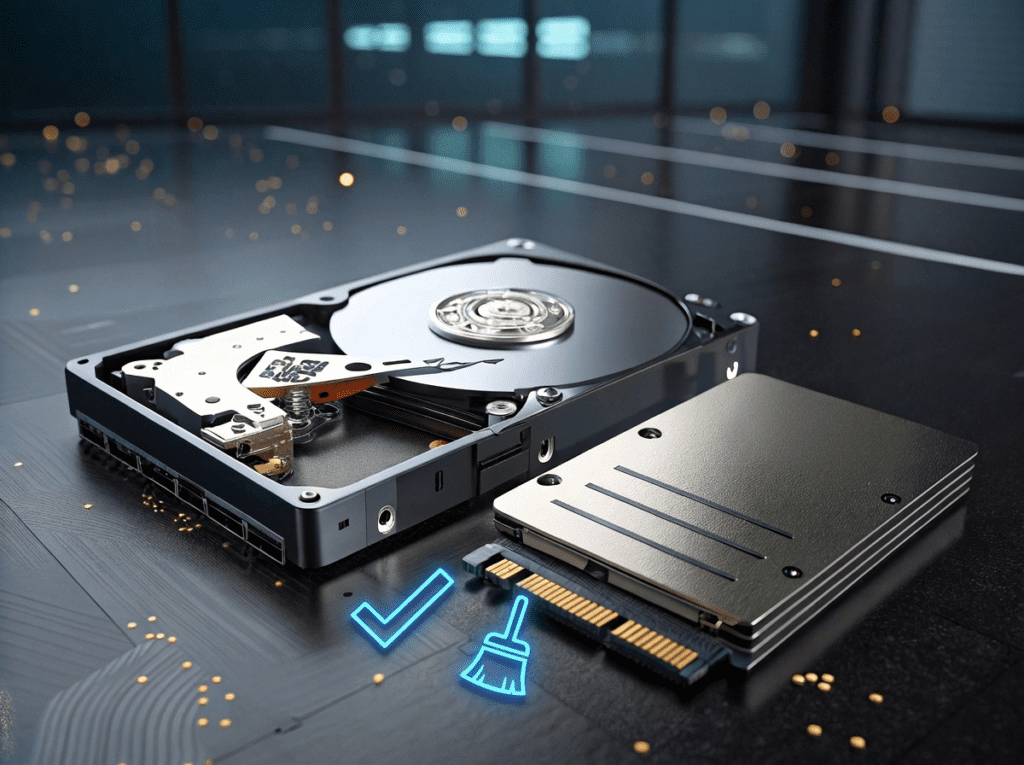
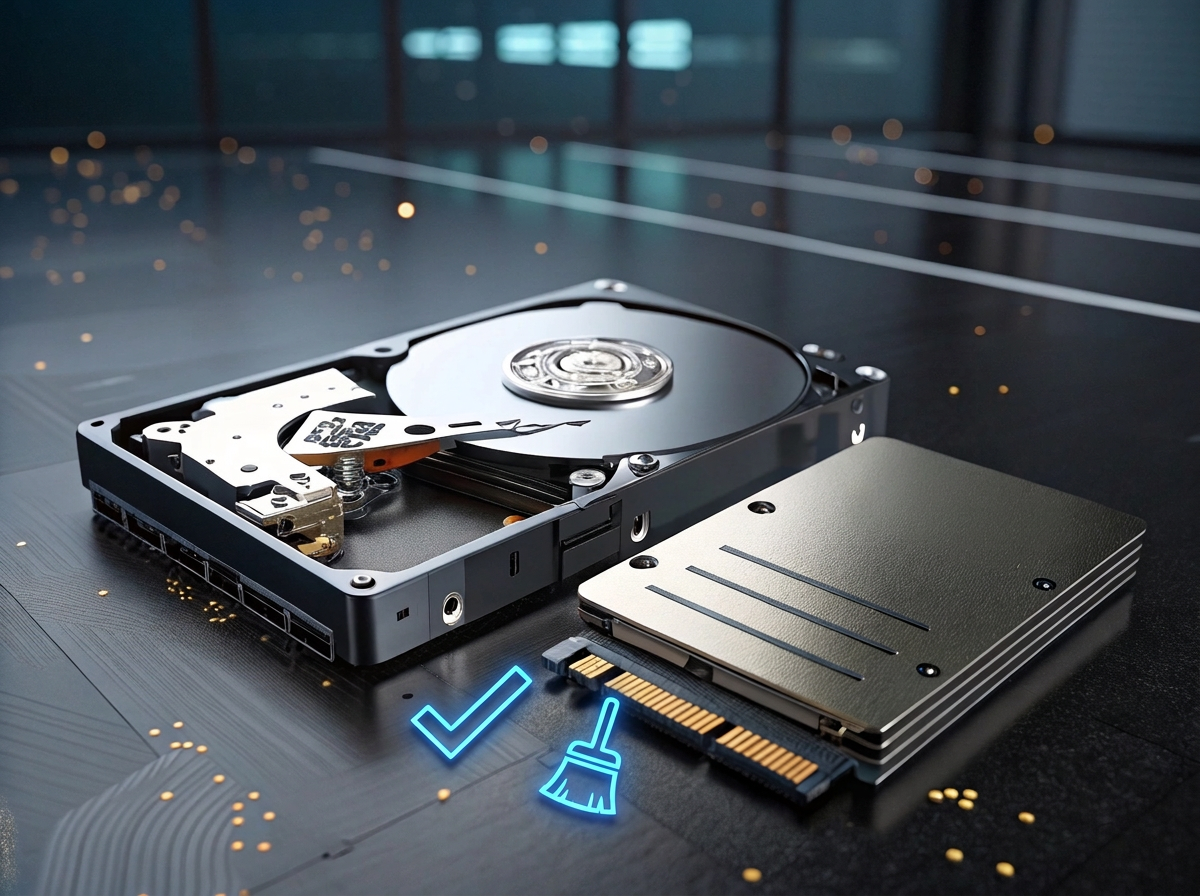
Last reviewed: November 23, 2026 (Pacific). Steps were compared with Microsoft documentation; none was run on a real PC.
Quick answer
A PC cleaner for SSD storage is mostly useful for two jobs: clearing junk files and reviewing startup apps. Both are reasonable on a hard drive too. Defragmenting an SSD, wiping free space, tweaking services and cleaning the registry add risk or little value. Windows already trims SSDs on its own, so a cleaner rarely needs to do that job. Check your drive type first, then use the table and the safe order below.
In this guide
- Why the drive type changes the answer
- How to tell which drive type you have
- Feature table: safe, pointless or risky
- Defragmenting and optimizing
- Junk files, startup items and registry cleaning
- Secure erase and free-space wiping
- What a cleaner cannot do
- What does help each drive type
- Decision tree
- Safe order for a cleaning run
- Result card
- Frequently asked questions
- How this guide was checked
- Sources
If you are weighing a PC cleaner for SSD storage against a hard drive, the first question is which features the tool actually uses. Some features are routine and low risk on any drive. Others were built around how spinning disks work, and they do little or nothing on a solid-state drive. This guide sorts common cleaner features into safe, pointless and risky for each drive type. For the broader question of what cleaners do, see the PC cleaner guide for Windows 10 and 11.
Why the drive type changes the answer
A hard disk drive (HDD) stores data on spinning magnetic platters. Over time a file can be split into pieces scattered across the disc. Microsoft describes defragmenting as reorganizing those files so they are lined up and easier for the drive to read. A solid-state drive (SSD) has no moving parts. Microsoft says SSDs are "trimmed" instead, which tells the drive where it can safely do cleanup work.
That difference explains most of the rules in this guide. A feature that rearranges files only makes sense on an HDD. A feature that writes large amounts of data for no gain is a poor fit for any flash drive, because flash memory has a limited number of write cycles. Wear is a real factor, but for normal cleaning it is a small one, and this guide does not put numbers on it.
A cleaner does not change the type of drive you own. It uses the tools Windows already has, or its own versions of them, so the drive type still decides which jobs are useful. The same goes for external and USB drives: check their type before you judge a cleaner feature on one, and see cleaning up an external hard drive or USB drive.
How to tell which drive type you have
Confirm the drive type before you judge any cleaner feature. Microsoft's optimization page says Windows handles optimization for you, and its tool is built around the drive type. The menu paths below are not confirmed on an official page, so treat them as starting points. Menu names vary by Windows version and by PC maker.
Task Manager
On many PCs, the Performance tab in Task Manager shows the disk type when you select a drive, often labelled as an HDD or an SSD. Not every version shows it. If there is no label, try the next method. This path is unconfirmed on an official page.
Storage settings
Some Windows 11 builds list disks and volumes under Settings, then System, then Storage, in an Advanced storage settings section. The exact name of the disk list is unconfirmed on an official page, and it can change between builds, so read the labels on screen rather than trusting a fixed path.
Media type in the optimization tool
Microsoft's page describes the Defragment and Optimize Drives tool and says hard drives are defragmented while SSDs are trimmed. It does not describe a Media type column, so treat that column as unconfirmed. If you see it, it is a useful check. The steps for using the tool are in the optimization guide linked in the next section.
Feature table: safe, pointless or risky
The table below is a diagram, not a screenshot. The caution levels are a reading of the sources, not a test result. Low means routine and generally safe. Medium means use with care. High means avoid it unless you have a specific reason.
Caution levels for a PC cleaner for SSD and HDD
| Feature | HDD | SSD |
|---|---|---|
| Junk file cleaning | Low caution. Useful when space is short. Review each category before deleting. | Low caution. Same files and same review. It does not make the drive faster by itself. |
| Defrag button | Safe when it is Windows' own tool, which runs weekly by default. Avoid third-party schedules that duplicate it. | High caution. SSDs are trimmed, not defragmented. A defrag job adds writes with no clear gain. |
| Optimize or TRIM | Windows handles this, and defragments hard drives as part of optimization. | Windows trims SSDs on its own. Extra trim runs from a cleaner are Medium caution and usually not needed. |
| Free-space wiping | Medium caution. Slow, and of little value for everyday cleaning. | High caution. Overwriting free space is a poor fit for SSDs. See the secure erase section. |
| Boost, prefetch or service tweaks | High caution. Tweaks that promise speed usually change behaviour you do not need to change. | High caution. Same reason. The sources reviewed do not support these tweaks. |
| Hibernation or page file removal | High caution. Trades features and crash data for disk space. Not a cleaning step. | High caution. Same trade-off. Not a cleaning step. |
| Startup cleaning | Low caution. Fewer startup apps can shorten sign-in. | Low caution. Same benefit and the same care. |
| Registry cleaning | High caution. No official source reviewed recommends it, and a wrong entry can break a program. | High caution. The drive type makes no difference here. |
Wear is a real but small factor for ordinary cleaning. Deleting junk files is normal use. What matters is avoiding jobs that rewrite whole drives or change system settings for no clear gain.
Defragmenting and optimizing: what is safe
Optimization is the one area where the drive type decides the whole answer. Windows already runs it, so a cleaner that adds its own defrag schedule is repeating a job. The built-in tool has the controls you need, and the optimization guide covers the steps: how to defragment and optimize drives in Windows 11. This guide does not copy those steps.
On a hard drive
Microsoft says that by default Windows optimizes drives once a week, and that hard drives are defragmented during this run. You can change the schedule to daily, weekly or monthly, or turn it off, under scheduled optimization settings. If you turn it off, plan manual runs. Keep the built-in tool as the only defrag tool on the PC.
On a solid-state drive
Microsoft says SSDs are trimmed rather than defragmented. A cleaner that offers to defragment an SSD is offering a job that does not match the drive, and it adds writes with no clear gain. Let Windows handle trim on its own schedule, and treat any defrag option on an SSD as a reason to choose a different cleaner.
Junk files, startup items and registry cleaning
Most of what a cleaner does in this group is safe on either drive type. The part that needs judgement is deciding what to delete and what to leave. Registry cleaning is different, and it belongs on the skip list.
Junk file cleaning
Temporary files and caches are the safest category in most cleaners, and they behave the same on an HDD and an SSD. Review each category before you confirm, and never accept a list that includes your documents, downloads or photos. The comparison of cleaners and built-in cleanup tools shows where the overlap is: PC cleaner vs Storage Sense vs Disk Cleanup. For a scan list you do not recognize, see which scan results are safe to delete.
Startup items
Each startup app is a program Windows loads when you sign in, so fewer of them can shorten sign-in on either drive type. Disable only items you recognize and do not need. The startup guide explains how to judge them: disable startup programs in Windows 11, and the list of apps that are usually safe to turn off is in startup apps that are safe to disable.
Registry cleaning
Registry cleaners promise faster PCs, but the official sources this guide checked do not recommend them, and a wrong entry can break a program. Drive type makes no difference. Skip this feature. Defragmenting the registry is a separate question, covered in whether a registry defrag is needed. If a registry scan reports errors, read what they mean before you touch anything: registry cleaner found errors: what they mean. This guide gives no registry edit steps.
Secure erase and free-space wiping
Wiping free space means writing random data over unused parts of a drive. On an HDD, several overwrite passes were the usual way to remove deleted files. Kingston's vendor guide says that method is not the right one for an SSD, because flash memory manages its cells differently and overwrites may not reach every old copy. It also says a quick format or simple file deletion can leave data recoverable.
Secure erase on an SSD
Kingston's guide describes a secure erase as a command the drive itself runs to reset its storage cells. It names two routes: the drive maker's own tool, or a secure erase option in BIOS or UEFI settings. It also says an occasional secure erase has little wear impact. This is vendor guidance, not a rule for every SSD, so check your drive maker's documentation first.
Back up everything before you start, because a secure erase cannot be undone, and do not run it on a drive you still need. If you are selling or giving away the PC, the full pre-sale checklist is in the guide to clean a PC before selling: clean a PC before selling in Windows.
What a cleaner cannot do for either drive
A cleaner does not repair a failing drive. Errors, clicks, a drive that disappears, or a disk warning from Windows need a health check, not a cleaning run. Start with the guide to check SSD health before a repair: check SSD health in Windows 11 before repair. For hard drives, the SMART check is covered in check hard drive and SSD health with SMART.
A cleaner also does not add speed to a drive. A slow SSD often has causes that deleting files will not fix, such as a nearly full drive or driver problems. The guide to a slow SSD covers those: fix slow SSD performance in Windows.
On an older PC with a hard drive and limited memory, the bottleneck is often the hardware itself. The clean-up guide for old machines sets realistic expectations: clean up an old Windows PC with a low-RAM hard drive.
What does help each drive type
The things that help most are not inside a cleaner. They are free space on the right drive, fewer startup apps, and, where the hardware is the limit, an upgrade.
Hard drives
Free space helps an HDD, and the guide to freeing up disk space in Windows 11 shows where space goes: free up disk space in Windows 11. Fewer startup apps and a healthy drive help too. If the hard drive is old and slow, an SSD upgrade is the larger change, and the guide on choosing an SSD explains the main options: how to choose an SSD, SATA vs NVMe. For the wider list of speed steps, see how to speed up Windows 11.
Solid-state drives
Keeping some free space is general guidance for an SSD. This guide gives no percentage, because the sources checked do not state one. Firmware and driver updates from the drive maker matter more than cleaning, and a periodic health check shows whether the drive is still in good shape. Back up your files on a schedule as well, for example with a system image: back up Windows PC files with a system image.
Decision tree
Work through these questions in order. The tree is a diagram, not a screenshot.
- Is the feature junk cleaning or startup review?
- Yes: review each item and run it. This is safe on either drive.
- Is the feature a defrag, optimize or trim job?
- Hard drive: use Windows' own Optimize Drives tool and leave the schedule to Windows.
- SSD: skip it. Windows trims the drive on its own.
- Is the feature free-space wiping, a registry clean or a speed tweak?
- Yes: skip it on either drive.
- Are you selling or giving away the PC?
- Yes: back up first, then follow the drive maker's secure erase guidance rather than a general wipe.
- Is the drive showing errors or sudden slowdowns?
- Yes: run a health check before any cleaner.
Safe order for a cleaning run
This sequence is a diagram of the order that avoids the most trouble. It is not a set of commands.
- Back up anything you cannot replace, using the system image guide in the section above.
- Confirm the drive type with one of the methods above.
- Run a health check if the drive shows errors.
- Review the startup items and turn off only the ones you recognize as unneeded.
- Clear junk files, reviewing each category before you confirm.
- Leave optimization to Windows on its own schedule.
- Check free space and the drive's behaviour again, and note what changed.
Result card
Safe on either drive
Reviewing and clearing junk files, reviewing startup items, running a health check when something looks wrong, and keeping Windows optimization on its schedule.
Skip on either drive
Registry cleaning, speed or service tweaks, hibernation or page file removal, and free-space wiping for everyday cleaning. On an SSD, also skip any defrag button.
Frequently asked questions
Should I run a PC cleaner on an SSD?
Yes, for junk file cleaning and startup review, after you check each item. Skip defrag buttons, free-space wiping, registry cleaning and speed tweaks, because those add risk or little value on an SSD.
Does Windows defragment an SSD?
Microsoft says SSDs are trimmed rather than defragmented, and Windows handles that automatically as part of optimization. Hard drives are the type that get defragmented.
Is it safe to defragment a hard drive with a cleaner?
Use Windows' own Optimize Drives tool, which runs weekly by default. A third-party defrag feature that duplicates that schedule is not needed, so choose the built-in one.
Do I need to secure erase an SSD before I sell it?
Kingston's guidance says a quick format or deleting files can leave data recoverable, and it points to the drive maker's tool or a BIOS or UEFI secure erase. Back up first, and check your drive maker's documentation, because this is vendor guidance rather than a rule for every SSD.
Will a PC cleaner make my SSD last longer?
No source checked here shows that. Routine cleaning is sensible and unneeded write jobs are best avoided, but wear from ordinary use is small, and this guide gives no figures.
How can I tell whether my PC has an HDD or an SSD?
On many PCs, Task Manager's Performance tab shows the type, and the optimization tool may have a Media type column. Both are unconfirmed on an official page, so use the labels on your own screen.
Can a PC cleaner fix a failing drive?
No. A cleaner removes files and changes settings. A failing drive needs a health check and a backup before any repair.
How do I know if a PC cleaner is working?
Look for a clear reason for each change and a result you can measure, such as more free space. For a fuller check, see how to tell if a PC cleaner is working.
How this guide was checked
The Windows steps and optimization statements were compared with Microsoft Support's page on defragmenting and optimizing drives. The secure erase points were compared with Kingston's article on erasing an SSD, which is a drive maker's guidance and not independent testing. Both were read as page text returned by search. None of the steps was run on a real PC, and nothing was checked on a phone or in a browser. Menu paths that are not on an official page are marked as unconfirmed.
More help: start from the PC repair guides on the homepage, or describe your problem to the Repair Assistant to find the right guide.