Windows 11 Startup Apps: Which Can You Safely Turn Off?
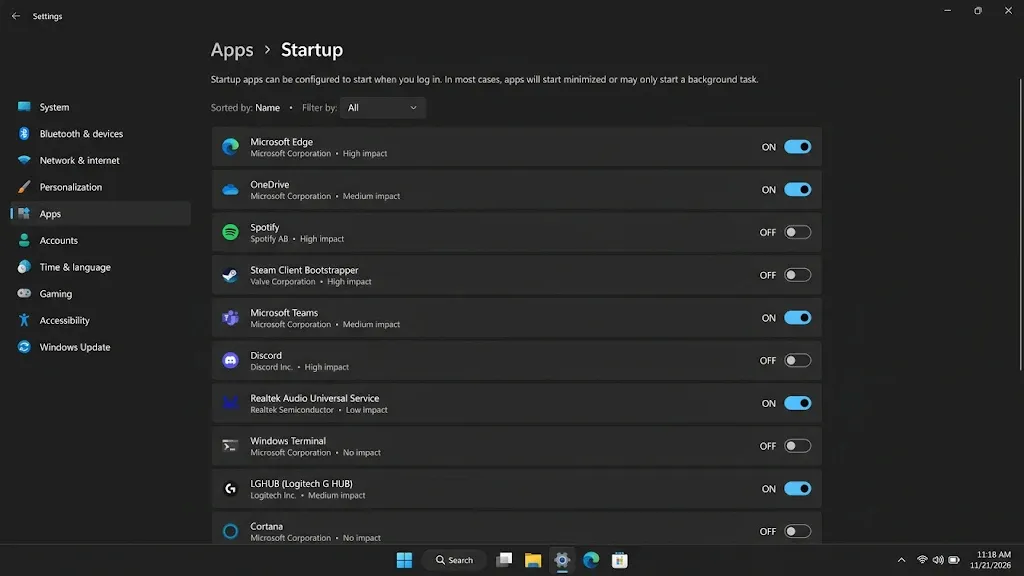
Most Windows 11 startup apps are optional. Turning one off only stops it from launching when you sign in. It does not uninstall the app, and you can turn it back on at any time. Keep security software and the helper tools your hardware needs. If you do not recognise an entry, check it before you change it. This guide explains which Windows 11 startup apps are safe to disable and which to keep. For the click-by-click steps to switch them off, read How to Disable Startup Programs in Windows 11.
Where to find the startup list
Open Settings, then go to Apps > Startup. You can also press Ctrl+Shift+Esc to open Task Manager and select the Startup apps tab. Menu names can change between Windows 11 builds, so if you cannot find them, search for "Startup" in the Settings search box. Task Manager shows Name, Publisher, Status and Startup impact columns. Those four columns are what you need for the decisions below.
What Startup impact means
Task Manager rates each startup app as Not measured, Low, Medium or High. The rating reflects how much CPU time and disk activity an app uses around sign-in. "Not measured" means Windows has no data for that app yet, so it has not been rated.
Treat the rating as a hint, not a verdict. A High item that you need every day is still needed. A Low item that you never open can still be turned off. Use the impact column to decide where to look first, then use the rules in the next sections to decide what to change.
Which Windows 11 startup apps are usually safe to disable
These categories are usually the easiest to turn off. In each case you can still open the app yourself when you need it.
- Auto-updaters and helpers for apps you rarely use. You can open the app when you need it. Many updaters also run on their own schedule, so you are not always losing updates.
- Chat, meeting and music apps you open by hand. Nothing is lost if they start only when you open them.
- Game launchers and cloud-sync tools you can open manually. Sync pauses until you open the tool, so open it when you next need your files.
- Printer and scanner helper tools. Printing usually works without the background helper. If scanning stops working, turn that helper back on.
- Microsoft apps you do not use. If Phone Link or Teams appears in your list and you never use it, it is a reasonable candidate.
Apps to keep enabled
Some startup entries protect you or make your hardware work as expected. Keep these enabled unless you have a specific reason to change them:
- The Windows Security notification icon, which shows your device health alerts.
- Your antivirus or other security software.
- Touchpad, audio and graphics control tools that your hardware needs.
- Laptop hotkey, brightness and battery tools from the manufacturer.
- Cloud backup you rely on, such as OneDrive if you depend on it for your files.
- A password manager you use every day.
A simple rule decides most cases: do I need this the moment I sign in? If the answer is no, it is a candidate to turn off. If the answer is yes, keep it.
How to judge an unknown entry
When you do not recognise an entry, work through these five checks before you change it. Do not delete the file, do not edit the registry, and do not install third-party startup tools. To see where registry-based entries are recorded, read about the Run and RunOnce registry keys. Entries that do not appear in Startup apps at all can be checked with Autoruns, a look-first tool.
Five checks for an unknown entry
- Read the Publisher column. You should see a company or developer name. An empty publisher is a reason to look further, not proof of a problem.
- Open the file location. Right-click the entry in Task Manager and choose Open file location. You should see a folder that matches the program name. If this fails, the entry may not point to a file; leave it enabled and check again later.
- Check the file's signature. Right-click the program file, choose Properties and open the Digital Signatures tab. You should see a signature from the publisher named in the Publisher column. The Details tab shows the product name and description. If there is no signature, treat the entry with more caution.
- Search online. Right-click the entry and choose Search online, which Task Manager offers. Read the results with care. Forum posts can be wrong, and an unfamiliar file name alone does not prove anything.
- If you are still unsure, leave it enabled. Alternatively, disable only that one entry and restart. You should see your normal apps and features working after the restart. If something you need is missing, turn that entry back on.
When the file location looks odd
If the file location looks odd, such as a random file name inside a temporary or AppData folder with no publisher, run a Windows Security scan. Go to Settings > Privacy & security > Windows Security > Virus & threat protection and choose Quick scan. You should see a scan summary when it finishes. If this fails or the scan reports a threat, follow the instructions Windows Security gives you, or work through our malware removal guide. For unexplained behaviour in general, our article on fake virus warning pop-ups explains what to watch for. If the entry turns out to be an unwanted app, see our guide to potentially unwanted apps in Windows 11. If malware was found, the clean-up steps that follow removal are in our guide to cleaning up your PC after virus or adware removal. If the unknown entry is a PC cleaner that runs in the background, see PC cleaners running in the background at startup.
Change a few at a time
Change two or three entries at a time, then restart the PC. Use Restart rather than shut down, so the change is tested through a real start-up. Use the computer normally for a day. Keep a note or a screenshot of the original state, so you can reverse a change if needed. You should see the same apps and features working as before. If something breaks, turn back on the change you made most recently.
How to turn a startup app back on
Any change is reversible. You can use one of these methods:
- In Settings, go to Apps > Startup and switch the app's toggle to On.
- In Task Manager, open the Startup apps tab, right-click the app and choose Enable.
- Use the app's own setting, often labelled something like "Start when I sign in" or "Launch at startup".
If an app is missing from the list, you may have removed its shortcut from the Startup folder. Open the Run dialog, type shell:startup and press Enter. To restore the app, re-enable it inside the app itself or create a new shortcut to it. Some apps turn their startup option back on after an update, so check their settings if an entry reappears.
If something stopped working after a change
Re-enable the entry you changed most recently first, then restart. The most common symptoms are a missing audio tool, touchpad gestures that stop responding, brightness keys that no longer work, a VPN client that does not connect, or cloud sync that stops. If the problem goes away after you turn one entry back on, you have found the cause. Leave that entry enabled. If no single entry explains it, try a clean boot to find a software conflict.
More help
For more step-by-step help with Windows problems, browse the PC repair guides. If the whole PC feels slow, see a checklist for speeding up Windows 11.
Frequently asked questions
Does disabling a startup app uninstall it?
No. Disabling only stops the app from launching when you sign in. The program stays installed, and you can open it by hand or turn its startup entry back on.
Can I turn off every startup app?
You can, but it is not a good idea. Keep your security software, hardware control tools and any sign-in tools you need. Turn off only what you do not need the moment you sign in.
Will turning off startup apps make my PC faster?
It may reduce the work done at sign-in, but results vary. Startup apps are not always the cause of a slow PC, so judge the result after a normal restart. If sign-in is still slow after that, see the common causes of slow startup in Windows 11.
What should I do if I do not know an entry?
Work through the five checks above. If you are still unsure, leave it enabled. You can always test by disabling that one entry later.