Fake Virus Warning Pop-Up on Your PC? What to Do, Step by Step
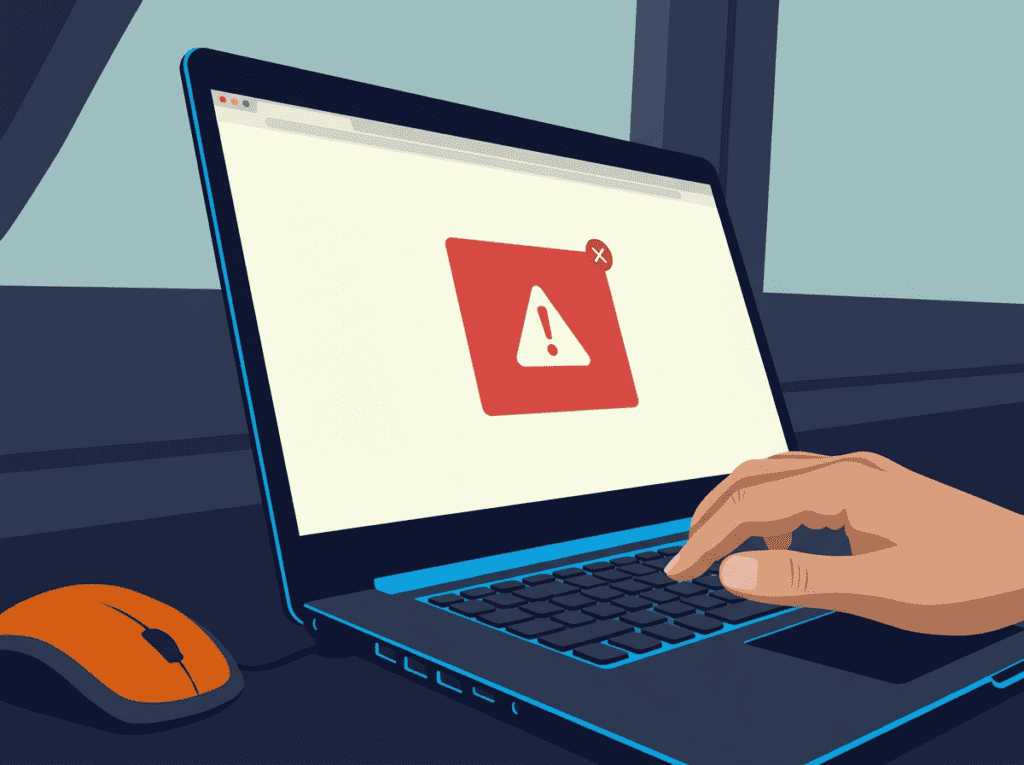
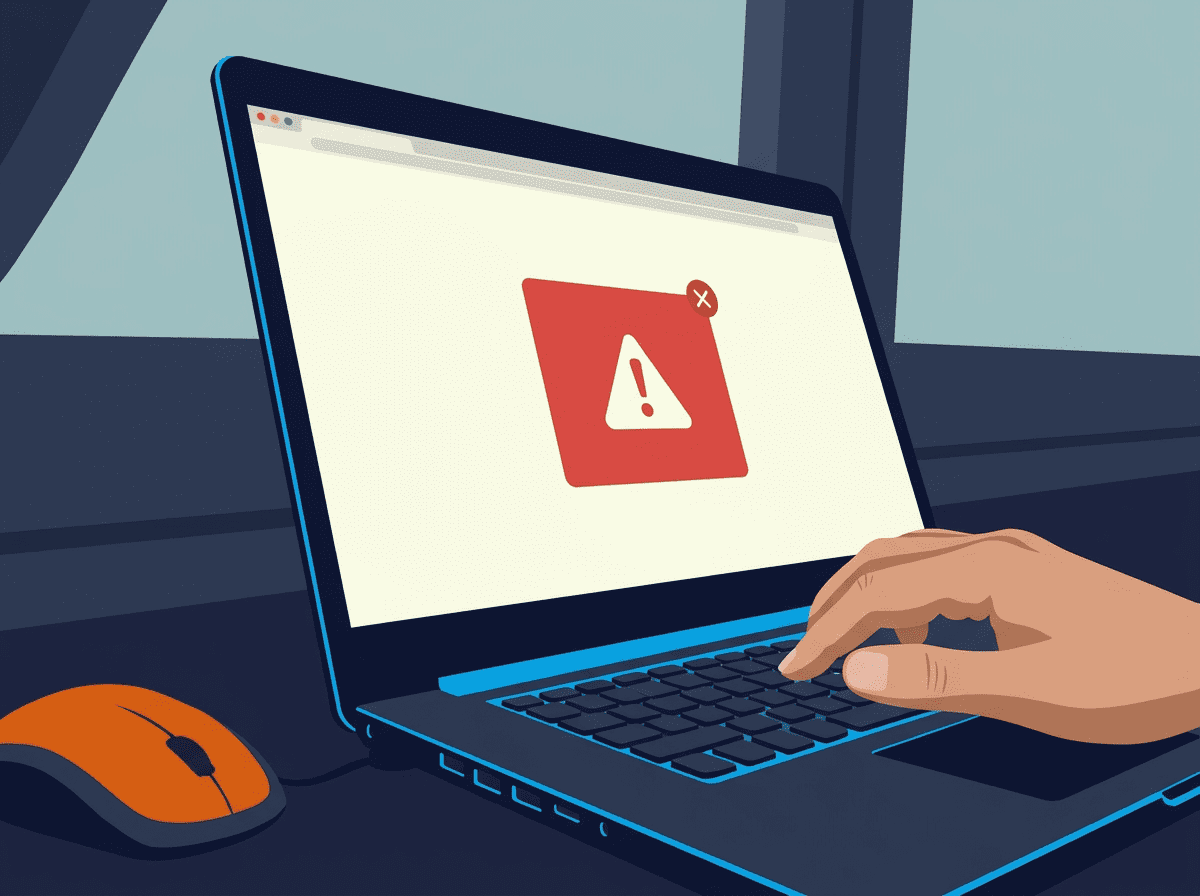
A fake virus warning pop-up can fill your screen with a red alert: “Your PC is infected! Call Microsoft Support now.” There may be a loud alarm, a countdown, or a message saying your files are being deleted.
In almost every case, this is a web page, not a message from Windows. Its only goal is to scare you into calling a phone number or installing something.
The good news is that you can usually get rid of it in a few minutes without paying anyone. Follow these steps in order.
How to Spot a Fake Virus Warning Pop-Up
Real alerts from Windows Security appear in the Windows Security app or as a normal notification. They do not take over your browser. Be suspicious if the alert:
- Appears inside your web browser, often in full screen.
- Tells you to call a phone number.
- Uses the name Microsoft, Apple, Norton or McAfee together with an urgent countdown.
- Plays a recorded voice or an alarm sound.
- Blocks you from closing the tab.
The Federal Trade Commission (FTC) warns that scammers often use fake pop-ups like this to start a tech support scam.
Step 1: Do Not Click Anything or Call the Number
Do not click buttons such as Scan now, Remove virus or Fix. Do not even click the “close” button inside the pop-up. Those buttons can start a download or open more scam pages.
Do not call the number. A caller will ask for remote access to your PC and will try to charge you for a service you do not need.
Step 2: Close the Browser the Safe Way
- If the page is in full screen, press F11 or Esc to leave full screen.
- Try Alt + F4 to close the window.
- If it will not close, press Ctrl + Shift + Esc to open Task Manager.
- On the Processes tab, select your browser (Chrome, Edge or Firefox).
- Select End task.
If the whole screen is locked and nothing responds, hold the power button to restart the PC. Holding the power button forces the PC off, so use it only when nothing else responds; unsaved work in other windows will be lost. Do not save anything from the pop-up page.
Step 3: Reopen the Browser Without the Bad Page
When you reopen the browser, it may offer to Restore pages. Do not accept. Dismiss the message instead.
If the fake page loads again, close the tab straight away. Then open a fresh window.
Step 4: Stop the Site From Sending Notifications
Some fake alerts come back as browser notifications that look like virus warnings. Remove the site’s permission:
- Chrome: open Settings > Privacy and security > Site settings > Notifications. Under allowed sites, remove any site you do not recognize.
- Edge: open Settings > Cookies and site permissions > Notifications and remove unknown sites from the allowed list.
Step 5: Remove Extensions You Did Not Install
- In Chrome, open the three-dot menu and choose Extensions > Manage extensions. In Edge, open Extensions from the menu and choose Manage extensions.
- Look for anything you do not recognize or never chose to add.
- Select Remove.
- Also check your homepage and default search engine in the browser settings. Unwanted programs can also cause pop-ups and redirects; see potentially unwanted apps in Windows 11.
Step 6: Run a Windows Security Scan
Windows already includes Microsoft Defender, so you do not need to buy anything. If Defender is switched off, see how to turn Microsoft Defender back on. Paid cleaner or optimizer programs are not needed either; see system cleanup software to avoid.
- Open Start and search for Windows Security.
- Select Virus & threat protection.
- Choose Scan options, select Full scan, then select Scan now.
- When it finishes, go back to Scan options. Select Microsoft Defender Antivirus (offline scan), then Scan now. This restarts the PC and scans before Windows loads, so save your work first.
- After the restart, open the Windows Security app again and select Protection history to see anything it found. Follow the actions it suggests.
If the scan finds nothing, that is normal. A pop-up page alone is not usually a virus. If the problem comes back or the PC behaves strangely, see our guide on how to remove a virus or malware from a Windows PC. Once the pop-up is gone, follow these clean-up steps after virus removal to tidy up the rest.
What If You Already Called the Number or Gave Access?
Act quickly, but stay calm. This is fixable.
- Disconnect from the internet by turning off Wi-Fi or unplugging the network cable.
- Open Settings > Apps > Installed apps. Uninstall any remote-access program you did not install yourself, such as a remote support tool the caller asked you to download.
- Run the full and offline scans from Step 6.
- From a different, clean device, change the passwords for your email, bank and any account you used on this PC. If you reused a password on other sites, change it there too.
- If you paid or shared card or bank details, contact your bank or card company right away. Scammers often ask for gift cards, transfers or payment apps because payments made that way are hard to get back.
- Report the scam to the FTC at reportfraud.ftc.gov and to Microsoft at microsoft.com/reportascam.
How to Avoid Fake Virus Warnings in the Future
- Keep Windows and your browser updated.
- Use Microsoft Defender or one other trusted security program, not several.
- Do not allow notifications from websites you do not know. Fake cleaner warnings often arrive this way; see fake PC cleaner warnings and how to remove them.
- Download software only from the maker’s own website or the Microsoft Store. If you still need to try an unknown file, test it first in Windows Sandbox for testing suspicious files.
- Remember that real companies do not show pop-ups asking you to call them.
Frequently Asked Questions
Is a pop-up that says my computer is infected real?
Almost never. A web page cannot scan your PC for viruses. Real alerts come from the security software already installed on your PC.
Does closing the pop-up mean I am safe?
Usually yes, if you did not click, call or download anything. Running a Windows Security scan is a sensible extra check.
Should I pay for antivirus software the pop-up recommends?
No. Do not buy anything from a pop-up. Windows includes Microsoft Defender at no extra cost, and a PC cleaner is not an antivirus, so a cleaner sold in a pop-up will not protect you.
Why does the alarm sound keep playing?
The sound comes from the web page. It stops once you close the tab or end the browser in Task Manager.
Final Thoughts
A fake virus warning pop-up looks frightening, but it is only a web page. Close it safely, clean up the browser, run a Windows Security scan and never call the number on the screen.
For more help, explore the PC Repair Atlas repair guides or start from our PC repair guides home page.