Windows Security Turned Off or Won’t Turn On? How to Fix It
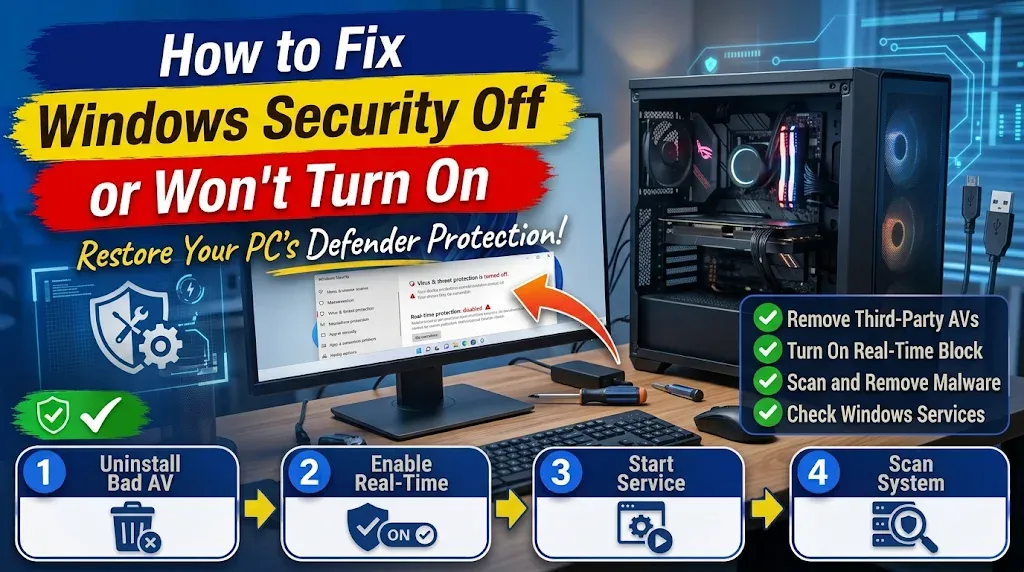
Windows Security (Microsoft Defender) protects your PC from malware. If it shows that protection is off, or the switch will not turn on, there is usually a clear reason: another antivirus is installed, a service has stopped, or malware has interfered. This guide helps you find which, and says what you should see after each step. To check the other pages in the app, see the Device performance and health page in Windows Security.
Windows 10 note: Windows 10 support has ended (see Microsoft's page), and a PC without updates is more exposed, so protection matters even more. The menus are Update & Security > Windows Security on Windows 10.
Warning
If you cannot turn on protection and you also see signs of infection (pop-ups, a slow PC, changed browser settings, programs you did not install), treat it as a possible infection and follow how to remove a virus or malware. Never download a "Defender fixer" from a search result or a pop-up. If a pop-up tells you your PC is infected, see fake virus warning pop-up.
Step-by-step: turn protection back on
Step 1: Check what the app says
Open Settings > Privacy & security > Windows Security > Virus & threat protection. The page may say your antivirus is managed by another program, or that real-time protection is off. Select Turn on if the button is there.
You should see: a green check and the words "No action needed". If a yellow or red warning stays, read its text, because it names the cause. Then go on to Step 2.
Step 2: Look for another antivirus
On Windows 10 and 11, Microsoft Defender Antivirus turns itself off automatically when another antivirus is installed and registered (Microsoft's documentation on antivirus compatibility describes this), so that two scanners do not run together. A trial that came with a new PC is a common reason (see how to remove bloatware). If a cleaner or optimizer you installed is the program that switched it off, see how to judge PC cleaner software before you install it.
- In Windows Security, open Virus & threat protection and under Who's protecting me? select Manage providers. It lists the security programs registered with Windows.
- Check Settings > Apps > Installed apps for security programs.
- Keep one, and uninstall the other. If the old program left files behind, use the maker's own removal tool (on the maker's site), then restart.
You should see: Microsoft Defender Antivirus listed as on after the restart. If you want to keep the other antivirus, leave Defender off and make sure that program shows as active. Remember that a PC cleaner is not an antivirus: see what a PC cleaner does versus an antivirus.
Step 3: Turn on real-time and tamper protection
In Virus & threat protection > Manage settings, turn on Real-time protection and Tamper Protection. Real-time protection can turn itself off for a short time after you switch it off on purpose, and tamper protection stops other programs from changing Defender's settings.
You should see: both switches show On. If a switch goes back to Off by itself, or is greyed out, continue with the next steps.
Step 4: Check the services
- Press Windows + R, type services.msc and press Enter.
- Find Microsoft Defender Antivirus Service and Security Center.
- Check that Status says Running. If not, right-click it and choose Start, and set the Startup type to Automatic if it is not.
To check the same thing from PowerShell without changing anything, open Windows PowerShell as administrator and run:
Get-MpComputerStatus | Select-Object AMServiceEnabled, AntivirusEnabled, RealTimeProtectionEnabled, IsTamperProtectedEach value should read True. A False for AMServiceEnabled or AntivirusEnabled means Defender is switched off or replaced by another antivirus (Step 2). If the command shows an error that the service is not running, or a service will not start or the option is greyed out, continue below. Do not try to force Defender on with registry edits.
Step 5: Check the date and time
A wrong clock can stop the updates. Turn on Set time automatically in Settings > Time & language > Date & time.
Step 6: Install updates and the latest definitions
Install Windows updates (see fix Windows Update stuck or failing if they fail). In Virus & threat protection, under Protection updates, select Check for updates.
You should see: a recent date for the security intelligence version (today or yesterday). If the update fails with an error, note the code and check the connection and VPN.
Step 7: Scan for malware
Malware often tries to turn security programs off. In Virus & threat protection > Scan options, run Microsoft Defender Antivirus (offline scan), which restarts the PC and scans before Windows loads. If Defender will not run at all, restart in Safe Mode with Networking, run a second-opinion scanner from a reputable maker, then follow how to remove a virus or malware. If a file you are unsure of is part of the problem, test a suspicious file in Windows Sandbox before you open it.
Step 8: Check whether an organization controls the PC
On a work or school PC, an administrator may manage protection, and you cannot change it. If Settings shows a greyed-out switch with a managed notice, see why some settings are managed by your organization. On Windows Pro, Enterprise or Education (Windows Home has no Group Policy editor), press Windows + R, type gpedit.msc and look under Computer Configuration > Administrative Templates > Windows Components > Microsoft Defender Antivirus. The policy Turn off Microsoft Defender Antivirus should be Not configured. Do not change policies on a PC you do not manage. If it is enabled on your own PC and you did not set it, treat that as a warning sign and scan (Step 7).
Step 9: Repair Windows and reset the app
Run the DISM and SFC steps in how to repair Windows system files. Then open Settings > Apps > Installed apps, find Windows Security, select Advanced options and choose Repair, then Reset if needed. Restart and open Windows Security again.
You should see: the Windows Security home screen with its status icons. If it still will not open or turn on, a repair that keeps your files is the next step, after a backup (see how to back up your Windows PC).
More help
For more security and repair guides, step by step, visit the PC Repair Atlas homepage.
FAQ
Is it safe to turn off Windows Security? Only for a short test. Leave it on, or use another trusted antivirus.
Do I need a second antivirus? No. Microsoft Defender is enough for most home users, and two real-time scanners can conflict.
Why can't I turn it on in a work PC? Your organization probably manages it, so ask your IT team.
Why does Windows Security say it is turned off after I installed another antivirus? That is by design. Microsoft says Defender turns itself off when another antivirus is registered. Check that the other program is active.