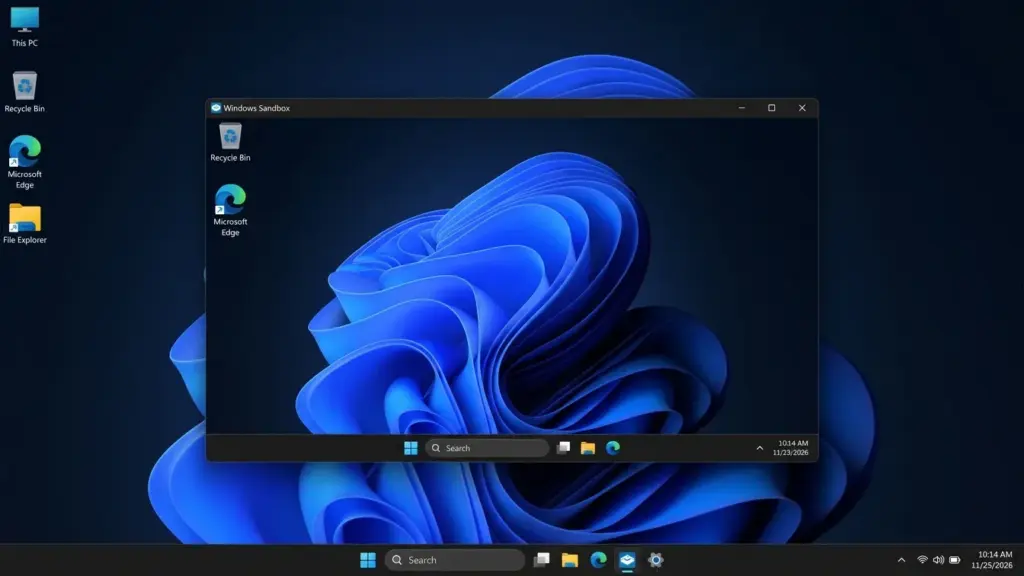
Windows Sandbox is a small, disposable copy of Windows that runs inside your normal Windows. You can open a file or install a program in it, and when you close it, everything inside is deleted. It is a useful way to check a program you are not sure about. It is not a perfect shield, and this guide explains the limits. Registry changes can be tried there first too; see how to test registry changes safely.
What you need
Windows 10 or 11 Pro, Enterprise or Education. Windows Home does not include Sandbox.
A processor with at least 2 cores (4 cores with hyper-threading is recommended), a standard 64-bit (AMD64) PC or, on Windows 11 22H2 and later, an Arm64 PC. Virtualization must be turned on (see enable virtualization in the BIOS).
At least 4 GB of RAM (8 GB is better) and 1 GB of free disk space (an SSD is recommended).
You should see:Windows Sandbox in the Start menu after the restart. If the tick box is missing or greyed out, your edition does not include it or virtualization is off.
Step 3: Start Windows Sandbox
Open Windows Sandbox from the Start menu. A clean Windows desktop opens in a window.
You should see: a plain Windows desktop in its own window within about a minute. If you get a virtualization error instead, see "If the Sandbox will not start" below.
On Windows 11 version 24H2 and later, Windows Sandbox can update itself to a newer version from the Microsoft Store, with a new look. Microsoft says this version adds controls while it runs (the … icon at the top right) for clipboard sharing, audio and video input and folder sharing, plus an early command line. The steps below work the same in both versions, but the window and menus may not match this guide exactly. See Microsoft's Windows Sandbox versions page.
Step 4: Copy the file into the Sandbox
Copy the file on your normal desktop (Ctrl + C) and paste it (Ctrl + V) into the Sandbox window. Do not copy your private files into it. If copy and paste stops working between your PC and the Sandbox, see our guide to fixing copy and paste in Windows.
Step 5: Run and watch
Open the file or run the installer inside the Sandbox. Watch for warnings, unexpected pop-ups and attempts to download other programs.
Step 6: Close the Sandbox
When you close the window, Windows warns that all content will be discarded and deleted. Select OK. Nothing you installed there stays on your PC.
Limits you should know
By default, the Sandbox has network access, so a malicious program can still use the internet from inside it. Microsoft warns that this can expose untrusted programs to your internal network. Turn networking off with the configuration file below.
Clipboard sharing with your real PC is also on by default, so anything you copy on your PC can be read inside the Sandbox. Do not copy passwords or private text while it is open, or turn clipboard sharing off with the file below.
Do not sign in to your real accounts or type real passwords inside it.
Double-click the file to start the Sandbox with those settings. With the clipboard off, you can no longer paste files in, so use the next section to hand the Sandbox a folder instead. Networking off also stops downloads: that is the point.
Test a file without network, clipboard or write access
First create a folder named ToTest on your Desktop and put the one file in it. Then save this as test-file.wsb, replacing YourName with your Windows user name:
You should see: the Sandbox opens with a ToTest folder on its desktop, no internet and no way to paste in or out. Because the folder is read-only, a malicious file cannot change the original on your PC. If the Sandbox shows an error and closes, the host folder path is wrong: the folder must already exist and the user name must match.
The setting names (VGpu, Networking, ClipboardRedirection, MappedFolders, ReadOnly) are the ones Microsoft documents for .wsb files. Microsoft's own sample for testing unknown downloads works the same way, with networking and the virtual GPU off and a read-only folder. See Use and configure Windows Sandbox for every option. The exact files above were not run on a real PC for this guide.
Common mistakes
Testing with networking on. A program can still send data out or download more malware.
Mapping a folder as writable, or mapping your whole Documents folder. Map one small test folder, read-only.
Saving the file as safe.wsb.txt. Windows then opens it as a text file. Show file extensions to check the name.
Treating a clean result as proof the file is safe. A program can wait or detect a virtual environment and behave well in it.
If the Sandbox will not start
'Windows Sandbox failed to start' or a virtualization error: turn virtualization on in the BIOS (see enable virtualization in the BIOS).
The feature is missing: your Windows edition does not include it.
Can I use Windows Sandbox on Windows 11 Home? No. It needs Pro, Enterprise or Education.
Are my files safe inside it? Files you put in are deleted when it closes. Files on your normal PC are not shared unless you choose to share them.
Is it safe to run real malware in it? No. It is meant for testing doubtful files, not for experiments with live malware.