Copy and Paste Not Working in Windows? How to Fix It
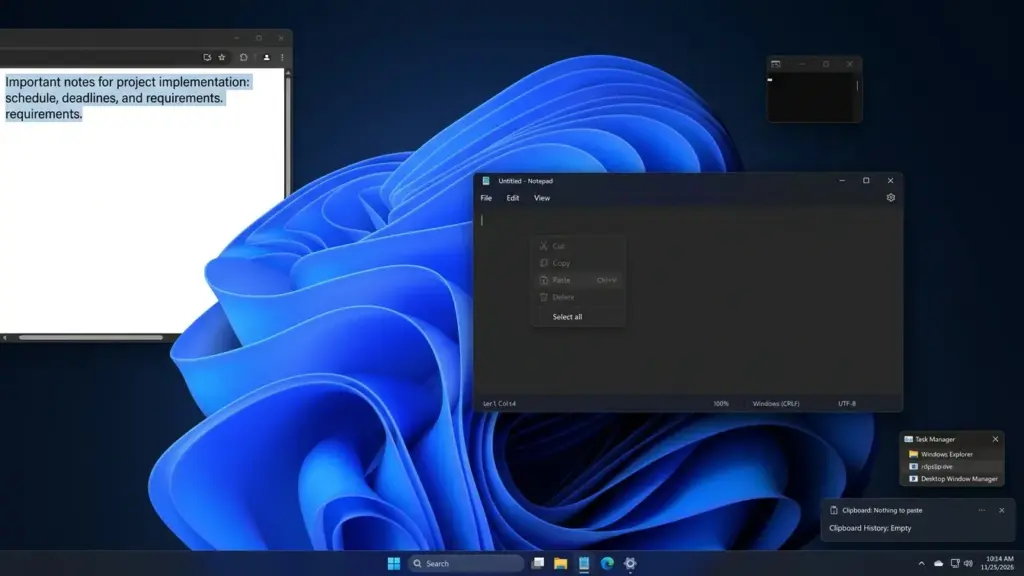
When Ctrl+C and Ctrl+V stop working, the first question is whether the problem is everywhere or only in one program or remote session. This guide separates the cases and shows how to fix copy and paste in Windows.
Step-by-step: fix copy and paste
Step 1: Test in more than one place
Copy and paste text in Notepad, and then in the program that fails. If it works in Notepad but not in the other program, the program is the problem: update it, restart it or check its add-ins. In Microsoft Office you can start a program in Safe Mode by holding Ctrl while you open it, which turns add-ins off for that session. Copying text in Notepad and pasting it in the same window should work.
Step 2: Rule out the keyboard
Try right-click Copy and Paste. If that works, a key may be stuck, or Filter keys or Sticky keys may be on (see fix a keyboard not working on a desktop PC). Try the Ctrl key on the other side of the keyboard.
Step 3: Test the clipboard itself
Open Command Prompt, type this and press Enter, then paste into Notepad with Ctrl+V:
echo clipboard test | clipIf "clipboard test" pastes, the Windows clipboard works and the problem is the program you copied from or pasted into. If it does not paste, keep going.
Step 4: Restart Windows Explorer
Press Ctrl + Shift + Esc, find Windows Explorer, right-click it and choose Restart. The taskbar disappears for a moment and comes back.
Step 5: Reset the clipboard history
Press Windows + V to see the clipboard history. Select Clear all. Then open Settings > System > Clipboard and turn clipboard history off and on again. To clear the clipboard history on its own, see the clipboard section of our guide to clearing Windows caches.
Step 6: Restart the clipboard service
- Press Windows + R, type services.msc and press Enter.
- Find Clipboard User Service (its name ends with random characters).
- Right-click it and choose Restart. If Restart is greyed out, choose Start.
The status column should say Running.
Step 7: Fix it in a remote desktop session
If copy and paste fails between your PC and a remote desktop, the clipboard process on the remote side may be stuck. In the remote session, open Task Manager, end rdpclip.exe (on the Details tab), then press Windows + R, type rdpclip and press Enter. On your own PC, open Remote Desktop Connection, select Show Options > Local Resources and make sure Clipboard is ticked, then reconnect. Some remote servers switch clipboard sharing off by policy, and then only the server's administrator can change it. If the remote connection itself will not start, see Remote Desktop not working on Windows 11.
Step 8: Look for a program that interferes
Clipboard managers, screen capture tools, remote support tools and some security programs use the clipboard. Close them and test again. Very large copied items can also cause trouble, so try copying something small. If a screenshot will not paste, the cause may be the capture tool instead (see how to fix the Snipping Tool).
Step 9: Use a clean boot
A clean boot starts Windows with only Microsoft services, to find a conflicting program.
- Press Windows + R, type msconfig and press Enter.
- On the Services tab, tick Hide all Microsoft services, then select Disable all.
- Open Task Manager > Startup apps and disable the startup items you see.
- Restart and test copy and paste.
If copy and paste works now, a service or startup program was the cause. Turn items back on in small groups to find it. When you are done, return to msconfig, choose Normal startup and restart, so Windows starts as usual.
Step 10: Repair Windows and check for malware
Open Command Prompt as administrator and run these two commands in order, waiting for each to finish:
DISM /Online /Cleanup-Image /RestoreHealth
sfc /scannow
Restart and test. The full steps and how to read the messages are in how to repair Windows system files. Then scan for malware (see remove a virus or malware).
If it does not work
- It fails only in one program: reinstall or reset that program, or check its add-ins.
- It fails for every program after a Windows update: see how to uninstall a Windows update, or use System Restore.
- It fails only for one user account: try a new account to see whether the profile is damaged (see how to fix a corrupt user profile).
More help
For more everyday Windows fixes, browse the PC repair guides on PC Repair Atlas.
FAQ
Why does paste work only once? A clipboard manager or a stuck process may be interfering. Restart the clipboard service.
Can a virus break copy and paste? It can, but it is rare. Scan if you see other signs.
Why does it fail only in one program? The program or one of its add-ins is the cause. Update or reset it.