Windows 11 Remote Desktop Not Working? 9 Fixes for Connection Errors
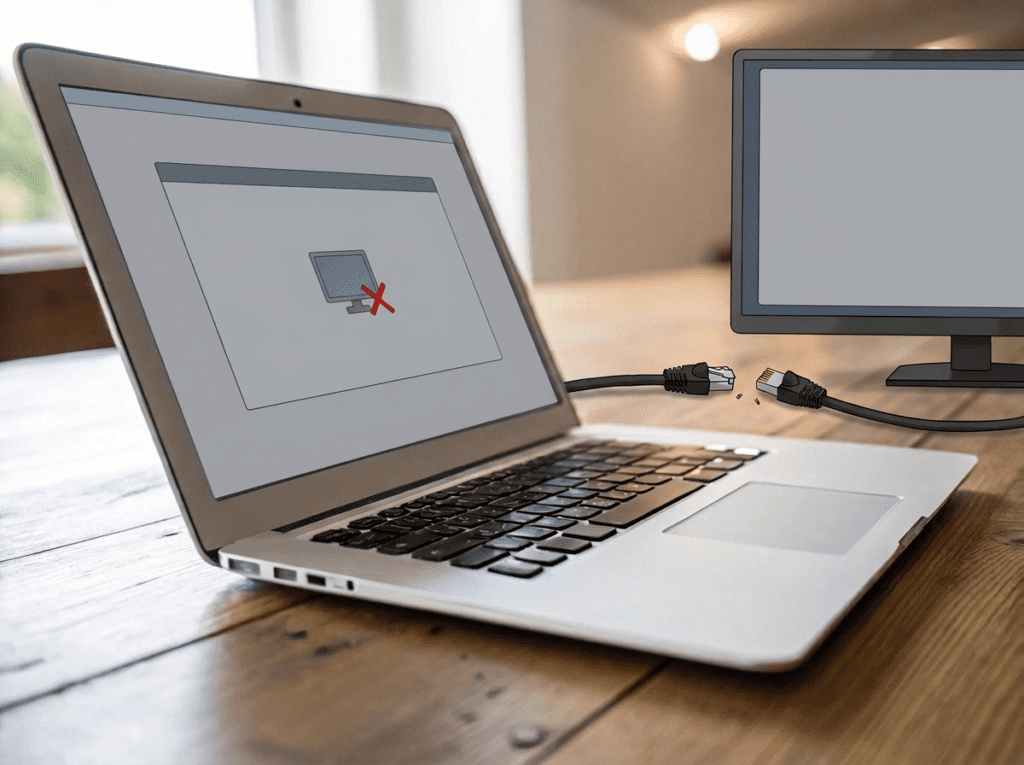
If Windows 11 Remote Desktop not working is the problem, the error usually points to one of a few causes. The host PC may not accept connections, it may be asleep or offline, a firewall rule may block it, or the sign-in details may be wrong. This article covers only that Remote Desktop (RDP) connection problem. It does not cover copy and paste, a VPN that will not connect, or a PC that is online but has no internet.
Two words are used throughout. The host is the PC you want to reach. The client is the PC you connect from. The nine fixes start with the quickest checks and move toward the more involved ones. Each one says what you should see and what to try if it does not help. Stop as soon as the connection works.
For other Windows help, browse the PC repair guides on PC Repair Atlas.
Safety first: none of these steps needs a registry edit, a BIOS change or the firewall turned off. Turning the firewall off is never needed for this problem.
Common Remote Desktop Errors and Where to Fix Them
| What you see | Likely cause | Go to |
|---|---|---|
| Remote Desktop can't connect to the remote computer | Remote access is off, the PC is asleep or off, or it cannot be reached on the network | Fix 2, Fix 3, Fix 4 |
| The remote computer requires Network Level Authentication | The sign-in method does not match, or the client is out of date | Fix 7 |
| An authentication error has occurred. The function requested is not supported | A CredSSP update mismatch between the two PCs | Fix 7 |
| Your credentials did not work | Wrong user name or password, or the account name is written the wrong way | Fix 4, Fix 5, Fix 7 |
| Sign-in is refused for your user | The user is not allowed to connect, or the account has no password | Fix 5 |
| A certificate or identity warning appears before sign-in | The host uses its own certificate, or the name or address is wrong | Fix 7 |
| The session connects, then someone is signed out | Someone is already signed in on the host | Fix 9 |
| Remote Desktop switch is missing | The host runs Windows 11 Home, which cannot host | Fix 1 |
Quick Checks Before You Start
- Is the host PC switched on, awake, and connected to a network?
- Do you know its PC name or IP address?
- Does the account you use have a password set?
- Is the host a Windows 11 Pro, Enterprise or Education PC? Any edition can be the client.
- Are both PCs on the same home network for this first test? Connecting from outside is covered in Fix 8.
Fix 1: Check That the Host Runs a Supported Edition
- On the PC you want to connect to, click Start, then Settings.
- Select System, then About.
- Under Windows specifications, read the Edition line.
You should see: Windows 11 Pro, Enterprise or Education. Microsoft says these editions can act as hosts for incoming Remote Desktop connections. Windows Home editions cannot host, though they can connect out to other PCs. If your host is Home, use a Pro PC as the host, or use the other options in Fix 9.
Fix 2: Turn On Remote Desktop
- On the host PC, go to Settings > System > Remote Desktop.
- Turn on Remote Desktop, then select Confirm.
- Write down the name shown under PC name.
You need to be signed in as an administrator to change this setting. Microsoft's guide also notes that the Make my PC discoverable on private networks option is ticked by default.
You should see: the switch set to On and the PC name listed. Microsoft's How to use Remote Desktop page describes these same steps. If the switch stays off after you confirm, a work or school policy may be controlling it, so ask your IT team. If it turns itself off again, check it once more after Fix 9.
Remote Desktop also depends on its service. Press Windows + R, type services.msc, press Enter, and find Remote Desktop Services. It should show Running. If it is stopped, right-click it and choose Start. If it will not start, restart the host and check again. Some Microsoft Q&A answers also list a second service, Remote Desktop Services UserMode Port Redirector. Check that one only if the first service is running and the connection still fails. If the host instead shows an RPC server message, see our guide to the RPC server is unavailable error.
Fix 3: Keep the Host Awake and on the Network
A sleeping, hibernating or switched-off PC cannot accept a connection. Check the sleep timer under Settings > System > Power & battery, and set it to a time that suits you. Menu names can differ between builds, so look for the screen and sleep options if the wording is not the same. Our guides on a Windows 11 PC that won’t go to sleep and a PC that won’t wake from sleep cover the other side of this. If the host loses Wi-Fi each time it wakes, see Windows 11 Wi-Fi disconnects after sleep.
Next, check that the host shows a connected network under Settings > Network & internet. A wired host can also fail because of its cable or adapter; see Ethernet not working in Windows 11. If the PC is connected but has no internet at all, that is a different problem: see fix Wi-Fi connected, no internet in Windows.
You should see: the host awake and listed as connected. Then try Fix 4. If it still fails, check the network type in Fix 6, because the Remote Desktop firewall rule is often limited to private networks.
Fix 4: Use the Correct PC Name or IP Address
- On the host, open Command Prompt and type
ipconfig, then press Enter. - Note the IPv4 Address under the adapter that is connected.
- On the client, press Windows + R, type
mstsc, and press Enter. You can also search the Start menu for Remote Desktop Connection and open it. - Type the PC name or the IPv4 address, then select Connect.
To check the path first, open Windows PowerShell on the client and run Test-NetConnection -ComputerName followed by the host's address, then -Port 3389. If TcpTestSucceeded shows True, the network path and the Remote Desktop port are reachable. If it shows False, the host is asleep, on another network, or blocked by its firewall.
You should see: the Remote Desktop sign-in window. A router can give the host a new IP address after a restart, so if the address changed, use the PC name instead or set a fixed address in the router. The same name-or-address idea applies when you share files between two Windows PCs on a network.
If the port test fails: check the listener on the host
If the test reaches the host but Remote Desktop still will not connect, check whether the host is listening at all. Microsoft's troubleshooting page for this error uses these two read-only commands. They only show information and change nothing.
- On the host, open Command Prompt as administrator and run the command below.
qwinstaYou should see: a line named rdp-tcp with the state Listen. Microsoft says that means the Remote Desktop listener is running. If the line is missing, restart the host and run it again.
- Then run this command to see which program owns port 3389.
netstat -anob | findstr 3389You should see: lines for port 3389 marked LISTENING. Microsoft says the process ID next to port 3389 should match the one for the Remote Desktop service, which you can find with tasklist /svc | findstr TermService. If another program owns the port, that program is the problem, so close or uninstall it, then restart the host. If nothing is listening and a restart does not help, run Fix 9, because Windows may need repair. Do not edit the registry to force it on.
Fix 5: Check Who Is Allowed to Connect
Microsoft says that once Remote Desktop is on, members of the Administrators group and any users you add can connect. Any other account must be added to the list first.
- On the host, go to Settings > System > Remote Desktop.
- Select Remote Desktop users. Older builds call it Select users that can remotely access this PC, and menus move between builds, so look for the closest match.
- Select Add, type the user name, select Check names, then select OK.
You should see: the user name in the list. An Administrators account does not need to be added.
Microsoft also documents a security policy that stops a local account with a blank password from signing in over the network. It can only sign in at the PC itself. If sign-in is refused and the account has no password, set a password for it. Look under Settings > Accounts > Sign-in options, where the wording differs by account type. Do not change the policy to get around this, because a blank password leaves the PC open to anyone on the network.
If you sign in with a Microsoft account, use its email address as the user name.
Fix 6: Allow Remote Desktop Through Windows Security
Warning: do not turn off Windows Security or the firewall to test the connection. Microsoft advises that allowing an app through the firewall carries risk. Allow only Remote Desktop, and only on a network you trust.
- Open Windows Security, then select Firewall & network protection.
- Select Allow an app through firewall, then Change settings. Approve the prompt.
- Find Remote Desktop, tick Private (and Domain if the PC is on a work network), then select OK.
You should see: Remote Desktop listed as allowed for the network type you use. If it is missing, turn Remote Desktop off and on again under Fix 2, then check this list once more.
The rule only applies to the network type you tick, so check which type the host is using. Open Settings > Network & internet, select your Wi-Fi or Ethernet connection, and look for the Network profile type. On a home network you trust it should be Private network. Menu names can differ between builds. Public is the riskiest profile, so tick it only on a network you trust. In wf.msc, the rule is usually named Remote Desktop - User Mode (TCP-In) according to Microsoft Q&A answers, and it should be enabled for the profile you use. Microsoft's guide to the risks of allowing apps through Windows Firewall explains why only the app should be allowed.
Fix 7: Repair Network Level Authentication and Sign-In Errors
Network Level Authentication (NLA) makes the client sign in before the session starts. When you see The remote computer requires Network Level Authentication, the client and the host do not agree on the sign-in. Common causes are an old client, a wrong account name, and a password changed on another device.
- Update the Remote Desktop client on your PC. Use the built-in Remote Desktop Connection, or the Windows App or Microsoft Remote Desktop app from Microsoft Store.
- Enter the account in one of these forms: the PC name followed by a backslash and the user name, written as PC-NAME\username, or the Microsoft account email if you sign in with one.
- Retype the password. If you changed it recently, sign in on the host itself first to confirm it.
Warning: do not turn NLA off to make the error go away. Leaving it off makes sign-in less secure, so ask the PC's owner or IT team if you think it is needed.
You should see: the sign-in step complete, then the remote desktop. If the error stays, the account may need a password, or the PC may be managed by an IT team.
If the error says "The function requested is not supported"
Some sign-in errors read: An authentication error has occurred. The function requested is not supported. They may add that this could be due to CredSSP encryption oracle remediation. Microsoft explains that this happens when an insecure Remote Desktop connection is blocked by a security setting on the client or the host. It often appears when one PC has the Windows security updates for CredSSP and the other does not.
- Install pending Windows updates on both the client and the host. See fix Windows Update stuck or failing if an update will not install.
- Restart both PCs, then try again.
You should see: the sign-in window instead of the error. Microsoft's page lists a Group Policy setting called Vulnerable that allows insecure connections. Do not use it as a fix. It weakens the connection, and updating both PCs removes the cause.
If a certificate or identity warning appears
A warning before sign-in can mean the host is using its own certificate, which is common on home PCs. It can also mean you typed the wrong name or address. This is general guidance, because we found no Microsoft page that covers this exact warning.
- Check that the PC name or address in the warning is the host you meant to reach.
- Continue only if it is your own PC, on a network you trust.
- If you do not recognise the name or address, stop and do not connect.
You should see: the name or address in the warning matches the PC you wrote down in Fix 2 or Fix 4.
Fix 8: Connect From Outside Your Network With a VPN
Warning: forwarding port 3389 on your router so the internet can reach the PC is risky. An open Remote Desktop port can be found and targeted from the internet. A VPN is the safer approach: it keeps the port private and only lets trusted users reach the network.
- Connect the client to the VPN for the host's network. Set this up on the router or in the VPN app, and keep the details safe.
- With the VPN connected, use the host's PC name or IP address from Fix 4.
- If the VPN will not connect at all, read Windows 11 VPN not connecting first.
You should see: the host respond to the Test-NetConnection check from Fix 4 while the VPN is connected. Then the sign-in window appears.
Fix 9: Restart, Update, and Try Another Client
- Restart the host PC, then restart the client.
- Install pending updates. If they will not install, see fix Windows Update stuck or failing.
- If Remote Desktop still will not start or the system looks damaged, repair the files with how to repair Windows system files.
- Update the network adapter driver using how to update drivers in Windows 11.
- Try the other client. The Microsoft Store app and the built-in tool sometimes behave differently, so some people find the other one works.
You should see: the sign-in window after the restart, or an error that tells you which fix to repeat. If the session connects but copy and paste does not work inside it, that is a separate fault covered in copy and paste not working in Windows.
If someone is already signed in on the host
A Windows 11 PC normally allows one signed-in user at a time. Connecting with another account can sign out or lock the person using the PC, and your own session can end if they sign back in. This comes from Microsoft Q&A community answers, not an official Microsoft page. Connect when nobody is using the host, or use the same account on both PCs.
You should see: a stable session when no one else is using the host.
Frequently Asked Questions
Can Windows 11 Home connect to another PC with Remote Desktop? Yes. Home can be the client, but the PC you connect to must run Windows 11 Pro, Enterprise or Education.
Why does Remote Desktop work at home but not at work? Work networks often use firewalls, policies or VPN rules that block the connection. Ask your IT team, because a policy cannot be changed from the PC itself.
Is it safe to open port 3389 on my router? It is risky, because an open port can be found and attacked from the internet. A VPN is the safer way to reach a home PC from outside.
What if the session connects and then drops? Start with Fixes 3 and 9, since sleep and network settings are the usual causes. If the host is on Wi-Fi, Windows 11 Wi-Fi keeps disconnecting covers drops caused by the wireless connection itself.
Sources
- How to use Remote Desktop, Microsoft Support
- Enable Remote Desktop on your PC, Microsoft Learn
- Remote Desktop Can't Connect to the Remote Computer, Microsoft Learn (written for Windows Server; the general checks still apply)
- CredSSP encryption oracle remediation error, Microsoft Learn (written for Azure VMs; the cause and update advice apply to any Windows PC)
- Accounts: Limit local account use of blank passwords to console logon only, Microsoft Learn
- Risks of Allowing Apps Through Windows Firewall, Microsoft Support
- Firewall and network protection in the Windows Security app, Microsoft Support
Note: these steps follow Microsoft's documentation and common Windows behaviour. They were not run on a real PC for this article. Menu names can differ between Windows 11 versions, so menus move between builds. Where only Microsoft Q&A community answers or general experience support a point, the text says so.