Windows 11 Wi-Fi Keeps Disconnecting? 10 Fixes That Work
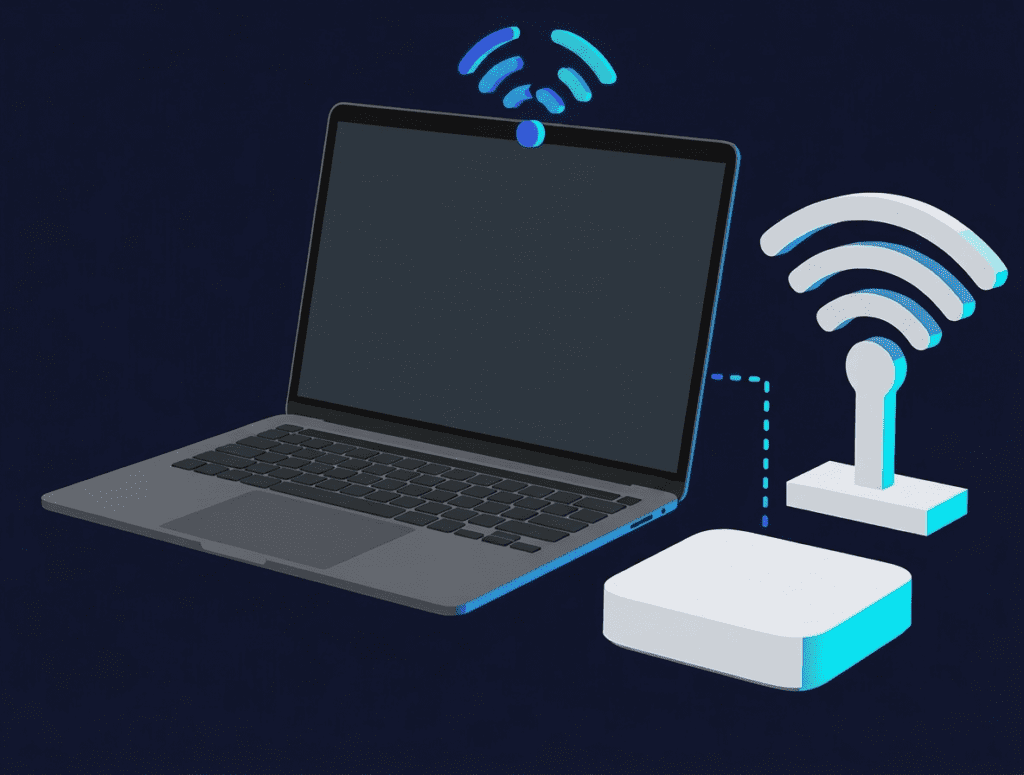
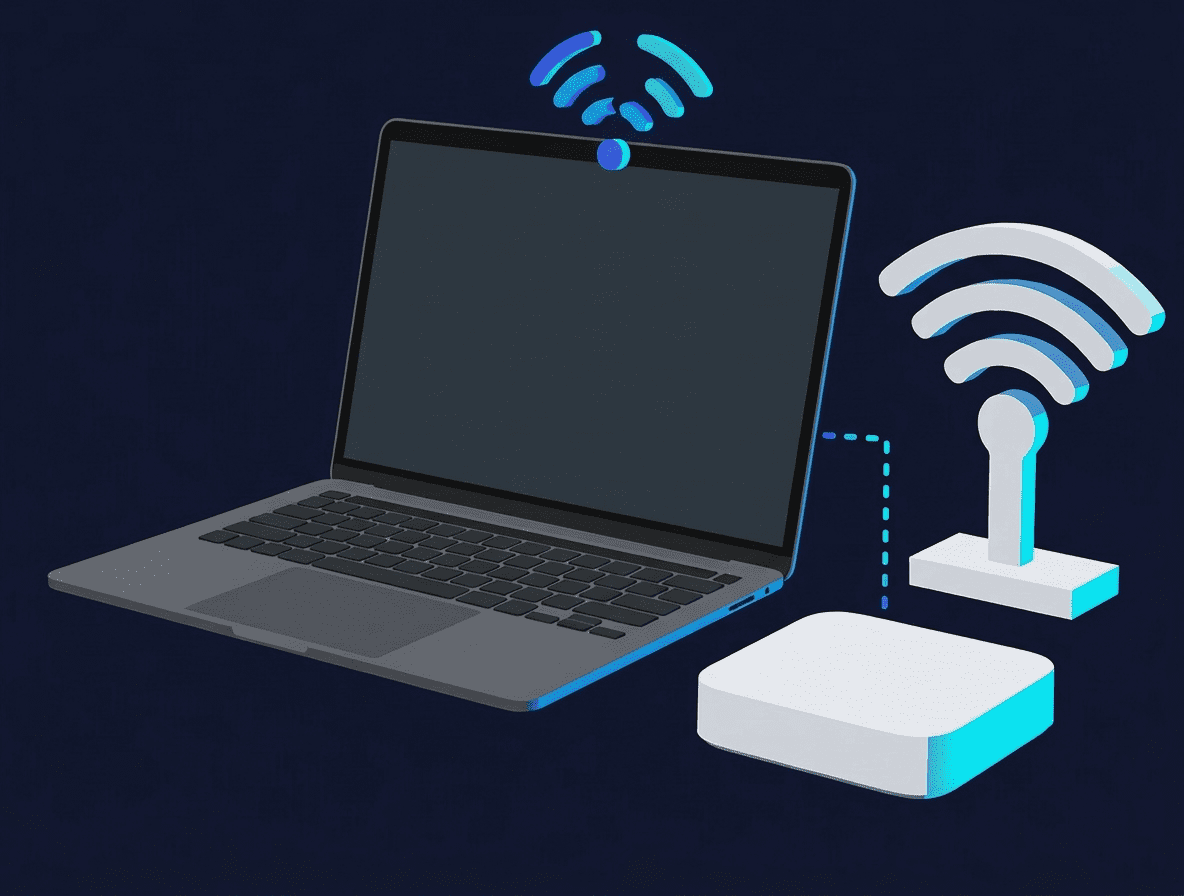
Your laptop joins the network, a page loads, and then the connection drops. A minute later it comes back, or it only returns after a restart. If your Windows 11 Wi-Fi keeps disconnecting, you are not alone, and the cause is usually easy to find.
The fault can sit in three places: your PC, your router, or your internet provider. This article shows you how to tell which one it is. Then it walks through 10 fixes, from the safest to the most drastic. Work through them in order and stop when the drops stop.
This is about a connection that keeps dropping. If Wi-Fi stays connected but pages will not load, see our guide on Wi-Fi connected but no internet on Windows instead.
Why Windows 11 Wi-Fi Keeps Disconnecting
Wi-Fi is a radio link. Anything that weakens or interrupts it can break the connection. These are the common causes:
- Power saving. Windows can switch the Wi-Fi adapter off briefly to save battery, especially after sleep.
- Driver problems. An old, corrupt or freshly updated driver can make the adapter unstable.
- Weak signal or interference. Walls, distance, microwave ovens and crowded channels all cut the signal.
- Router settings or old firmware. Routers can drop devices that they handle badly, or when they run out of memory after weeks of use.
- Roaming between bands or mesh points. Your PC may hop between 2.4 GHz and 5 GHz, or between mesh nodes, and lose the link for a moment.
- Software in the way. A VPN or security program can interrupt the connection.
- Your internet provider. If the line itself drops, every device is affected.
Is It the PC, the Router or the Provider?
Spend five minutes on this first. It saves a lot of guessing.
- Watch another device. Keep a phone or second laptop on the same Wi-Fi. Does it drop at the same moments?
- Try a cable. Connect your PC to the router with an Ethernet cable for an hour or two. Does the wired connection stay up? If the cable connection itself fails, see Ethernet not working in Windows 11.
- Check the provider. Look at your provider's outage page on your phone's mobile data.
The table below shows what the results usually mean.
| What you see | Most likely cause | Start with |
|---|---|---|
| Only your PC drops. Other devices stay online. | PC settings, adapter or driver | Fixes 3 to 6, then 8 to 10 |
| Every Wi-Fi device drops, but the cable stays up. | Router's Wi-Fi, signal or interference | Fixes 1 and 7 |
| Wi-Fi and cable both drop, on every device. | Modem, line or internet provider | Fix 1, then call your provider |
| Drops only after sleep or when on battery. | Power saving | Fixes 4 and 5 |
| Drops started after a Windows or driver update. | Driver | Fix 6 |
| Drops only far from the router, or in one room. | Weak signal | Fix 7 |
| Drops only when a VPN or security tool is running. | Software conflict | Fix 9 |
10 Fixes for Windows 11 Wi-Fi That Keeps Disconnecting
Fixes 1 to 5 are safe and easy to undo. Fixes 6 to 9 change settings or drivers. Fix 10 resets your network settings, so save it for last.
Change one thing at a time. After each fix, use the PC normally for a few hours, or a day if the drops are rare. That way you know which fix worked, and you can undo it if it did not.
Fix 1: Restart the Modem and Router
Routers run for weeks without a break. A restart clears their memory and often cures random drops.
- Unplug the router and the modem from power.
- Wait 30 seconds.
- Plug the modem in first and wait a couple of minutes.
- Plug in the router and wait until the Wi-Fi light settles.
If your provider gave you a single combined box, just restart that one.
Fix 2: Turn Wi-Fi Off and On, Then Forget the Network
Turn Wi-Fi off and on from the quick settings panel, or switch airplane mode on for a few seconds. If airplane mode itself gets stuck on, see how to fix airplane mode stuck in Windows. If the drops continue, remove the saved network and join it again:
- Open Settings > Network & internet > Wi-Fi > Manage known networks.
- Select your network, then select Forget.
- Choose the network from the Wi-Fi list and enter the password again.
Have the Wi-Fi password ready before you start. Windows will not remember it afterwards.
Fix 3: Run the Windows Network Troubleshooters
Open Settings > System > Troubleshoot > Other troubleshooters. Run Network and Internet and then Network Adapter. They test your connection and fix simple faults on their own. They will not solve every problem, but they take only a minute and change nothing risky.
Fix 4: Set the Power Mode to Best Performance When Plugged In
Some troubleshooting guides start with power settings and suggest the Best performance power mode while the device is plugged in. On a laptop that is plugged in:
- Open Settings > System > Power & battery.
- Find Power mode and choose Best performance. If you see two lists, one for Plugged in and one for On battery, change only Plugged in. If you see a single list, make the change while the laptop is plugged in.
Leave the battery setting as it is. Some PCs do not offer Best performance. If yours does not, skip this fix. Best performance can make fans louder and use more power, so if it makes no difference after a day, set it back to Balanced.
Fix 5: Stop Windows From Turning Off the Wi-Fi Adapter
Windows is allowed to switch off network adapters to save power. Sometimes it does so at the wrong moment, and the adapter does not wake up cleanly.
- Right-click Start and open Device Manager.
- Expand Network adapters.
- Double-click your Wi-Fi adapter. Its name often contains "Wireless", "Wi-Fi" or "WLAN".
- Open the Power Management tab.
- Untick Allow the computer to turn off this device to save power, then select OK.
The effect on battery life is small for most laptops.
Fix 6: Update or Roll Back the Wi-Fi Driver
The driver is the software that lets Windows talk to the Wi-Fi chip. A bad driver is one of the most common reasons for drops.
- If the drops started after an update, go back. In Device Manager, double-click the adapter, open the Driver tab and select Roll Back Driver. The button is greyed out if there is no older driver to return to.
- If the driver is old, check Settings > Windows Update > Advanced options > Optional updates for a driver update. Otherwise download the newest driver from your laptop or adapter maker.
Our guide on how to update drivers in Windows 11 safely covers the steps and the safe sources. Restart the PC after any driver change.
Fix 7: Check the Router's Band, Channel and Firmware
If every Wi-Fi device drops, the router is the better suspect. Open its settings page and check three things:
- Firmware. Install any update the router offers. Updates fix stability bugs as well as security flaws.
- Channel. Set it to automatic, or try a different channel if neighbours crowd yours.
- Band. Try connecting to the 5 GHz network when you are near the router, and 2.4 GHz when you are far away.
Our guide on how to speed up Wi-Fi on a Windows PC explains bands and channels. The steps for finding your router's settings page are in our home router security guide. Menus differ between brands, so use your router maker's support page if you cannot find a setting.
Fix 8: Turn Off Random Hardware Addresses for Your Network
Windows can use a random hardware (MAC) address for a Wi-Fi network, to make you harder to track. Some routers handle a changing address badly. Turn it off for your home network only:
- Open Settings > Network & internet > Wi-Fi.
- Open the properties of your home network. This is the network marked Connected. On some Windows 11 versions you reach it through Manage known networks instead.
- Find Random hardware address and set it to Off. The other choices are On and Change daily.
- Disconnect from the network and connect again, so the change applies.
Not every PC shows this setting. It only appears when the Wi-Fi adapter and its driver support it. If you cannot find it, skip this fix. Keep random addresses on for public Wi-Fi. If your router uses MAC address filtering or a reserved IP address for your PC, check that it matches the PC's real hardware address. Then test for a day.
Fix 9: Restart the WLAN AutoConfig Service and Check VPN and Security Software
WLAN AutoConfig is the Windows service that manages wireless connections. Some troubleshooting guides suggest restarting it for Wi-Fi problems.
- Press Win + R, type services.msc and press Enter.
- Find WLAN AutoConfig, right-click it and choose Restart.
- Double-click it and check that Startup type is Automatic.
Then test with software out of the way. Disconnect any VPN and see whether the drops stop. If you use a third-party security suite with its own firewall, pause it for a short test, then turn it back on straight away. If the drops stop, check that program's network settings or ask its maker for help.
Fix 10: Use Network Reset (Last Resort)
Network reset puts all network settings back to their defaults. Use it only after the fixes above, because it has side effects.
What Network reset does:
- It removes and reinstalls your network adapters.
- It forgets every saved Wi-Fi network and password.
- It removes VPN connections and virtual adapters you added. VPN apps and virtual machines may need setting up again.
- It clears custom network settings, such as a fixed IP address or DNS server.
- It restarts your PC.
Your files and apps are not deleted. Before you start, save your work, and write down any Wi-Fi passwords and static IP details you need.
Then open Settings > Network & internet > Advanced network settings > Network reset and select Reset now. After the restart, join your Wi-Fi again.
About advanced commands. You will see guides that tell you to run netsh winsock reset and netsh int ip reset in an administrator Command Prompt. They reset the Windows network components and the TCP/IP settings. They need a restart, and they can wipe custom network settings, so treat them like a smaller Network reset. They help most when Windows reports a network error. They are less useful for plain drops, so try Fixes 1 to 9 first. Our guide on Wi-Fi connected but no internet lists these commands step by step. If the drops continue, our guide to how to reset Winsock and the TCP/IP stack explains what the netsh commands do.
When to Contact Your Internet Provider or a PC Repair Technician
Call your internet provider if:
- Every device drops, on Wi-Fi and on a cable.
- The modem's lights change when the connection drops.
- The drops happen at the same time each day, such as busy evenings.
- Restarting the modem and router does not help for more than a few hours.
Tell them what you tested. For example, "my phone and laptop both drop, and the cable drops too." That helps them check the line quickly. If the router belongs to the provider, ask them to check or replace it.
See a PC repair technician if:
- Only one PC drops, and it still drops after Fixes 1 to 10 while other devices stay online.
- The Wi-Fi adapter is missing from Device Manager, or shows a warning icon.
- The PC drops Wi-Fi even next to the router.
- You can use a cable, but Wi-Fi never works. The adapter may have failed.
On many laptops the Wi-Fi card is a small replaceable part, and a USB Wi-Fi adapter is a low-cost way to test. A technician can check this for you.
Frequently Asked Questions
Why does my Wi-Fi disconnect when my PC wakes from sleep?
Windows may have switched the adapter off to save power. Turn off the power-saving option in Fix 5 and update the driver in Fix 6. For a full walk-through of this case, see Wi-Fi that disconnects after sleep.
Can a Windows 11 update cause Wi-Fi drops?
Yes. An update can replace the Wi-Fi driver or change a setting. If the drops began right after an update, try Roll Back Driver in Fix 6 first. Background update downloads can also use up a shared connection, and how Delivery Optimization shares your bandwidth explains how to limit them.
Is it my router or my PC?
Check whether other devices drop at the same time. If they do, suspect the router or the provider. If only your PC drops, work through the PC fixes.
Will Network reset delete my files?
No. It removes saved Wi-Fi networks, VPN connections and custom network settings, and it restarts the PC. Your files and apps stay.
Does a Wi-Fi extender fix random disconnects?
It can help when the signal is weak in one room. It will not fix a bad driver, a power-saving problem or a provider outage. Run the checks above first.
Final Thoughts
When Windows 11 Wi-Fi keeps disconnecting, start by finding out whether the PC, the router or the provider is to blame. Then work from the simple fixes to the drastic ones, and change one thing at a time so you know what worked.
For help with other computer problems, browse our PC repair guides.