How to Secure Your Home Wi-Fi Router: 10 Steps in About 15 Minutes
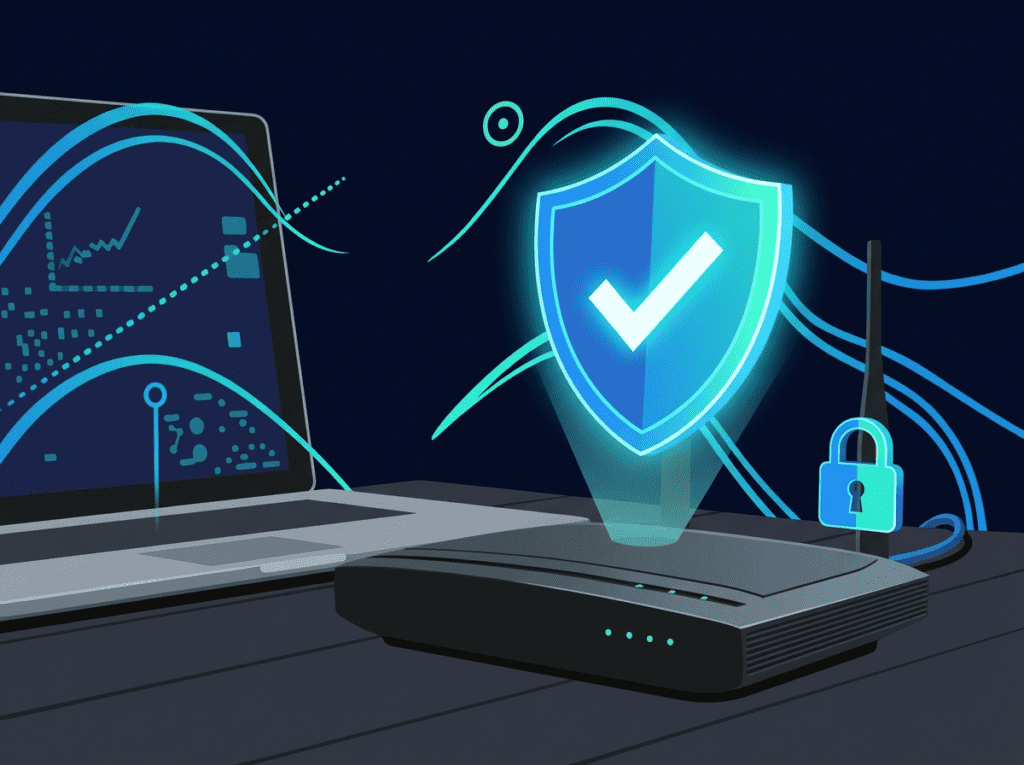
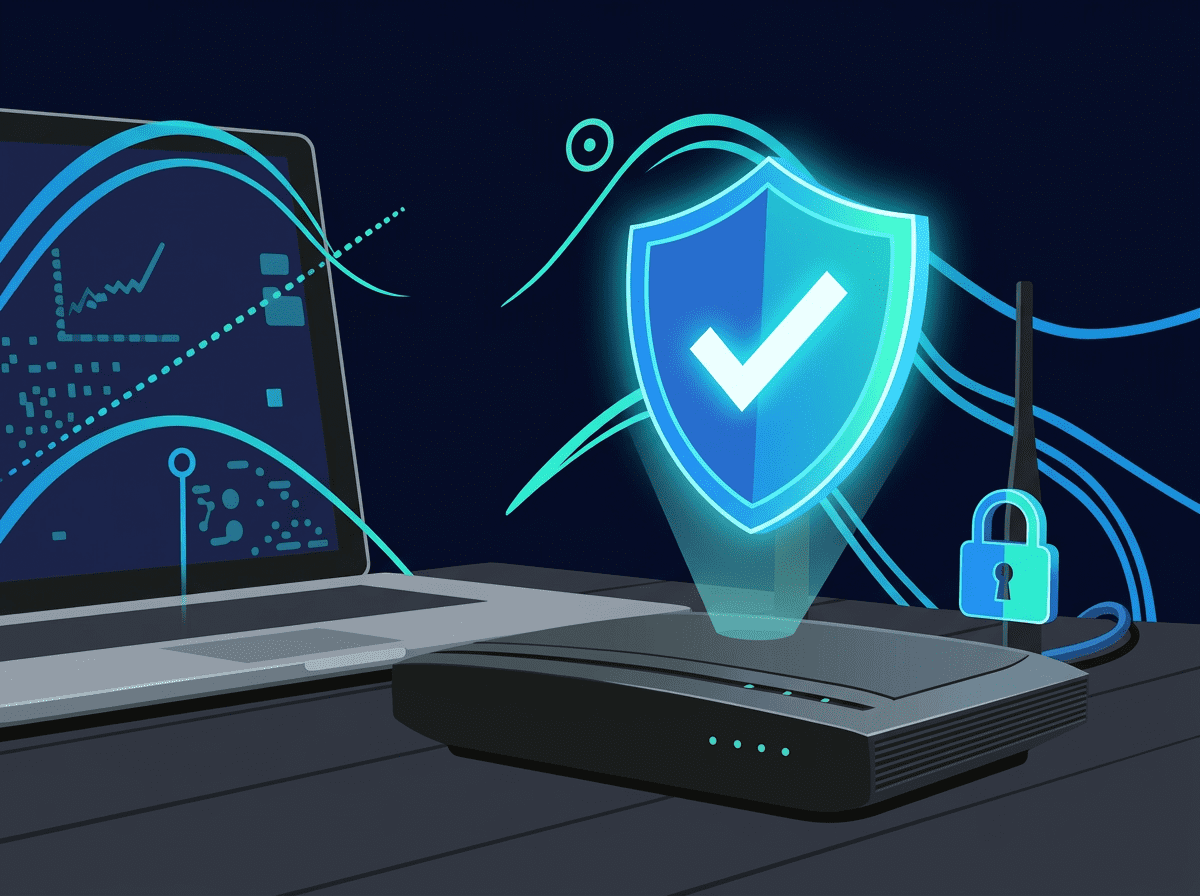
Your router is the front door to your home network. Every phone, laptop, TV and smart device connects through it. If the router is poorly set up, everything behind it is easier to attack.
The good news is that you can secure your home Wi-Fi router with a few settings changes. Most are made in the router’s admin page and need no special tools.
Menu names differ between brands and internet providers. Look for the closest match in your router’s settings. If you cannot find a setting, check your router maker’s support page for your model.
Before You Start Securing Your Home Wi-Fi Router
- Connect your PC to the router, by cable if possible. Some changes will disconnect Wi-Fi devices for a moment.
- Note down your current Wi-Fi name and password, and the router model.
- Keep the router’s current admin login handy. It is often printed on a label on the router.
Step 1: Open Your Router’s Admin Page
- On your Windows PC, right-click Start and choose Terminal or Command Prompt.
- Type ipconfig and press Enter.
- Find Default Gateway under your active network connection. It is usually an address like 192.168.1.1 or 192.168.0.1.
- Type that address into your web browser and sign in.
If you do not know the login, check the label on the router or your internet provider’s instructions.
Step 2: Change the Router Admin Password
The admin login is not the same as your Wi-Fi password. It controls the router’s settings. Default logins are easy to find online, so CISA advises changing the default administrator username and password.
- Find a section called Administration, System or Router password.
- Set a new, unique password that you do not use anywhere else.
- Save it in a password manager or somewhere safe.
Step 3: Update the Router Firmware
Firmware updates fix security flaws in the router itself.
- Look for Firmware update, Router update or Software update.
- Select Check for updates and install any update you find. Do not turn the router off while it updates.
- Turn on automatic updates if your router offers them.
If your maker no longer releases updates for the model, consider replacing the router.
Step 4: Use WPA3 or WPA2-AES Encryption
Encryption scrambles your Wi-Fi data. CISA lists WPA3-Personal and WPA2 AES as recommended encryption options.
- Open Wireless, Wi-Fi or Wireless security.
- Set the security mode to WPA3-Personal. If some of your devices cannot connect, use WPA2/WPA3 mixed mode or WPA2-AES.
- Do not use Open (no password), WEP, or old WPA or TKIP settings.
Step 5: Set a Strong Wi-Fi Password
Use a long passphrase, not a short password. CISA suggests 5 to 7 unrelated words, at least 16 characters in all. It is easy to type and hard to guess.
- Do not use your name, address, phone number or the router’s default password.
- Do not reuse a password from another account.
- After changing it, reconnect your devices with the new password.
Step 6: Rename Your Wi-Fi Network
Change the network name (SSID) from the maker’s default. The default name often shows the router brand or model. That helps an attacker look up known flaws. Do not put your name or address in the new name.
Some guides also suggest hiding the name. Hidden networks can still be found with simple tools, so do not rely on it. Strong encryption and a long passphrase matter more.
Step 7: Turn Off WPS
WPS lets devices connect with a button or short PIN. That convenience can be abused. CISA lists disabling WPS as a recommended step.
- Find WPS in the Wi-Fi settings.
- Switch it off and save.
Step 8: Turn Off Remote Management
Remote management lets someone reach your router’s admin page from the internet. CISA recommends turning it off. Most homes do not need it.
- Look for Remote management, Remote access or Web access from WAN.
- Turn it off and save.
Step 9: Review UPnP
UPnP lets devices on your network open ports automatically. It can be handy for games and some apps. Security guides commonly suggest turning it off unless you need it.
- Find UPnP in the advanced or network settings.
- Switch it off and test your games and apps.
- If something stops working and you need it, turn it back on.
Step 10: Create a Guest Network
A guest network keeps visitors and smart-home gadgets away from your computers and files. Security guides commonly suggest one for guests and for smart-home devices that only need internet access.
- Find Guest network in the Wi-Fi settings.
- Turn it on and give it its own name and a separate password.
- Use it for visitors and for less secure devices such as smart plugs.
After the 10 Steps: Quick Checks
- Check connected devices. Look for a list such as Connected devices or DHCP clients. If you see a device you do not recognize, change the Wi-Fi password again.
- Save a settings backup, if your router offers one, so you can restore your choices later.
- Test your connection. Reconnect your devices and make sure sites load. If they do not, see our guide on Wi-Fi connected but no internet on Windows. If pages load but feel slow, see speed up slow Wi-Fi on Windows. If a VPN will not connect after these changes, see VPN not connecting on Windows 11.
- Recheck every few months. Look for new firmware.
When to Factory Reset or Replace the Router
Consider a factory reset if you forgot the admin password, or if you think someone changed your settings. A reset restores the default login and Wi-Fi settings, so repeat the steps above afterward.
Consider a replacement if the router no longer gets firmware updates, cannot use WPA2-AES or WPA3, or is a very old model.
Frequently Asked Questions
Is changing the Wi-Fi password enough to secure my router?
No. It helps, but the admin password, firmware, encryption mode and settings like WPS and remote management matter too.
Does hiding the Wi-Fi name make my network safer?
Not really. Hidden networks can still be found with simple tools. Use strong encryption and a long passphrase instead.
Should I use WPA3 or WPA2?
Use WPA3 if all your devices support it. WPA2 with AES is a reasonable fallback for older devices.
How often should I update my router?
Check for firmware updates every few months, or turn on automatic updates if your router has them.
Can I do this if my internet provider owns the router?
You can usually change the Wi-Fi name, Wi-Fi password and some settings. For anything locked, ask your provider.
Final Thoughts
A few minutes in your router’s settings can make your whole home network safer. Start with the admin password, firmware and encryption. Then turn off the settings you do not use.
For help with other PC problems, browse the PC Repair Atlas repair guides or start from our PC repair guides home page.