How to Speed Up Your Wi-Fi on a Windows PC
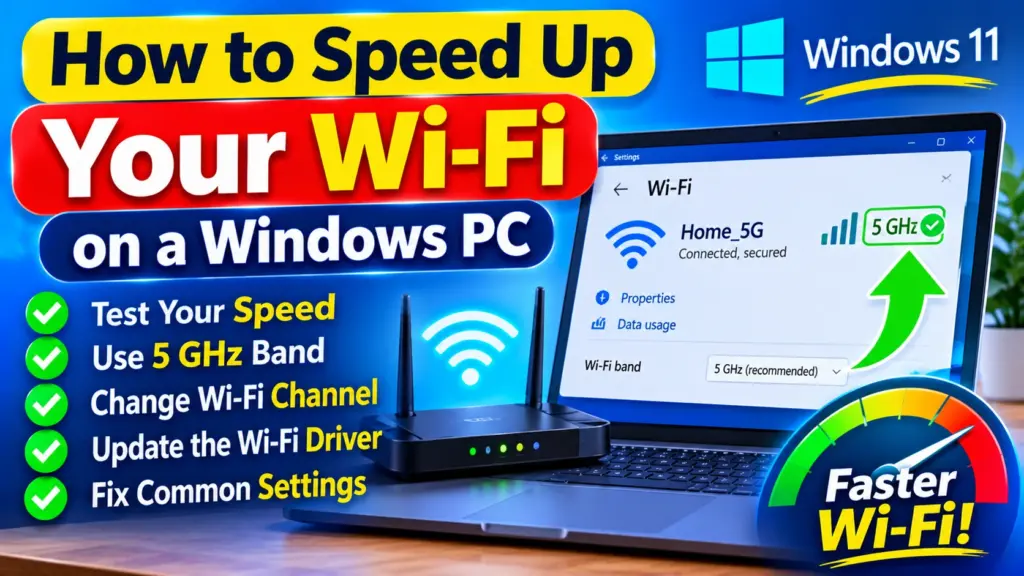
Slow Wi-Fi is not always your internet provider’s fault. Distance, interference, the wrong band, an old driver or a power-saving setting can all cut your speed. This guide helps you measure what your PC is really getting, find which cause it is and check that the fix worked.
Step-by-step: speed up your Wi-Fi
Step 1: Test wired against Wi-Fi
Run an online speed test on Wi-Fi and write down the download number. Then repeat it with the PC connected to the router by an Ethernet cable (or use a phone next to the router as a comparison).
- The wired speed is also low: the cause is your internet plan, the router or the provider. Restart the router and contact the provider. Wi-Fi tweaks will not help.
- Wired is much faster than Wi-Fi: the problem is the Wi-Fi link. Continue below.
- Wi-Fi is fast near the router and slow in another room: the signal is the problem. Go to Step 3.
Step 2: Read what your Wi-Fi is doing
Open Terminal and run:
netsh wlan show interfacesLook at these lines:
- Signal: as a rough guide, 70 percent or more is good. Below about 50 percent, move closer or fix the placement (Step 3).
- Radio type: 802.11ac or 802.11ax (Wi-Fi 5 or 6) is fast. 802.11n is older and slower.
- Band (or the Channel number): channel 1 to 13 is 2.4 GHz. Channels 36 and above are 5 GHz.
- Receive rate and Transmit rate (Mbps): the link speed. It is not your internet speed. Compare it with the speed your router and adapter advertise: a value far below that, when you are near the router, shows a poor link.
You can see the same on Settings > Network & internet > Wi-Fi > Hardware properties (Network band, Link speed and Protocol).
Step 3: Improve the signal
- Move closer to the router, or move the router to a central, higher place in the room.
- Keep it away from thick walls, metal, mirrors, microwaves and cordless phones.
- Do not hide it in a cabinet. Stand the antennas upright, or one up and one sideways.
You should see: a higher Signal value in the command from Step 2, and a better speed test, after a change.
Step 4: Use the 5 GHz band
The 2.4 GHz band reaches farther but is slower and crowded. The 5 GHz band is faster at a shorter distance. If Band in Step 2 says 2.4 GHz and your router supports both, connect to the 5 GHz network when you are near the router. If the router uses one name for both bands, give each its own name in the router’s settings, then connect to the 5 GHz name.
Step 5: Change the channel
If many neighbours use the same channel, your Wi-Fi slows down. Open your router’s settings page (the address and password are on the router’s label) and choose an automatic channel, or try a different one. On 2.4 GHz, channels 1, 6 and 11 are the usual choices. On 5 GHz, try 36 to 48 or 149 to 161 (your router lists those it supports). Test after each change.
Step 6: Restart the router and update its firmware
Unplug the router for 30 seconds, then plug it in. Check the router's settings page or app for a firmware update, which often improves speed and stability. For other router settings worth checking, see securing your home Wi-Fi router.
Step 7: Update the Wi-Fi driver
Install the latest wireless driver from the PC or adapter maker (see update drivers in Windows 11). If the problem began after a driver update, use Roll Back Driver in Device Manager (Network adapters, your Wi-Fi adapter, Properties > Driver).
Step 8: Set the wireless adapter to full performance
Open Control Panel > Power Options, choose Change plan settings > Change advanced power settings, expand Wireless Adapter Settings > Power Saving Mode and set it to Maximum Performance. On a laptop, do this for both On battery and Plugged in.
Step 9: Find what is using your bandwidth
Open Task Manager > Performance > Wi-Fi to see activity, and check the Processes tab and its Network column for apps that send or receive a lot. Pause large downloads, cloud sync and game updates while you test. If lag in games is the real problem rather than download speed, see high ping and packet loss in online games. Also check other devices on your network (streaming, backups). If you use a VPN, switch it off for a test, because a VPN can noticeably reduce the speed.
Step 10: Limit Windows update sharing
Open Settings > Windows Update > Advanced options > Delivery Optimization and turn off Allow downloads from other PCs, or limit the bandwidth.
Step 11: Think about a wired or mesh solution
If your PC is far from the router, an Ethernet cable is the most reliable fix. A mesh Wi-Fi system or a powerline adapter can help in a large home. If the speed is poor only at certain hours (evenings), it may be the provider’s network.
If you still have problems
- The connection drops or you have no internet at all: see fix Wi-Fi connected but no internet.
- A cable connection is slow or does not work too: see fix Ethernet not working.
More help
For other network problems, search by symptom in the PC repair guides on PC Repair Atlas.
FAQ
Is 5 GHz always better? It is faster at short range. 2.4 GHz is better through walls.
Will a new router help? If yours is old, a newer standard can help, but test the simpler fixes first.
Why is Wi-Fi slower on my laptop than on my phone? The adapters and antennas differ, and the driver or power settings may be limiting the laptop.