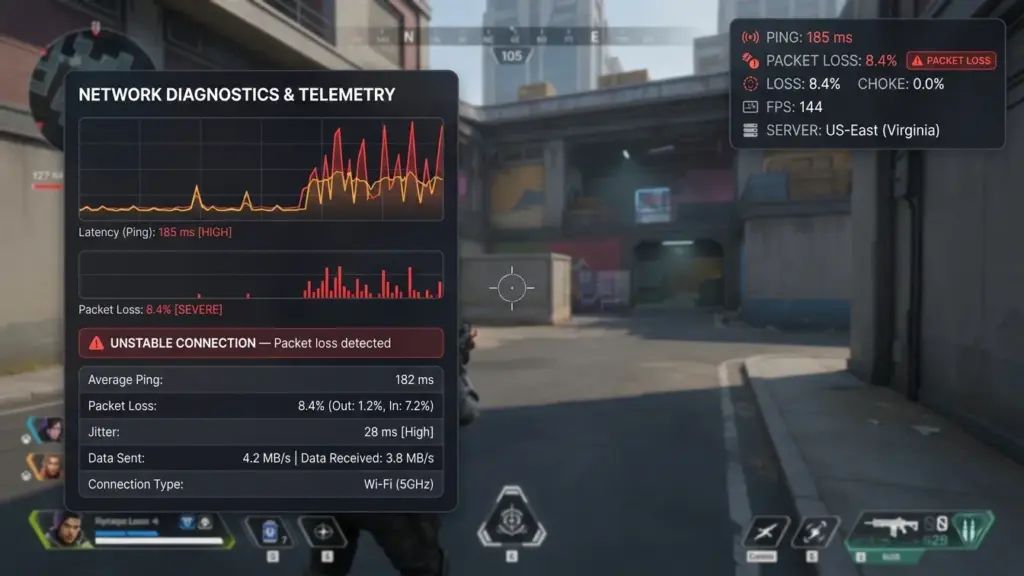
High Ping and Packet Loss in Games? How to Fix Them
High ping means a long delay between your PC and the game server. Packet loss means some data never arrives. Both cause rubber-banding, freezes and lag spikes in online games. This is different from input lag on your own PC (see reduce input lag). This guide shows how to measure the problem, find out whether it is your PC, your home network or your provider, and fix what you control.
Step-by-step: lower ping and stop packet loss
Step 1: Measure the problem
Check the in-game ping first. Then open Command Prompt and run:
ipconfig
ping 8.8.8.8 -n 50
pathping 8.8.8.8
ipconfig lists your Default Gateway: that is your router. The ping command sends 50 test packets to a public server and shows the delay and any lost replies. pathping tests every hop between your PC and that server and takes several minutes. If Command Prompt says ping or ipconfig is not recognized, see our guide to fixing PATH and environment variables.
You should see: a summary line such as "Sent = 50, Received = 50, Lost = 0 (0% loss)" and an average time in ms. Write both numbers down: you will compare them after each fix. Run the test while the problem is happening, not when the connection is idle.
Step 2: Test your router first
Run ping followed by your Default Gateway address (for example ping 192.168.1.1 -n 50). This separates your home network from your provider.
0% loss and a low, steady time on a cable, usually a little higher on Wi-Fi: your PC and router are fine. Look at the provider or the game server.
Lost replies or large jumps to your own router: the problem is inside your home: Wi-Fi, a bad cable or the router. Continue with Steps 3 to 5.
Step 3: Use Ethernet
Wi-Fi adds delay and drops packets. If your Wi-Fi also drops out completely, see our Windows 11 Wi-Fi keeps disconnecting guide. Connect the PC to the router with a cable if you can, or see speed up your Wi-Fi. Run the router test again to compare.
You should see: fewer lost replies and a steadier time to the router. If the numbers are the same on a cable, the problem is not Wi-Fi.
Step 4: Stop background traffic
Pause downloads, cloud sync, video streaming and game updates on every device on your network. Also check Delivery Optimization and turn off Allow downloads from other PCs. On Windows 11 it is under Settings > Windows Update > Advanced options > Delivery Optimization. On Windows 10 it is under Settings > Update & Security > Delivery Optimization. If ping is only bad while something else downloads, your router is struggling with the load.
Step 5: Restart and update the router
Restart the modem and router, and check for a router firmware update. If your router offers a feature to manage traffic or reduce delay under load (often called QoS or smart queue management), try it, following the router's manual.
Step 6: Try a different DNS server
DNS affects how fast names resolve, mostly when a game connects, not ping during a match, so expect little change. It is a quick test that you can undo:
Open Settings > Network & internet, choose Wi-Fi or Ethernet and open the properties of your connection.
Next to DNS server assignment, select Edit and choose Manual.
Turn on IPv4, enter 1.1.1.1 as the preferred DNS and 8.8.8.8 as the alternate, and select Save.
You should see: the two addresses listed next to DNS server assignment. Run the Step 1 tests again. If nothing improves, set it back to Automatic (DHCP). Old name lookups stored on the PC can also slow things down, and clear the DNS cache removes them. See also fix Wi-Fi connected but no internet if pages stop loading.
Step 7: Check VPNs and other software
A VPN sends your game traffic through another server, which often adds delay. To test it, disconnect the VPN: open Settings > Network & internet > VPN, select the connection and choose Disconnect, or use the button in the VPN app itself. Run the Step 1 test again and compare the numbers. Some VPNs do shorten the route to a game server, so keep yours on only if the results are better with it on.
Then see what else is using the network. Press Ctrl + Shift + Esc to open Task Manager, stay on the Processes tab and click the Network column heading so the busiest apps move to the top. Close the ones you do not need, such as a cloud sync, a launcher update or a browser tab that is streaming video.
You should see: a lower or steadier ping once the VPN is off and the busy apps are closed. If nothing changes, go on to the next step.
Step 8: Pick a nearer server
Open the game's server or region menu and choose the region closest to you. Many games show the ping next to each region: pick the lowest one, then play a short match and watch the in-game ping.
Step 9: Update the network driver
Install the latest Ethernet or Wi-Fi driver from your PC or motherboard maker (see update drivers in Windows 11).
Step 10: Read the pathping result and check the line
When pathping finishes, look at the Lost/Sent column for each hop. Read it like this:
Loss on one hop in the middle only, with 0% on the hops after it: usually harmless. Many routers give test traffic low priority, so this does not mean your game is losing data.
Loss that starts at one hop and continues on every hop after it, to the end: that is real loss. If it starts at the first hop, the problem is your router or cable. If it starts at the second or third hop, the problem is probably your line or your provider. Contact them and give them your results.
Loss only on the last hop: the target may not answer test traffic. Check with the game's own network graph instead.
Pinging a public server tests your connection, not the game server itself. If the line tests clean but one game lags, the cause may be the game server, which you cannot fix.
Step 11: Check the cables
Look at every cable between the PC and the wall: the Ethernet cable, the cable from the router to the modem and the line from the modem to the wall socket. Press each plug in until it clicks, and look for kinks, cuts or a bent clip. Swap the Ethernet cable for another one and run the Step 2 test again. If the loss disappears with the new cable, the old one was the fault. Do not open the modem or the wall socket: if the lost replies start at the second or third hop and the cables look fine, give your results to your provider.
Common mistakes
Testing only when the connection is quiet. The problem often shows only under load or at busy hours, so run the test during a bad moment.
Judging the result from one ping run. Use 50 packets or more and compare before and after each change.
Blaming the provider before testing the router. Step 2 takes a minute and tells you where the loss starts.
Chasing speed instead of delay. A faster plan rarely lowers ping.
Safer alternatives to "network booster" tweaks
Do not install "ping booster" or "network optimizer" programs, and do not follow guides that tell you to edit the registry or change the network adapter's hidden settings to lower ping. There is no proof they help, and some can break your connection. The steps above change only things you can undo.
Sources
pathping (Microsoft Learn): Microsoft's description of the command used in Steps 1 and 10. It sends test packets to every router on the path and reports the loss for each one. The way Step 10 reads the loss pattern is practical guidance, not Microsoft's wording.
What is a good ping? Lower is better, and it depends on the game. Many players consider under about 50 ms good for most games, but it depends on the game.
Is packet loss my fault? It can be your Wi-Fi, your cable or your provider. Testing your router first and then reading pathping helps you find which.
Will a faster internet plan lower my ping? Not usually. Speed and ping are different.