How to Reduce Input Lag for Gaming on a Windows PC
Input lag is the delay between pressing a key or moving the mouse and seeing the result on screen. It is different from low FPS and from network ping. This guide covers settings that reduce input lag for gaming on a Windows PC. For low frame rates, see fix stuttering and low FPS.
How to test: change one setting at a time and play the same scene before and after. Input lag is hard to measure without special hardware, so judge by feel and keep only the changes you can notice.
Step-by-step: reduce input lag
Step 1: Use your monitor's full refresh rate
A higher refresh rate shows each frame sooner. See how to set your monitor to its full refresh rate. On a TV, switch on its Game mode. In Settings > System > Display > Advanced display the refresh rate should match your screen's rating.
Step 2: Keep the GPU from maxing out
When the graphics card runs at 100 percent, frames queue up and the delay grows. Lower graphics settings so the GPU has some room (see how to monitor GPU usage to check). GPU usage in the 90s with a frame cap set below it is a good sign.
Step 3: Set a frame rate cap
Use the game's frame limiter, or the graphics driver's, set a few frames below your monitor's refresh rate (for example 3 below). This gives steadier frames and less delay.
Step 4: Adjust V-Sync, adaptive sync and low-latency modes
- V-Sync can add delay. If your screen supports G-Sync or FreeSync (adaptive sync), turn that on in the graphics driver software and keep the frame cap from Step 3. With G-Sync, the driver's V-Sync setting works differently from old-style V-Sync, so its effect depends on whether the frame rate is inside the screen's adaptive range. Vendor guidance does not give one fixed rule for every game, so test it yourself: try V-Sync on in the driver (and off in the game), then off everywhere, and keep the setting that feels better without tearing.
- NVIDIA: in the NVIDIA Control Panel, Manage 3D settings > Low Latency Mode can be set to Off, On or Ultra. It reduces the render queue from the driver. If a game offers NVIDIA Reflex, turn it on in the game's own settings instead: NVIDIA says Reflex is more effective and overrides Ultra Low Latency when both are on.
- AMD: in AMD Software, Radeon Anti-Lag is in the graphics settings. AMD lists it for Radeon RX 400 series and newer graphics cards (and Ryzen 2000 and newer processors with Radeon graphics). AMD also says Radeon Chill and Radeon Anti-Lag cannot be on at the same time: turning one on turns the other off. Some games add AMD's newer Anti-Lag 2 in their own options; check the game's settings and AMD's current support list to see which graphics cards it covers.
If the options are missing, the graphics driver software is out of date, your graphics card is too old for them, or the game does not support them. These menu names can move between driver versions, and the newer NVIDIA app may show them in a different place.
Step 5: Turn on Game Mode and close overlays
Open Settings > Gaming > Game Mode and turn it on. Close recording tools, overlays and background programs. On Windows 11, open Settings > System > Display > Graphics > Default graphics settings and test Optimizations for windowed games (it matters for games that run in a window or borderless window) and Hardware-accelerated GPU scheduling. Their effect varies between PCs, so test them one at a time and restart after changing them. For a closer look at that switch, see our guide to hardware-accelerated GPU scheduling. Also set Settings > System > Power & battery > Power mode to Best performance, and plug a laptop in. If the Game Bar overlay itself will not open, see our guide to Xbox Game Bar not opening in Windows 11. If background load or full disk space is slowing the PC, a safe cleanup can help without losing game saves; see gaming PC cleanup.
Step 6: Use wired or low-latency input devices
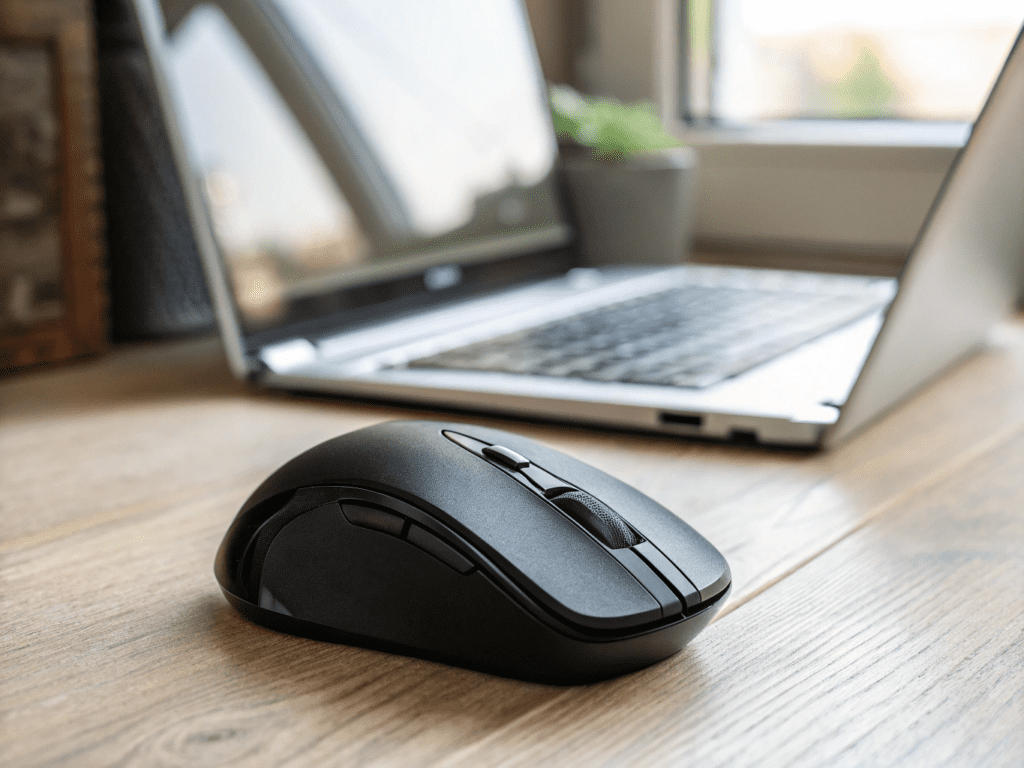
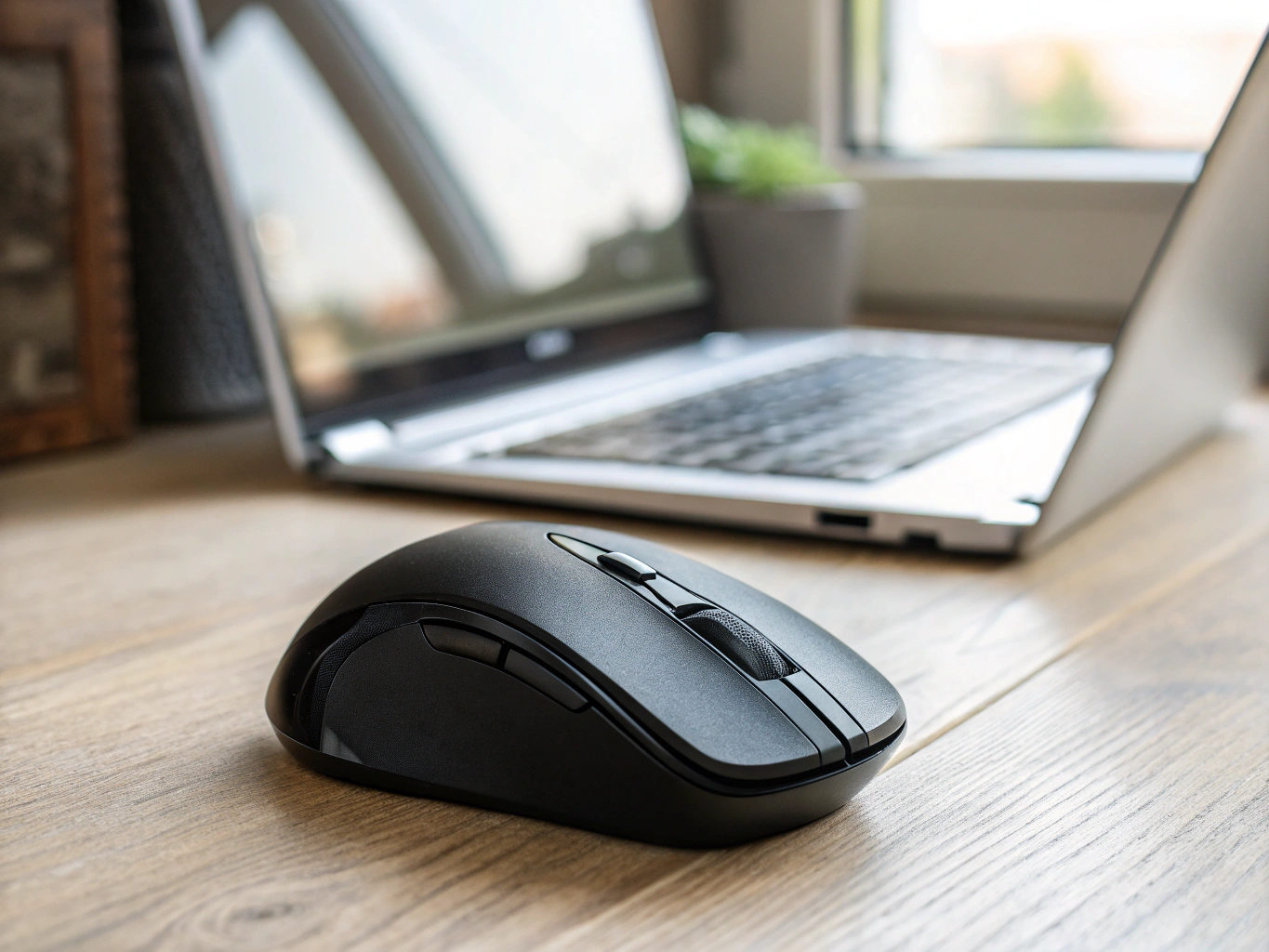
A wired mouse and keyboard usually respond with less variation than wireless ones. If you use a wireless mouse, keep the receiver close. See fix mouse lag or a mouse not working for polling rate advice.
Step 7: Separate network lag from input lag
If the delay happens only in online games, the cause may be ping. Use an Ethernet cable instead of Wi-Fi, and close downloads while you play. To test your router and connection with ping and pathping, see how to fix high ping and packet loss in games.
Step 8: Update drivers
Install the latest graphics driver (see update or reinstall graphics drivers).
Check your setup
If your screen is a TV, check that picture processing effects are off. If you use several monitors, check the game runs on the fastest one. On a laptop or a PC with two graphics cards, also confirm the game uses the faster one: see how to set a preferred GPU for a game.
If it does not work
- The game still feels slow to respond: check that the frame rate is steady and high enough (see fix stuttering and low FPS). Low FPS alone feels like lag.
- A setting made things worse: switch it back. Settings such as GPU scheduling and Ultra low latency help some PCs and hurt others.
More help
For more gaming PC guides, step by step, visit the PC Repair Atlas homepage. Tools that promise a quick FPS gain are covered in our game booster software guide.
FAQ
Is input lag the same as ping? No. Ping is the network delay in online games. Input lag happens on your PC and screen.
Does a higher FPS reduce input lag? Usually, yes, up to a point, because frames arrive sooner.
Is V-Sync always bad for latency? It can add delay, but it removes tearing, so choose what you prefer.