How to Fix Mouse Lag or a Mouse Not Working on Windows
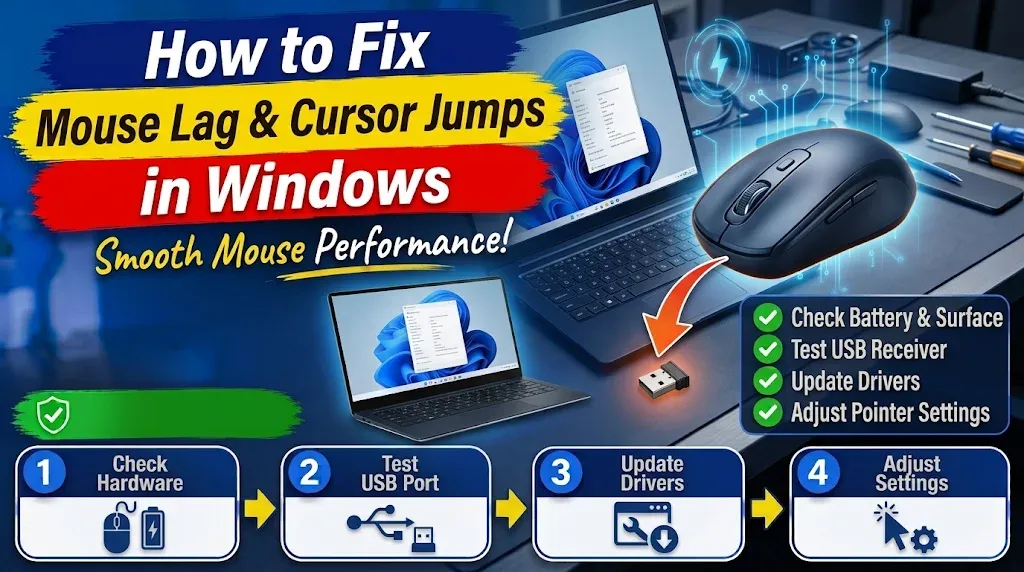
A mouse that lags, jumps or stops responding makes every task harder. The cause may be the mouse itself, its wireless link, the USB port, a driver, a setting, or a PC that is too busy. This guide tests each in turn and tells you how to read the result of each test. It also shows how to work the PC with the keyboard while the mouse is dead.
If the mouse does not move at all
You can still run the steps below with the keyboard:
- Press Windows + I to open Settings. Use Tab, the arrow keys and Enter to move and select.
- Press Windows + X and then M to open Device Manager. Use the arrow keys and Right arrow to expand a group, and the Menu key or Shift + F10 for the right-click menu.
- Press Ctrl + Shift + Esc for Task Manager.
Step-by-step: fix mouse lag or a mouse that stopped working
Step 1: Check the basics
- Replace or recharge the battery in a wireless mouse. A weak battery causes jumping before the mouse dies.
- Clean the sensor on the bottom with a dry cloth, and try a different surface. Glass and shiny surfaces confuse many optical sensors, so use a mouse pad or a sheet of paper as a test.
- Switch the mouse off and on with its switch. Look for a light under the mouse. If there is no light at all, the mouse has no power or the cable has failed.
Step 2: Improve the wireless link
- Plug the USB receiver into a port close to the mouse. Use a short USB extension cable if the PC is under the desk.
- Move the receiver away from USB 3 drives, hubs and Wi-Fi adapters. USB 3 devices can interfere with the 2.4 GHz signal.
- For a Bluetooth mouse, remove and pair it again in Settings > Bluetooth & devices (see fix Bluetooth not working).
You should see: the cursor follow the mouse smoothly within a metre of the receiver. If it does and then lags from further away, the link is weak. Move the receiver closer.
Step 3: Test another port and another PC
Try a different USB port, preferably on the back of a desktop. If the mouse also fails on another PC, the mouse is faulty (Step 9). If a USB mouse is not recognised at all, see fix USB device not recognized. If the mouse works in the BIOS (press Del or F2 at start, on boards that support a mouse) but not in Windows, a driver or Windows setting is the cause. Go on.
Step 4: Check the pointer settings
Open Settings > Bluetooth & devices > Mouse. Check the Mouse pointer speed (about the middle is normal). Then open Additional mouse settings > Pointer Options. Try turning Enhance pointer precision off or on. It changes how the cursor accelerates, and many people find movement more predictable with it off. Untick Display pointer trails and Show location of pointer when I press the CTRL key if the cursor looks like it lags.
Step 5: Reinstall the driver
Open Device Manager, expand Mice and other pointing devices, right-click your mouse and choose Uninstall device. Restart. Windows reinstalls a basic driver and the mouse should work as a plain mouse. Install the maker’s software only if you need extra buttons or an adjustable sensor. See update drivers in Windows 11. If a yellow warning triangle shows next to the mouse, update or uninstall that driver the same way.
Step 6: Turn off USB power saving
In Device Manager, expand Universal Serial Bus controllers. For each USB Root Hub entry, double-click it, open Power Management and untick Allow the computer to turn off this device to save power. A mouse that freezes after a few minutes of no use, or only returns after you unplug it, is the typical sign.
Step 7: Check whether the PC is too busy
If the cursor freezes in time with a busy disk or CPU, the problem is the PC, not the mouse. Open Task Manager (Ctrl + Shift + Esc) and look at CPU, Memory and Disk on the Performance tab. A value stuck near 100 percent while the cursor freezes is the likely cause. See fix high CPU usage and how to diagnose a slow PC. For a disk stuck at 100 percent, see fix 100% disk usage.
Step 8: For gaming mice, check the polling rate and the software
Some users report stutter with very high polling rates (such as 4000 Hz and above), and it depends on the PC and the game. If the mouse software offers the setting, try 1000 Hz as a test and see whether the cursor smooths out. Quit other programs that run background mouse software at the same time (two vendors’ tools can fight). If the mouse lags only in one game, see how to reduce input lag.
Step 9: Test in Safe Mode, then replace the mouse if it still fails
Start in Safe Mode. If the mouse works smoothly there, a program or driver is interfering. Remove what you installed last. If the mouse fails on several PCs, or its buttons or sensor are worn, replace it.
If the steps above do not fix it
Microsoft keeps a general checklist for mice and keyboards, including the hardware troubleshooter, in Mouse and keyboard problems in Windows. For a laptop touchpad, see how to fix a laptop touchpad. If the problem is touchpad gestures, scrolling or taps rather than a mouse, see Windows 11 touchpad not working.
More help
If your problem is with another part of the PC, search by symptom on the PC Repair Atlas homepage.
FAQ
Why does my wireless mouse lag only sometimes? Interference, a low battery or a receiver in a poor spot are the usual causes.
Should I turn off Enhance pointer precision? It is a matter of preference. Test both settings.
Can a bad cable cause lag on a wired mouse? Yes. Try another port, and check the cable for damage near the plug.