How to Fix Bluetooth Not Working on Windows 10 and 11
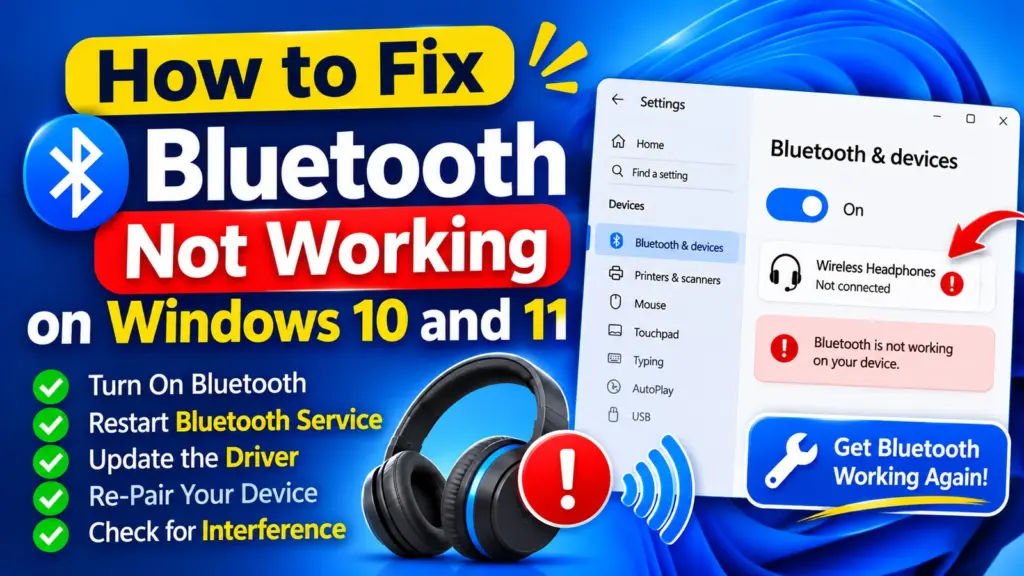
Bluetooth problems come in a few forms: the Bluetooth switch is missing, a device will not pair, or a paired device keeps cutting out. Most are fixed by a setting, the Bluetooth service or the driver. This guide starts with the quickest checks and moves to deeper ones, saying what you should see and what to do if a step does not help.
Step-by-step: fix Bluetooth
Step 1: Check the basics
- Open Settings > Bluetooth & devices and make sure the Bluetooth switch is On. (On Windows 10 it is Settings > Devices > Bluetooth & other devices.)
- Turn Airplane mode off, and check that a laptop's Fn key for wireless is not switching radios off. If Airplane mode stays stuck on, see fix Airplane mode stuck on Windows. If the Wi-Fi option or networks are missing too, see the guide to a missing Wi-Fi option or networks.
- Charge the device, put it in pairing mode (usually by holding its Bluetooth button until a light flashes) and keep it within a metre of the PC.
- Restart the PC and the device. Use Restart, not Shut down, so Windows fully reloads its drivers.
You should see: the device appear under Add device > Bluetooth. If it does not appear, continue.
Step 2: If the Bluetooth switch is missing
Right-click Start, open Device Manager, and look for a Bluetooth category. Then choose View > Show hidden devices and look again. Also check Network adapters and Other devices for an item with a yellow warning mark.
- Category present: the hardware is detected. Go to Step 3.
- Nothing at all: the PC may have no Bluetooth hardware. Many desktops do not have it built in. A small USB Bluetooth adapter (a version 5.0 or newer model is a common choice) adds it. If a laptop should have Bluetooth, check for a BIOS setting named Bluetooth or Wireless and install the maker's chipset and Bluetooth driver (Step 6).
Step 3: Run the Bluetooth troubleshooter
Open Settings > System > Troubleshoot > Other troubleshooters and select Run next to Bluetooth. On Windows 10, use Settings > Update & Security > Troubleshoot > Additional troubleshooters > Bluetooth. On some newer Windows 11 builds, the troubleshooter may open the Get Help app instead.
You should see: a message saying what was found or fixed. If it finds nothing, continue.
Step 4: Check the Bluetooth service
- Press Windows + R, type services.msc and press Enter.
- Find Bluetooth Support Service. Its default startup type is usually Manual (Trigger Start), which is normal.
- Right-click it and choose Properties. Set Startup type to Automatic, select Start (or Stop then Start if it is already running) and select OK.
You should see: Service status: Running. If it will not start or gives an error, note the error code and go to Step 6, since a damaged driver or system file is the usual reason.
Step 5: Remove and re-pair the device
Open Settings > Bluetooth & devices > Devices, select the three dots next to the device and choose Remove device. Put the device back into pairing mode, then select Add device > Bluetooth and pair again. If the device is paired with a phone or another PC, disconnect it there, since many devices connect to only one at a time. A Bluetooth game controller that will not stay paired has its own checks, see fix game controller not working on Windows.
You should see: Connected under the device name. If pairing fails with “Try connecting your device again”, remove it from both sides, restart the PC, and try once more.
Step 6: Update or reinstall the driver
Open Device Manager, expand Bluetooth, right-click the adapter (often named after Intel, Realtek, MediaTek or Qualcomm, or “Generic Bluetooth Radio”) and choose Update driver > Search automatically for drivers. If that finds nothing, download the driver from the PC or adapter maker's support page (see update drivers in Windows 11).
If a recent driver update caused the problem, open the adapter's Properties > Driver > Roll Back Driver if it is available. As a last driver step, choose Uninstall device (do not tick “Attempt to remove the driver” unless you have the maker's installer ready) and restart so Windows reinstalls it.
Then open the adapter's Properties > Power Management and untick Allow the computer to turn off this device to save power. This stops many random disconnects.
Step 7: Reduce interference
Bluetooth shares the 2.4 GHz band with many Wi-Fi networks and with USB 3 devices.
- Move the PC and the device closer together, and away from routers, microwaves and large metal objects.
- If you use a USB Bluetooth adapter, plug it into a short USB extension cable so that it is away from busy USB 3 ports and external drives.
- If your router offers 5 GHz Wi-Fi, connect the PC to that band to ease the load on 2.4 GHz.
Step 8: Turn off Fast Startup and update Windows
Fast Startup can leave the adapter in a bad state. Open Control Panel > Power Options > Choose what the power buttons do > Change settings that are currently unavailable, untick Turn on fast startup (recommended) and save. Then install pending Windows updates (see fix Windows Update if updates fail). Warning: install BIOS updates only when the maker lists a fix for your problem, back up your files first, and follow how to update your BIOS safely.
Step 9: Fix audio problems on a connected device
If your headphones are connected but silent, choose them as the output device in Settings > System > Sound. See fix no sound on Windows. If they show as Connected and still play nothing, read Windows 11 Bluetooth headphones connected but no sound. If the sound plays but crackles or pops, see Windows 11 audio crackling or popping.
Step 10: Test another device or use a USB adapter
Test the device with a phone or another PC. If it works there, the PC's Bluetooth is the fault: add a USB Bluetooth adapter and disable the built-in one in Device Manager (right-click > Disable device) so they do not conflict. If it fails everywhere, the device itself is faulty or needs resetting. Check its manual for a factory reset.
Sources
- Fix Bluetooth problems in Windows (Microsoft Support): checking that Bluetooth is on, the Device Manager check and the troubleshooter.
- Update Bluetooth drivers in Windows (Microsoft Support): updating, rolling back and reinstalling the Bluetooth driver.
More help
If Bluetooth still fails after these steps, return to the PC repair guides home page, or use how to repair Windows system files with SFC and DISM to rule out damaged files.
FAQ
Why does Bluetooth keep disconnecting? Interference, power-saving settings and an old driver are the most common causes. Steps 6 and 7 cover them.
Can I add Bluetooth to a desktop? Yes. A USB Bluetooth adapter is cheap and easy to install.
Why can't I see my device when pairing? Make sure it is in pairing mode, not just switched on, and that it is not already connected to another device.
Why is Bluetooth missing after an update? A driver may have been replaced. Try Step 6, using the maker's driver.