How to Fix No Sound on Windows 10 and 11
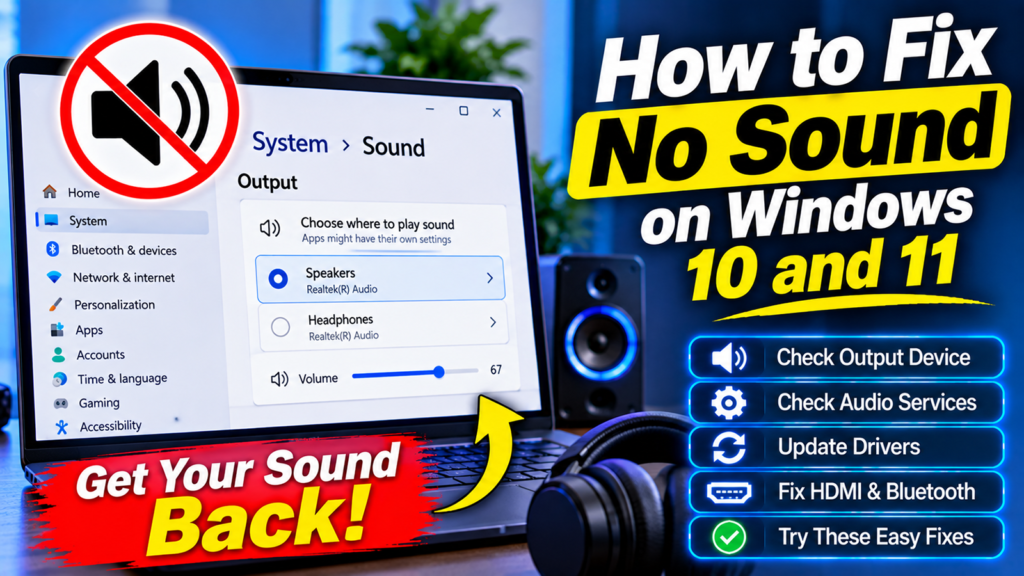
When the sound disappears, the cause is often simple: Windows is sending audio to the wrong device. Other times a service has stopped or a driver is broken. This guide goes through the checks in order.
Step-by-step: bring the sound back
Step 1: Check the basics
Check that the volume is up and not muted, both on the PC and on your speakers or headset. Test the speakers or headphones with another device, and try another jack or USB port.
You should see: sound from the speakers or headphones on another device or port. If they stay silent everywhere, the speakers or headphones are the likely fault.
Step 2: Choose the right output device
Open Settings > System > Sound and look under Output. Select your speakers or headphones. Monitors connected by HDMI or DisplayPort, and Bluetooth devices, often take over as the default device.
You should see: your speakers or headphones shown as the active output. Play a short sound to check.
Step 3: Check the volume mixer
In Settings > System > Sound > Volume mixer, make sure the app that has no sound is not muted or turned down.
You should see: the app's volume slider above zero and not muted. Play sound in that app again.
Step 4: Run the audio troubleshooter
Open Settings > System > Troubleshoot > Other troubleshooters and run Audio.
You should see: a report saying what was found or fixed. If sound still does not work afterwards, go on to Step 5.
Step 5: Restart the audio services
- Press Windows + R, type services.msc and press Enter.
- Find Windows Audio and Windows Audio Endpoint Builder.
- Check that both are Running and set to Automatic. If not, right-click each and choose Start or Restart.
You should see: both services listed as Running. If they will not start, restart the PC and check again.
Step 6: Turn off audio enhancements and exclusive mode
Open Settings > System > Sound, select your output device and turn off Audio enhancements. Then open Control Panel > Sound, select the device, choose Properties > Advanced and untick Allow applications to take exclusive control of this device.
You should see: sound playing normally after the change. If the sound plays but crackles, see the crackling guide below. If it is still silent, go on to Step 7.
If the sound plays but crackles, pops or stutters, you have a different problem. See Windows 11 audio crackling or popping: 9 fixes.
Step 7: Reinstall the audio driver
- Open Device Manager and expand Sound, video and game controllers.
- Right-click your audio device (for example Realtek) and choose Uninstall device.
- Restart the PC so Windows reinstalls it.
- If that does not work, download the audio driver from your laptop or motherboard maker. As a test, choose Update driver > Browse my computer > Let me pick and select High Definition Audio Device.
You should see: the audio device listed again under Sound, video and game controllers, and sound playing after the restart. If it does not appear at all, check the audio hardware in the BIOS and the front-panel cable in Step 9.
For more on getting the right driver, see how to update drivers in Windows 11.
Step 8: Check Bluetooth headphones as the output
If your sound should go to Bluetooth headphones, make sure they are selected under Output in Settings > System > Sound, as in Step 2. If the headphones are missing from the list or will not connect, see fix Bluetooth not working.
You should see: the headphones listed and selected as the output, with sound playing through them. If they are not listed, use the Bluetooth guide above. If the headphones show as connected but stay silent, see Windows 11 Bluetooth headphones connected but no sound.
Step 9: On a desktop, check the jacks
Use the jacks on the back of the PC instead of the front panel. If the front jack does not work, check the front-panel audio cable on the motherboard and that audio is enabled in the BIOS.
You should see: sound from the back jack. If it works there, the front-panel wiring or its setting is the likely cause.
Step 10: Roll back or update Windows
If the sound stopped after an update, open Settings > Windows Update > Update history to see what changed, and use System Restore if needed. If updates will not install, see fix Windows Update stuck or failing.
You should see: an update listed just before the sound stopped. That is the likely cause, and System Restore can undo it if the sound returns afterwards. To roll back, see how to roll back with System Restore.
More help
For more Windows fixes, search by symptom on the PC Repair Atlas homepage. If the microphone is also not working, see how to fix a microphone not working in Windows 11.
FAQ
Why is there no sound over HDMI? Windows may not have your monitor or TV selected as the output device. Choose it in Sound settings and check the monitor's volume.
Why does the sound stop after a restart? A driver, an audio service or Fast Startup can cause this. Reinstall the audio driver and check the services.
Do I need to buy a sound card? Almost never. Most sound problems are fixed with settings or drivers.