How to Fix a Microphone Not Working in Windows 11
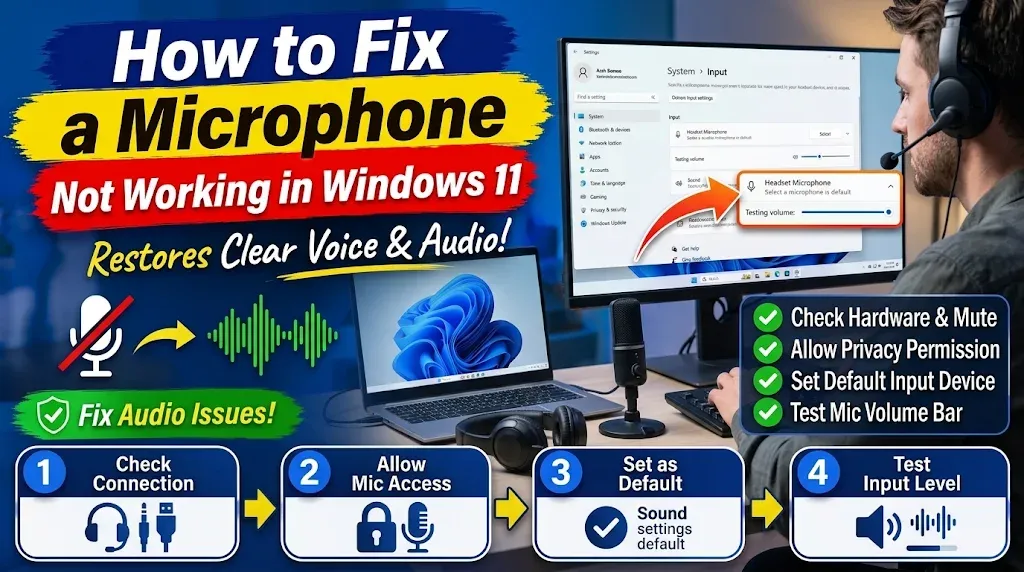
When a microphone does not work, first separate the hardware from the Windows settings. A headset may have a mute switch, a laptop may be using the wrong built-in microphone, a privacy setting may block the app, or Windows may have the device switched off. This guide tests the microphone in Windows before you change anything inside a meeting or game app.
Step-by-step: restore microphone input
Step 1: Check the microphone and cable
Make sure a headset’s physical mute switch is off and the in-line volume wheel is up. Many laptops also have a mute-microphone key (an icon of a microphone with a line through it, often on F4 or F8). Press it once and test. Reconnect a wired microphone firmly. For a headset with separate headphone and microphone plugs, use the pink microphone port (or a combo-jack adapter on a laptop). Try another cable, another USB port or another device if you have one.
Step 2: Choose the correct input device
Open Settings > System > Sound. Under Input, select the microphone you want. Speak normally and watch the bar next to Input volume.
- The bar moves as you talk: Windows hears the microphone. The problem is in the app (Steps 4 and 5).
- The bar stays flat: go on to Step 3.
- The microphone is not in the list: scroll down and open All sound devices. Look under Input devices for a device marked Disabled. Select it and choose Allow. If it is not there at all, go to Step 6.
Step 3: Raise the input volume and test
Select the microphone and set Input volume to about 80. Select Start test, speak for a few seconds and select Stop test. Windows reports the result as a percentage of the volume heard (the exact display differs between Windows builds). A reading that clearly rises when you talk normally usually means the microphone is working. If the volume keeps resetting itself, an app may be adjusting it. Turn off automatic gain in that app. Do not use the maximum Microphone boost straight away. Too much boost adds hiss and distortion.
Step 4: Allow microphone access
Open Settings > Privacy & security > Microphone. Turn on Microphone access and Let apps access your microphone. In the list of apps, turn on the app you use (Teams, Zoom, your browser). Scroll down and turn on Let desktop apps access your microphone. Programs that you install from a website, such as Zoom or Discord, are desktop apps and only use that last switch. If any of these is off, the device works in Windows but stays silent in the app.
Step 5: Check the app’s own audio settings
In the game, browser or meeting app, open its audio settings and select the same microphone you tested in Windows. Many apps do not switch by themselves when you plug in a headset. In a browser, click the lock or camera icon in the address bar and set Microphone to Allow. Close other apps that may be using the microphone, then test again. Some apps take over the microphone exclusively. To stop that, press Windows + R, type mmsys.cpl, open the Recording tab, double-click your microphone, open Advanced and untick Allow applications to take exclusive control of this device.
Step 6: Run the troubleshooter, then check the driver
- Open Settings > System > Troubleshoot > Other troubleshooters and run Recording Audio (on some versions Get Help opens it). Pick your microphone and follow what it suggests.
- Right-click Start, open Device Manager and expand Audio inputs and outputs. A microphone with a down arrow is disabled: right-click it and choose Enable device. A yellow warning triangle means a driver problem. Right-click and choose Update driver, or Uninstall device and restart so that Windows installs it again.
- For a built-in laptop microphone, also expand Sound, video and game controllers and check the audio device is present and has no warning. Install the audio driver from your PC maker if it is missing. See how to update drivers safely.
Step 7: Bluetooth and USB headsets
For a Bluetooth headset, open Settings > Bluetooth & devices, remove the headset and pair it again. A Bluetooth headset often has two entries in Sound settings: one for music (Stereo) and one for calls (Hands-free). The microphone only works with the Hands-free one. If the connection itself fails, use the Bluetooth repair guide. If the headset connects but stays silent, see Bluetooth headphones connected but no sound in Windows 11. For a USB headset, try a different USB port directly on the PC, not a hub. If Windows does not see a USB headset at all, the USB device not recognized guide covers the causes.
If it still does not work
- It works in Windows but not in one app: update or reinstall that app, or test the microphone in the browser at a site that offers a microphone test.
- It works with another microphone: the first microphone or its cable is faulty. Replace it.
- No microphone works on the PC: a Windows update or a damaged driver is likely. Check Settings > Windows Update > Update history for an update from the day it stopped, and see how to uninstall a Windows update, or restore to an earlier date with System Restore.
- No sound from speakers either: see how to fix no sound.
Sources
- Fix microphone problems (Microsoft Support): microphone privacy settings, choosing the input device and the Recording Audio troubleshooter.
More help
For other problems, search by symptom in the PC repair guides on PC Repair Atlas. If the camera also fails on the same call, see how to fix a webcam that is not working.
FAQ
Why can I hear sound but my headset microphone does not work? Headphone output and microphone input are separate. Check the selected input device and the headset’s cable or mute control.
Why does the microphone work in one app only? Another app may be using it, or the affected app may not have microphone permission or the right device selected.
Should I reinstall every audio driver? No. First check the device, the input setting and the privacy permission. Update drivers only if those checks do not solve the problem.