How to Fix a Webcam Not Working in Windows 11 and 10
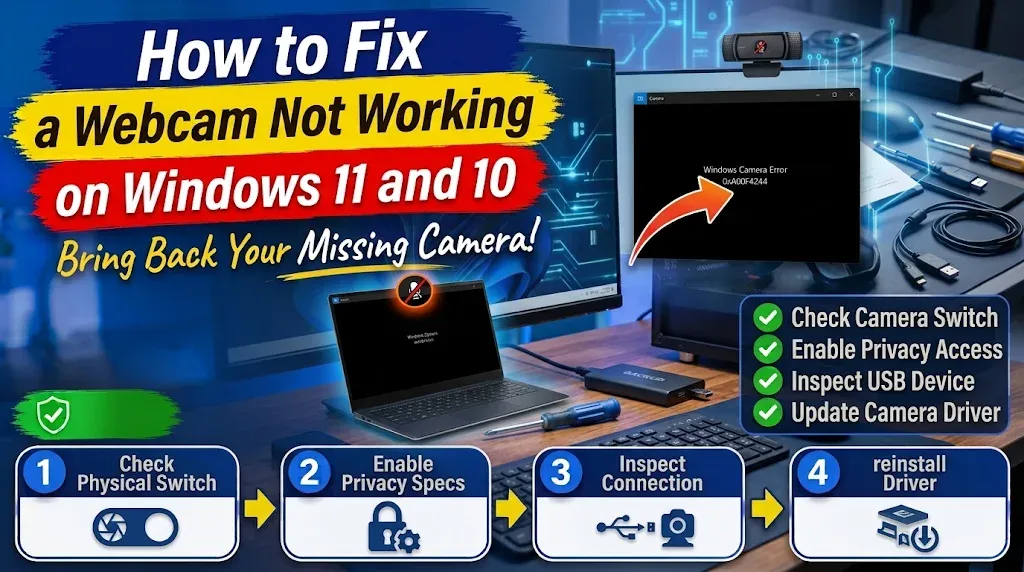
A webcam that is missing, shows a black picture or says "We can't find your camera" is usually blocked by a setting or a switch rather than broken. This guide goes through the checks in an order that tends to find the most common causes first, and says what you should see after each step so you can stop when it works.
Microsoft's own pages for this are Camera doesn't work in Windows and Manage cameras with Camera settings in Windows 11. The steps below follow them and add checks for the cases they do not cover.
Windows 10 note: Windows 10 support has ended (see Microsoft's page). The Cameras page in Step 3 exists only on Windows 11. The other steps apply to both.
Step-by-step: fix the webcam
Step 1: Check the physical parts
- Open the privacy shutter on the camera, if your laptop has one.
- Look for a camera key on the keyboard (often an Fn key with a camera icon) and make sure the camera is not switched off.
- For a USB webcam, check that the cable is firmly connected, and try another USB port directly on the PC, not a hub.
You should see: the webcam's light come on when an app uses it. A webcam with no light and no picture in any app is likely not getting power or is switched off, so go on.
Step 2: Check the privacy settings
Open Settings > Privacy & security > Camera and check:
- Camera access is On.
- Let apps access your camera is On, and the app you use (Teams, Zoom, Camera) is switched on in the list.
- Let desktop apps access your camera is On. Browsers and many video-call apps are desktop apps, and they do not appear in the list above it.
You should see: all three switches On. These switches are a common cause of a black picture. After changing them, close and reopen the app that uses the camera. If face sign-in with Windows Hello also fails, see how to fix Windows Hello fingerprint or face sign-in.
Step 3: Check the Cameras page (Windows 11)
Open Settings > Bluetooth & devices > Cameras. Your camera should be listed. If it appears under Disabled cameras, select it and choose Enable (this needs an administrator account). If no Disabled cameras section is shown, no camera is disabled there. Microsoft notes that a camera may be missing from this page when it has no driver, is in a nonfunctional state, or was disabled in Device Manager.
You should see: the camera with a preview when you select it. If the camera is not listed at all, go to Step 6.
Step 4: Test with the Camera app
Open the Camera app from the Start menu. If it shows a picture, the camera works, and the fault is in the other app's own settings (see webcam works in the Camera app but not in Zoom). If you see "We can't find your camera" (error 0xA00F4244), continue below.
If the Camera app itself fails, open Settings > Apps > Installed apps, find Camera, select the three dots, choose Advanced options and select Repair, then Reset if needed. Reset deletes the app's own data, such as its saved settings, but not your photos.
Step 5: Close other apps that use the camera
Only one app can use the camera at a time. Close video call apps, browser tabs and background tools. Press Ctrl + Shift + Esc to check Task Manager for apps that may still be running, and end the ones you recognize (not system processes).
You should see: the camera light go off when everything is closed, and come on when you open the Camera app. If the light stays on with nothing open, an app is still holding the camera. Restart the PC.
Step 6: Check the camera in Device Manager
Open Device Manager and look for Cameras or Imaging devices.
- If the camera is listed with a warning, right-click it and choose Update driver, or Uninstall device and restart so Windows reinstalls it.
- If the menu says Enable device, the camera was disabled. Choose it. Microsoft says that if the menu shows Disable device, the camera is already enabled.
- If it is not listed, select Action > Scan for hardware changes.
- If the problem started after an update, open the camera's Properties > Driver and choose Roll Back Driver.
See update drivers in Windows 11 for how to get the right driver from the PC maker. For a USB webcam that is not recognised at all, see USB device not recognized.
You should see: the camera listed without a yellow warning, and a picture in the Camera app. If a yellow warning stays, open Properties > General and read the Code message (for Code 43, see Windows 11 Code 43 error).
Step 7: Run the troubleshooter
Open Settings > System > Troubleshoot > Other troubleshooters and run Camera, if it is listed. On some builds, Windows opens the Get Help app for this instead. Follow its questions and apply what it suggests.
Step 8: Check your security software and the BIOS
Some security programs have a webcam protection feature that blocks apps. Check its settings, and allow your video-call app. Some laptops also have a camera option in the BIOS, so look for it there if the camera is missing completely. Before you change it, write down or photograph the current setting so you can restore it. Change only that one setting, and leave the rest alone.
Step 9: Check the browser
In the browser, select the lock or settings icon next to the address, open the site's permissions and allow the camera. Also check the browser's own camera settings, and choose the right camera if several are listed.
Step 10: Repair Windows and update
Install Windows updates (see fix Windows Update stuck or failing if they fail), then run the repair steps in how to repair Windows system files. Restart and test the Camera app again. If a Windows scan finds the camera driver or a system file damaged, the fix may show after the restart.
Step 11: Test the camera on another PC
For a USB webcam, test it on another computer. If it fails there too, replace it. For a built-in camera that is not found in the BIOS or Device Manager, the camera or its cable may need repair, and the laptop may still be under warranty. Check your security software and malware only if you also see other signs (see how to remove a virus or malware).
More help
For more Windows and hardware fixes, browse the PC Repair Atlas homepage, where you can search by symptom. If your microphone also stops working on the same call, see how to fix a microphone that is not working.
FAQ
Why is my camera black but the light is on? An app may be blocked, or two apps may be trying to use it at once.
Can I use my phone as a webcam? Many phones can, but that is a separate setup.
Is my camera broken if it is not in Device Manager? Not necessarily. Scan for hardware changes, and check the BIOS and the USB cable first.
Does a swivel shutter matter? Yes. A closed shutter shows a black picture even when everything else is correct.