Windows 11 Code 43 Error? 9 Fixes When Windows Stops a Device
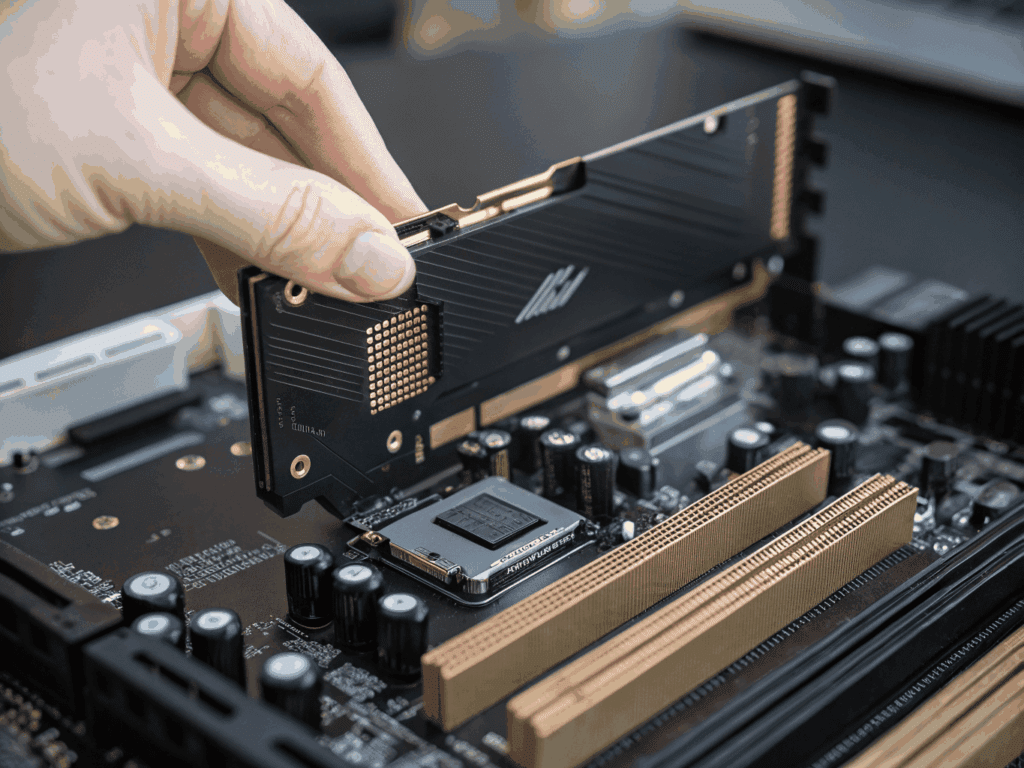
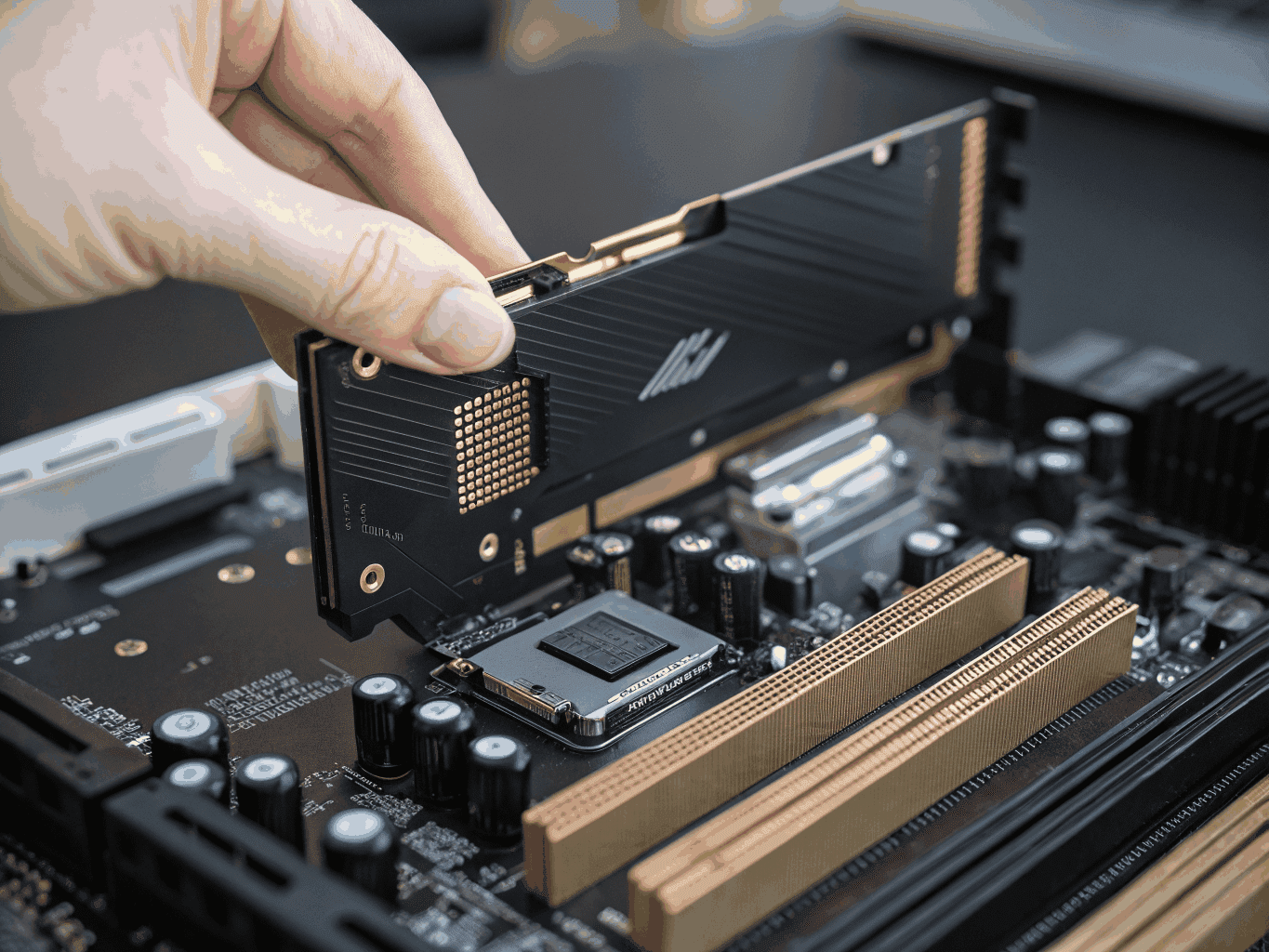
A Windows 11 Code 43 error means Windows switched off a device because the device reported a problem. In Device Manager you see a yellow triangle and the message Windows has stopped this device because it has reported problems. (Code 43).
The error can hit graphics cards, USB drives, webcams, Bluetooth adapters and Wi-Fi adapters. Microsoft explains that a driver told Windows the device failed. So the cause is either a faulty driver or faulty hardware. This guide starts with safe software checks and leaves hardware for last.
If the device is your graphics card, you may also see a computer black screen, a low screen resolution or games that will not start. For more step-by-step help, browse our PC repair and troubleshooting guides.
What the Windows 11 Code 43 error means
Code 43 is a general status, not one single fault. It tells you Windows lost trust in a device, but not why. Some causes are easy to fix, and some are not.
- A driver that is damaged, outdated or wrong for the device.
- A recent driver or Windows update that does not suit the device.
- A loose cable, a poor connection or a weak power supply.
- Overheating, or overclocking that pushes a card too far.
- A device that is failing and needs repair or replacement.
How to confirm the error
- Press Windows + X and open Device Manager.
- Look for a device with a yellow triangle. Expand categories such as Display adapters or Universal Serial Bus controllers if you cannot see it.
- Right-click the device and choose Properties.
- On the General tab, read Device status. If it says Code 43, you are in the right place.
Write down the exact device name. Every fix below starts from it. If the status shows a different code, Microsoft lists each one on its Device Manager error codes page.
Which fixes to try for each device
Use this table to skip to the fixes that suit your device. Work through them in order, because the safest checks come first.
| Device | Common clues | Most useful fixes |
|---|---|---|
| Graphics card | Low resolution, black screen, games crash | 3, 5, 7 and 9 |
| USB drive, hub or port | Device vanishes, other devices fail in the same port | 1, 6 and 9 |
| Webcam | Camera app cannot find the camera | 3, 5 and 6 |
| Wi-Fi or Bluetooth adapter | Adapter missing or keeps dropping | 3, 4, 5 and 9 |
Before you start
- Sign in with an administrator account. Device Manager changes need it.
- Back up files you cannot replace, especially if the error is on an external or internal drive. Our Windows backup guide shows how.
- Download drivers only from Microsoft, your PC maker or the device maker. Avoid driver updater programs and unknown websites.
- Test after each fix, so you know which one worked.
Windows 11 Code 43 error: 9 fixes, safest first
Fix 1: Restart, then reconnect the device
Use Start > Power > Restart, not Shut down. Restarting is a common first step for Code 43. A restart reloads every driver, while a shutdown with Fast Startup can keep some of them in the same state.
If the device is external, unplug it, wait ten seconds and plug it into a different port. On a desktop, use a port on the back of the PC. Connect it directly, not through a hub, adapter or dock. You should see the device status change to “This device is working properly” in its Properties. If the yellow triangle returns, go to Fix 2.
Fix 2: Install Windows updates and optional driver updates
- Open Settings > Windows Update and select Check for updates.
- Select Advanced options > Optional updates.
- Open Driver updates, tick the one that matches your device, and install it.
- Restart the PC when Windows asks.
If updates fail, see our guide to fixing Windows Update when it is stuck or failing. You should see the driver update installed and the device report no error after the restart. If there is no driver update to install, go to Fix 3.
Fix 3: Update the driver
- In Device Manager, right-click the device and choose Properties.
- Open the Driver tab and select Update Driver.
- Choose Search automatically for drivers.
Windows often says the best driver is already installed. That only means it found nothing newer in its own catalog. Visit your PC maker's support page, or the device maker's page, and install the driver listed for your exact model. On a laptop, the maker's driver is often safer than a generic one. Our guide to updating drivers in Windows 11 has the full steps, and the graphics driver guide covers GPUs. You should see the new driver version on the Driver tab of Properties. If Code 43 remains, go to Fix 4.
Fix 4: Roll back a driver that broke things
If Code 43 started right after an update, go back to the earlier driver.
- Open the device's Properties in Device Manager.
- On the Driver tab, select Roll Back Driver.
- Pick any reason, select Yes and restart.
If the button is greyed out, Windows has no older driver saved. Install an older version from the maker's website instead. Microsoft also lists rolling back as a fix on its graphics error code 43 page. You should see the older version listed on the Driver tab and no Code 43 after the restart. If the button stays greyed out or the error returns, go to Fix 5.
Fix 5: Uninstall the device and reinstall the driver
- Download the latest driver from the maker first and save it.
- In Device Manager, right-click the device and choose Uninstall device.
- If a box such as Attempt to remove the driver for this device appears, tick it only when your fresh driver is ready.
- Restart the PC. Windows usually reinstalls a basic driver on its own.
- Run the maker's installer to put the right driver on top.
For graphics cards, Intel's guide for its own graphics driver describes removing the driver in Device Manager and restarting, then installing a fresh copy. The label for the removal option can differ between Windows builds. A clean graphics install is also in our graphics driver guide. You should see the device listed without a warning triangle once the fresh driver is installed. If Code 43 remains, go to Fix 6. If you cannot see anything on the screen, start in Safe Mode.
Fix 6: Disable and re-enable the device, and turn off USB power saving
Right-click the device and choose Disable device. Wait a few seconds, then right-click it again and choose Enable device. This resets how Windows talks to it without removing the driver.
For USB devices, Windows may cut power to save energy, and some devices handle that badly. Try these two changes:
- In Device Manager, open Universal Serial Bus controllers, double-click each USB Root Hub, open Power Management and untick Allow the computer to turn off this device to save power.
- In Control Panel > Power Options > Change plan settings > Change advanced power settings, open USB settings and set USB selective suspend setting to Disabled. On a laptop, set both the battery and plugged-in options.
You should see the device work again after a restart. If Code 43 stays, go to Fix 7.
If the error follows a USB drive and the drive does not appear at all, our USB device not recognized guide covers the other causes.
Fix 7: Undo overclocking and check heat and power
A graphics card that is pushed too hard, runs too hot or gets unstable power can report a fault and trigger Code 43.
- Reset any overclock, undervolt or fan-curve tool to its default settings.
- Check temperatures while the PC is idle and under load. Our guide to checking CPU and GPU temperature shows how, and the overheating guide covers fixes.
- Clear dust from fans and heatsinks. See how to clean your PC's interior safely.
- On a desktop, make sure the power supply is strong enough for the card. You can test a PC power supply safely before you replace anything.
You should see temperatures stay in the card maker's normal range under load. If the card still reports Code 43 on default settings, go to Fix 8.
Fix 8: Repair Windows files and undo a bad update
Damaged system files can break how Windows loads a driver. Run the repair tools in our SFC and DISM guide, then restart.
If Code 43 began after a Windows update, try to uninstall that update. If you made a restore point before the problem, System Restore can return Windows to that moment without touching your files. You should see the repair finish with a completion message. If Code 43 stays after the update removal and repair, go to Fix 9.
Fix 9: Test the hardware
If a clean driver and a clean Windows still show Code 43, the problem may be physical. Test in this order:
- Try another port or slot. A device that works in a different USB port points to a bad port or cable.
- Try another PC. If Code 43 follows the device, the device is the likely fault.
- Try another device in the same port. If that one fails too, the port or controller is suspect.
You should see the device work in another port or on another PC. If it fails in both places, the device is faulty, so a repair or replacement is the next step.
Desktop PC: reseat the graphics card
Safety first: shut down, switch off the power supply, unplug the power cable and hold the power button for about five seconds to drain leftover power. Touch bare metal on the case before you touch parts, and never touch the gold contacts.
- Remove the card, check the slot for dust, and push the card back until the latch clicks.
- Plug in every power connector the card has until each one clicks.
- If the card has a spare slot nearby, try that one.
If you have never installed a card, follow our graphics card installation guide. Do not try oven or heat-gun tricks that some videos suggest. They can destroy the card. If Code 43 stays after reseating, see When to get professional PC repair below.
Laptop: use the maker's tools
Most laptop graphics chips are soldered to the board, so you cannot reseat them. Do not open the laptop unless you know how, because it can void your warranty. Instead:
- Install the graphics and chipset drivers from the laptop maker's support page.
- Check whether the maker lists a BIOS update that mentions graphics or device problems. Read our BIOS update guide first. Keep the laptop on its charger and never interrupt the update.
- If the laptop is under warranty, contact the maker before you try anything else.
When to get professional PC repair
Stop and get help from a repair shop or the maker if any of these apply:
- Code 43 stays after a clean driver install and a test on another PC.
- The screen shows colored dots, lines or distortion even on the startup logo or BIOS screen. That points to hardware, not Windows.
- You smell burning, see swollen parts, or the PC shuts off during use.
- The device is under warranty. Opening it may end your cover.
- The error is on a drive that holds files you need. Do not format it, and ask a data recovery service.
A technician can swap parts to find the faulty one, which is hard to do at home without spare components.
Related problems
Code 43 on one device is sometimes part of a bigger pattern. These pages may help:
- The monitor drops to black, but the device list looks fine: Monitor Keeps Going Black for a Few Seconds.
- The PC starts but shows no picture at all: Computer Turns On but No Display.
- The Wi-Fi adapter is the device with the error: Windows 11 Wi-Fi Keeps Disconnecting.
- The Bluetooth adapter is the device with the error: How to Fix Bluetooth Not Working.
- The webcam is the device with the error: Windows 11 Webcam Not Working.
Frequently asked questions
Is a Code 43 error always a hardware fault? No. A bad driver causes it often, and a clean reinstall fixes many cases. If the error returns after that and follows the device to another PC, hardware is more likely.
Will reinstalling the driver delete my files? No. A driver does not touch your documents. Settings inside a graphics control panel may reset.
Can a Windows update cause Code 43? It can, when an update installs a driver that does not suit your device. Rolling back the driver or removing the update often helps.
Should I reset Windows? Not yet. A reset is a last step, and it will not fix a failing device. Try the nine fixes first, and read how to reset Windows 11 without losing your files only if Windows itself seems damaged.