How to Reset Windows 11 Without Losing Your Files
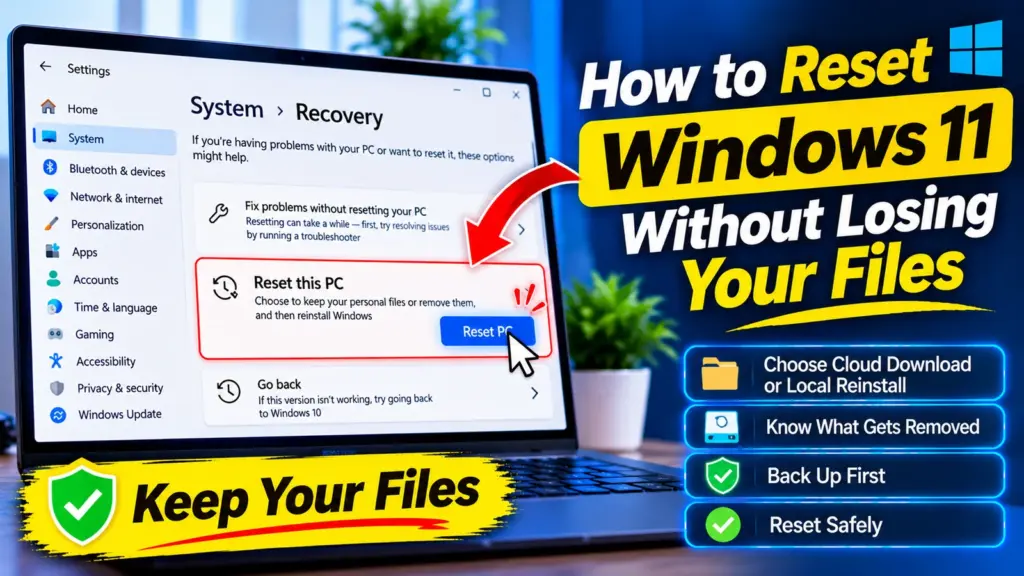
If Windows has become slow, unstable or infected, a reset can bring it back to a fresh state. Windows 11 offers an option that keeps your personal files while it reinstalls the system. This guide explains the choices, what is removed, how to do it from Settings or from the recovery screen, and what to do if the reset stops with an error. If you are not sure a reset is the right step, our guide to cleaning, repairing, resetting or reinstalling Windows 11 compares the options.
What a reset does
- Keep my files: reinstalls Windows and removes your apps and settings, but keeps the files in your user folders (Documents, Pictures, Desktop and so on).
- Remove everything: reinstalls Windows and erases your files, apps and settings. If you are selling or giving the PC away, see how to clean a Windows PC before selling or giving it away.
Even with Keep my files, always back up first, because a failed reset can put your data at risk.
Before you start
- Copy your important files to an external drive or cloud storage. See how to back up your Windows PC.
- Make a list of the programs you use and keep their installers or license keys. A reset removes every app that did not come with Windows or with the PC.
- Make sure your BitLocker or device-encryption recovery key is saved. Find it at account.microsoft.com/devices/recoverykey.
- Free up space on the system drive. Microsoft publishes no minimum, and a nearly full drive is a common reason for a reset to fail. Windows checks the space when you start and tells you if it needs more, so free the amount it asks for. On recent versions of Windows 11, users have reported it asking for tens of gigabytes, so aiming for 30 GB or more free is a safer target than a few gigabytes. That is general guidance, not a Microsoft figure.
- On a laptop, plug in the charger.
- If you only need to fix a crash or a bad update, try a lighter fix first. See System Restore (it also covers point-in-time restore on Windows 11 24H2 and later) and SFC and DISM.
Step-by-step: reset Windows 11
Step 1: Open the reset option
Open Settings > System > Recovery. Under Recovery options, select Reset PC (it may say Reset this PC). A window titled Reset this PC opens with two choices.
Step 2: Choose Keep my files
Select Keep my files.
Step 3: Choose how Windows is reinstalled
- Cloud download: downloads a fresh copy of Windows from Microsoft. It needs an internet connection and several gigabytes of data, but it works even if the files on your PC are damaged.
- Local reinstall: rebuilds Windows from the files already on the PC. It is faster, but it can fail if those files are damaged.
If you are resetting because of damaged files or malware, choose Cloud download.
Step 4: Check the additional settings
On the Additional settings screen, check Restore preinstalled apps? (only on PCs that came with Windows and maker apps). Turn it on if you want the maker’s apps back. Select Next.
Step 5: Start the reset
Read the summary of what will be removed. You should see a list of apps that will go and the words Your personal files will be kept. Select Reset. The PC restarts several times and can take an hour or more. Microsoft warns that the screen can stay black for 15 minutes or longer and that the PC may try to restart itself. A black screen or a percentage that stays still for a long time is normal. Do not switch it off or restart it by hand, because that can make the reset fail.
Step 6: Set up Windows again
When it finishes, sign in. You should see your files in your user folders and a document on the desktop called Removed Apps that lists what was removed. Then:
- Install Windows updates. If they fail, see fix Windows Update stuck or failing.
- Install the chipset, graphics and network drivers from your PC maker. See how to update drivers.
- Reinstall the programs you use.
- Your old Windows files may sit in C:\Windows.old for about ten days. You can copy anything you missed from there, then remove it with Settings > System > Storage > Temporary files.
If Windows will not start
Start the recovery menu. It opens after a few failed starts, or from a Windows installation USB (choose Repair your computer). Then choose Troubleshoot > Reset this PC > Keep my files and follow Steps 3 to 6. See how to get to the recovery screen.
If the reset fails
- “There was a problem resetting your PC. No changes were made”: your PC is unchanged. Run
DISM /Online /Cleanup-Image /RestoreHealthandsfc /scannowin an administrator Command Prompt, restart and try again, this time choosing Cloud download. - “Could not find the recovery environment”: open Terminal as administrator and run
reagentc /info. If Windows RE status says Disabled, runreagentc /enableand try again. If it still fails, use the Windows installation USB route above. For the full check, see how to check and enable Windows RE. - It stops at a percentage for hours: wait a long time, because a reset can look frozen for hours. Microsoft gives no figure. Only if the drive light stays dark for a long time, hold the power button until the PC switches off, then start it again. Treat this as a last resort: cutting power during a reset can leave Windows unable to start. If that happens, use the recovery menu route above and try again with Cloud download.
- Not enough space: free space first. See how to free up disk space. If you cannot free enough, a clean install from a USB drive is the other route.
- Another option that keeps your files and apps: under Settings > System > Recovery, try Fix problems using Windows Update (on some versions called Reinstall now). It reinstalls the current version of Windows and keeps your files, apps and settings.
- Last resort: a clean install of Windows 11. This erases the drive, so you must have your backup.
If the reset keeps failing after these steps, our guide to problem resetting your PC in Windows 11 works through nine fixes in order.
Will a reset remove a virus?
A reset removes most malware, but not every infection can be ruled out. If the problem comes back, scan your files with the malware removal guide before you restore them.
More help
For other problems, search by symptom in the PC repair guides on PC Repair Atlas.
FAQ
Will I lose my Windows license? No. Windows reactivates automatically on the same PC when you connect to the internet. If it still shows as not activated, see our guide to the Windows not activated error.
Does a reset delete files on other drives? Keep my files affects your user folders on the system drive. Back up everything important anyway.
How long does it take? Microsoft gives no figure. It often takes between about 30 minutes and a couple of hours, depending on the PC and the method.