How to Clean Install Windows 11 From a USB Drive
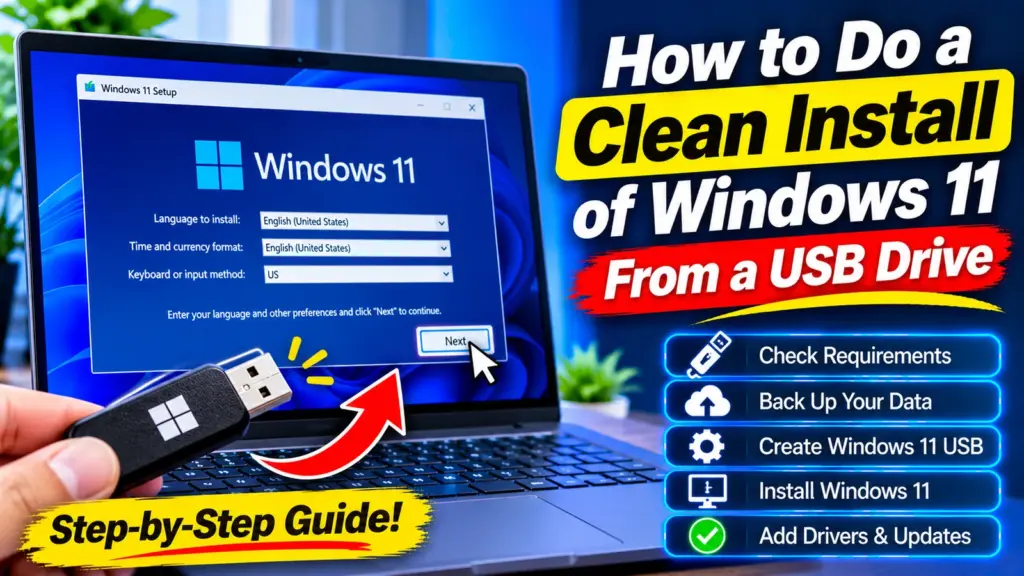
A clean install erases the drive and puts a fresh copy of Windows on it. It is the most thorough fix for stubborn software problems, and the right way to set up a new SSD or a new PC build. This guide shows the whole process. Try resetting Windows 11 first if you only want to keep your files.
Warning
A clean install deletes everything on the drive you install to. Back up all your files before you start. If you are selling or giving the PC away, see how to clean a Windows PC before selling or giving it away.
Before you start
- A USB drive with at least 8 GB. Everything on it will be erased.
- A working PC with internet to make the installer.
- Check the requirements. Windows 11 needs a supported 64-bit processor, 4 GB of RAM, 64 GB of storage, UEFI with Secure Boot capability and TPM 2.0. Use Microsoft's PC Health Check app to test your PC. If it reports a missing TPM or Secure Boot, see how to enable TPM 2.0 and Secure Boot for Windows 11.
- Check your license. Open Settings > System > Activation to see whether Windows is activated. A digital license usually reactivates automatically on the same hardware.
- Download drivers you will need (network drivers especially) from the PC or motherboard maker, and save them to another USB drive.
Step-by-step: install Windows 11
Step 1: Back up your data
Copy your documents, photos and other files to an external drive or the cloud. Note your program license keys and Wi-Fi password.
Step 2: Create the installer
Go to the Windows 11 download page on Microsoft's website, download the Media Creation Tool and run it. Choose your language, select USB flash drive and let it download Windows and write it to the drive.
Step 3: Boot from the USB drive
Restart the PC and press the boot menu key as it starts (often F12, F10, F9 or Esc, depending on the maker). Select the USB drive. If you see two entries, choose the one marked UEFI.
Step 4: Start the installation
Choose your language and select Install now. If you are asked for a product key and Windows was already activated on this PC, choose I don't have a product key. Pick the edition that matches your earlier one (Home or Pro).
Step 5: Choose where to install
Select Custom: Install Windows only. On the drive screen:
- Disconnect other drives before you start, so you cannot erase the wrong one.
- Select the partitions on the drive you want to wipe and delete them, then select the unallocated space and choose Next.
- Windows creates the partitions it needs.
Step 6: Finish the setup
The PC restarts several times. Follow the setup screens. Windows 11 Home usually asks for an internet connection and a Microsoft account during setup.
Step 7: Install updates and drivers
Open Settings > Windows Update and install everything. Then install the chipset, graphics, network and audio drivers from the manufacturer. If updates fail, see fix Windows Update stuck or failing.
Step 8: Restore your files and programs
Copy your files back, reinstall your programs and check that Windows is activated.
If something goes wrong
- 'This PC can't run Windows 11': check that TPM (often called fTPM or PTT in the BIOS) and Secure Boot are turned on. Back up your files first, and note the current BIOS settings before you change them. You may need a BIOS update (see update BIOS safely). If the PC cannot meet the requirements at all, a lightweight Linux system may suit it better.
- 'Windows cannot be installed to this disk' (GPT or MBR): the boot mode and the disk style do not match. See fix Windows cannot be installed to this disk.
- The USB drive does not show in the boot menu: make the installer again, try another USB port and check that the boot mode is UEFI.
- Setup cannot find a drive: check that the drive is detected in the BIOS, and test it with our drive health guide.
For other install and repair problems, browse the PC repair guides on PC Repair Atlas.
Sources
- Create installation media for Windows (Microsoft Support): the Media Creation Tool, USB and ISO options.
- Reinstall Windows with the installation media (Microsoft Support): booting from the media and choosing a clean install.
FAQ
Do I need a product key? Usually not on a PC that already had Windows activated. A new build may need a license.
Will a clean install fix a virus? It removes most malware from the drive, but restore only files you trust.
How long does it take? Times vary a lot with the PC and the drive, and Microsoft gives no figure. Plan extra time for updates and drivers.