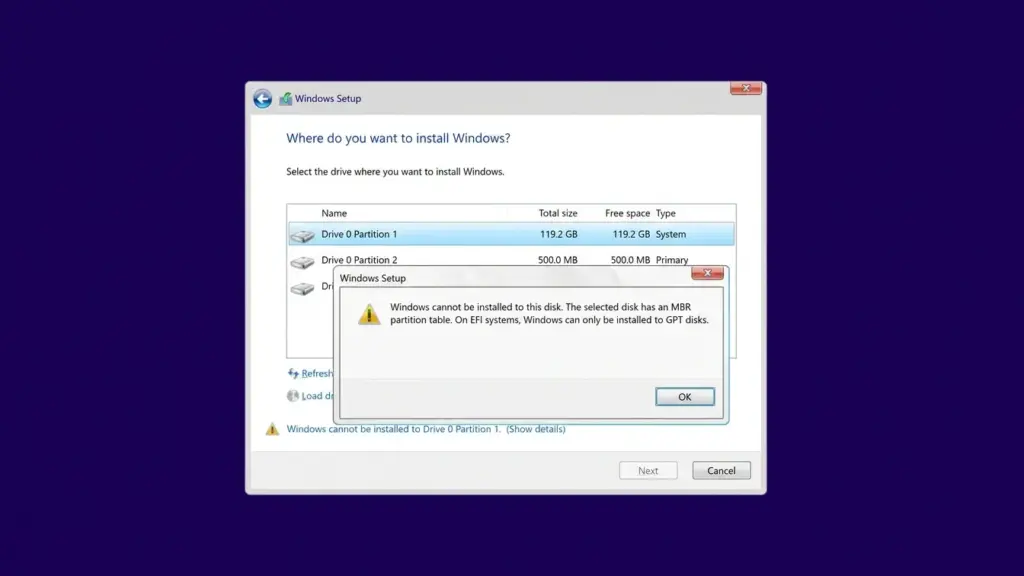
Windows Cannot Be Installed to This Disk: Fix GPT and MBR
The setup error "Windows cannot be installed to this disk" means the PC started in one mode (UEFI or legacy BIOS) and the disk uses the other (GPT or MBR). The fix is to make them match. There are three options: change the boot mode, convert the disk with its data, or wipe and convert it. Read the warnings, because one of them erases the disk.
Why Windows cannot be installed to this disk
UEFI boot needs a GPT disk.
Legacy (BIOS or CSM) boot needs an MBR disk.
The two common messages are 'The selected disk is of the GPT partition style' (you booted in legacy mode) and 'The selected disk has an MBR partition table. On EFI systems, Windows can only be installed to GPT disks' (you booted in UEFI mode).
Step-by-step: fix the error
Step 1: Back up your files and check the two modes
If the disk holds data you need, copy it elsewhere first (see how to back up your Windows PC). Disconnect other drives, so you cannot change the wrong one.
Then find out what you have. On the installer screen press Shift + F10, run diskpart and then list disk. A star in the Gpt column means that disk is GPT; no star means MBR. Type exit to leave diskpart. If Windows still works on the PC, you can also press Windows + R, run msinfo32 and read BIOS Mode, which says UEFI or Legacy.
You should see: either a GPT disk with a Legacy boot mode, or an MBR disk with a UEFI boot mode. That mismatch is the cause of the error.
Step 2: Option A: match the boot mode (no data loss)
Restart and enter the BIOS.
Choose the boot mode that matches your disk: UEFI for a GPT disk, or legacy (CSM) for an MBR disk.
When you boot the installer USB, choose the USB entry that carries the matching mode (the UEFI entry for UEFI mode).
Start the setup again.
You should see: the disk list now lets you select the drive without the red error. Windows 11 requires UEFI and a GPT disk, so if you are installing Windows 11, Option B or C is the better path (see enable TPM 2.0 and Secure Boot).
Step 3: Option B: convert the disk with diskpart (erases the disk)
Warning: only use this if the disk is empty or you have a verified backup. The clean command removes the partition table and every file becomes unreachable without special recovery software. Do not use it if you cannot back up: use Option A or C instead.
On the error screen, press Shift + F10 to open Command Prompt and run:
diskpart
list disk
select disk 0
clean
convert gpt
exit
Check the disk number with list disk before you run select disk: match it by size. Close the window and select Refresh in the setup, then install Windows on the unallocated space.
You should see: "DiskPart succeeded in converting the selected disk to GPT format", and after Refresh the disk shows as unallocated space with no red error.
Step 4: Option C: convert without losing data
If Windows is already installed on an MBR disk, you can convert in place from Windows, before you reinstall. Open Command Prompt as administrator and run:
Read these warnings first. They match Microsoft's MBR2GPT documentation:
The conversion cannot be undone, so back up first. A failed conversion can leave the PC unable to start.
If the drive uses BitLocker, suspend or turn it off before you convert.
The validation must pass before you run the convert command. It fails on disks with too many partitions: the disk can have at most three primary partitions and no extended partition.
As soon as the convert command finishes, restart into the BIOS and switch the boot mode to UEFI. Do not start Windows in legacy mode afterwards.
You should see: the validate command ends with "Validation completed successfully". If it reports an error, stop. Do not run the convert command. Use Option A or restore from your backup before trying another route.
Running clean on the wrong disk. Disconnect other drives and match the disk by size in list disk.
Converting the disk but leaving the BIOS in legacy mode. The PC then will not start from the converted disk.
Booting the USB installer in the wrong mode. Many PCs list the same USB twice: one entry starts it in UEFI mode, the other in legacy mode.
Forgetting BitLocker. Suspend it before you convert in place.
Sources
The limits and warnings for Option C come from Microsoft Learn's MBR2GPT page. The diskpart steps are the standard Windows Setup method and were not run on a real PC for this guide.
Which is better, GPT or MBR? GPT is the modern choice and supports large drives and UEFI. Windows 11 requires it.
Will converting delete my files? The mbr2gpt tool keeps them, but diskpart's clean command erases them.
Can I switch the BIOS to legacy mode to install? You can for Windows 10, but Windows 11 needs UEFI.