Problem Resetting Your PC in Windows 11? 9 Fixes That Work
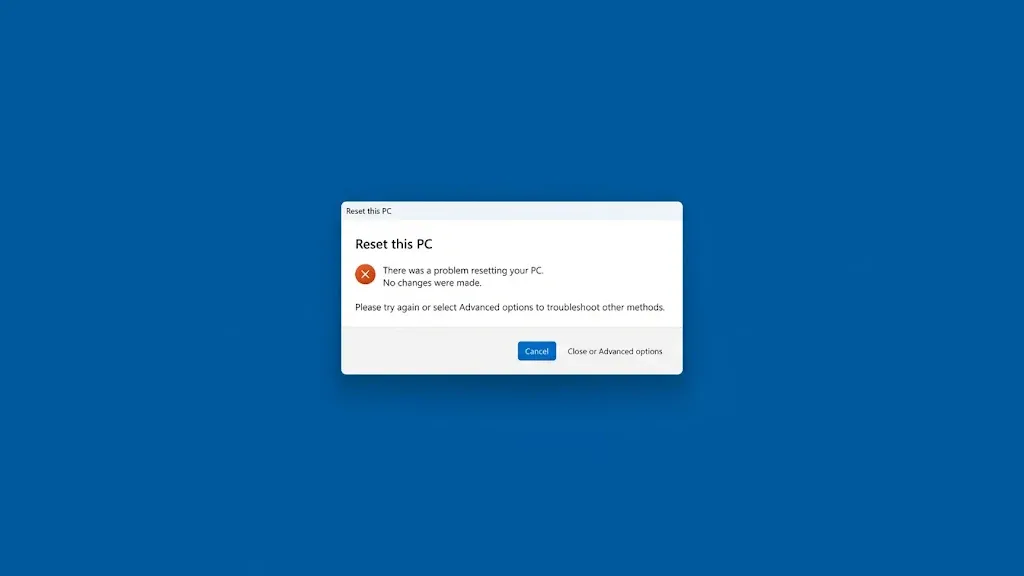
A problem resetting your PC in Windows 11 usually means the reset could not finish. Windows may roll the changes back and show a message such as “There was a problem resetting your PC. No changes were made.” Other failures look different, so match the message on your screen to the fixes below.
This guide covers the failed reset only. Work through the fixes in order, because the safest checks come first. The steps below follow Microsoft's documented recovery options. Menu names move between Windows builds, so match the wording to your own screen. This article has not been run on a real PC.
Before you start: back up and keep the PC on power
A failed reset can put personal files at risk. Make a backup before you try again. Our backup guide explains the options.
- Keep the PC plugged into power for the whole process.
- Do not turn off the PC while a reset is still running. Give it time before you decide it is stuck.
- Force a power-off only as a last resort, after a long wait with no change.
- Have your BitLocker recovery key ready if the drive is encrypted.
Fixing a problem resetting your PC: 9 fixes, safest first
1. Unplug USB devices, drives and docks
External hardware can interrupt a reset. Keep only the power cable, keyboard and mouse connected.
- Shut down from Start > Power > Shut down.
- Unplug USB drives, SD cards, printers and docking stations.
- Start the PC, open Settings > System > Recovery, and try the reset again.
You should see: the Recovery page with the Reset this PC section.
If this does not help: move on to the next fix. Hardware is not always the cause.
2. Free space on the C: drive
A reset needs free room on the system drive. No Microsoft page this guide relies on gives a fixed amount of free space. If your reset message names an amount, follow that figure.
- Open Settings > System > Storage.
- Remove files you do not need, such as old downloads and temporary files.
- Read our disk space guide for safe cleanup targets, then retry.
You should see: more free space on C: in the Storage page.
If this does not help: check the drive itself, as described in fix 9, and continue.
3. Try the other reset option
Reset this PC offers two pairs of choices. Each pair changes what the reset does.
- Keep my files or Remove everything.
- Cloud download or Local reinstall.
Cloud download fetches a fresh copy of Windows and needs internet access. Local reinstall uses files already on the PC. If one combination failed, try the other. Remove everything erases personal files, so back up first. If you are selling or giving the PC away, see how to clean a Windows PC before selling or giving it away.
- Open Settings > System > Recovery.
- Under Reset this PC, select Get started.
- Choose the other option and follow the prompts.
Microsoft explains the choices in its Reset your PC guide. For the normal steps, see our reset guide. If Windows asks for a BitLocker key, see our BitLocker recovery key guide.
You should see: the reset starts with the option you picked. Wording may differ by build.
If this does not help: continue to fix 4.
4. Repair system files with SFC and DISM
Damaged system files can make a reset fail. Open Command Prompt as administrator: search for cmd, right-click Command Prompt, and select Run as administrator. Run these commands in order.
sfc /scannowDISM /Online /Cleanup-Image /RestoreHealthsfc /scannow
Let each command finish. DISM may need internet access to fetch clean files, depending on the PC. Our SFC and DISM guide has more detail.
You should see: SFC reports that it found no problems or repaired files, and DISM ends with the operation completed successfully.
If this does not help: continue to fix 5.
5. Check that the Windows Recovery Environment is enabled
A reset can run from the Windows Recovery Environment, called WinRE. Check its status from an administrator Command Prompt.
- Run
reagentc /info. - Find the line that reads Windows RE status.
- If it says Enabled, go to fix 6.
- If it says Disabled, you may try
reagentc /enable, then restart the PC.
If WinRE stays disabled, the recovery partition may be missing or damaged, and a local reset may then not work. Cloud download, or installation media as in fix 9, may still be possible. For the full check, read our guide to Windows RE being disabled.
You should see: a Windows RE status line that reads Enabled or Disabled.
If this does not help: if the command returns an error, continue to fix 6.
6. Start the reset from the recovery screen
A reset can start from Settings while Windows is still running. It can also start from the recovery screen, which runs outside the normal desktop.
- Hold Shift, select Power, and click Restart.
- Select Troubleshoot, then Reset this PC.
- Choose your option and follow the prompts.
If Windows will not start at all, it can open the recovery screen on its own after failed startups. For that route, see our Safe Mode guide.
You should see: the Choose an option screen with Troubleshoot.
If this does not help: continue to fix 7.
7. Fix a pending or failed Windows Update
A stuck or half-installed update can block a reset. Check Windows Update first.
- Open Settings > Windows Update.
- Install any pending updates, restart, and let Windows finish.
- If a recent update is the likely trigger, check Update history for an uninstall option. From the recovery screen, Microsoft's recovery options guide lists Troubleshoot > Advanced options > Uninstall updates.
Menu names may differ between builds. Our guides on stuck or failing updates and uninstalling a Windows update cover both cases.
You should see: a finished update with no error, or a list of recent updates you can remove.
If this does not help: continue to fix 8.
8. Run Startup Repair or System Restore
Both tools sit in the recovery menu. Use them when the reset keeps rolling back.
- From the recovery screen, select Troubleshoot, then Advanced options.
- Choose Startup Repair and let it finish, or choose System Restore and pick a restore point from before the problem began.
System Restore keeps personal files but undoes system changes made after the restore point, such as recent apps or drivers. Read our System Restore guide first. For a PC that will not boot, our Startup Repair guide covers the tool in detail. If the PC gets stuck in a repair loop instead, see our automatic repair loop guide. Microsoft's Startup Repair page describes the tool.
You should see: the Startup Repair screen, or a list of restore points.
If this does not help: continue to fix 9.
9. Check the drive, then try installation media
These are the last options. First check the drive, because a failing drive can stop any reset. Our drive health guide explains the checks.
A repair install reinstalls Windows over the current copy. Microsoft's Reinstall Windows with the installation media guide offers a Keep personal files and apps option, which keeps your data. Our repair guide covers that route. Follow that guide rather than these notes.
A clean install erases the drive and installs Windows from scratch. Back up everything and have your BitLocker key before you start. Our clean install guide explains the steps.
You should see: a Windows Setup screen that starts from your USB drive.
If this does not help: a drive that reports errors may need replacing. Back up before you change anything.
Frequently asked questions
Will I lose my files if the reset fails?
Often not. Windows may roll the changes back and report that no changes were made. Still, back up first. Do not rely on a rollback.
Can I stop a reset that is running?
Wait first. A reset can take a long time. Force a power-off only as a last resort, after a long wait, because a forced shutdown can damage files.
Why does Windows say no changes were made?
The reset could not finish, so Windows may have reversed what it had started. Causes vary, and storage, update and file problems are common. Work through the fixes above.
Do I need my BitLocker key?
Sometimes. If the device is encrypted, Microsoft's Reset your PC guide says you need your BitLocker key to complete a reset from Windows RE. Find it before you start.
Is a reset the same as a clean install?
No. A reset reinstalls Windows. A clean install from USB installs a fresh copy and erases the drive. Choose it only after a full backup.
Will Reset this PC remove my apps?
Yes. Apps and custom settings are removed whichever option you choose. Keep my files keeps your personal files; Remove everything erases them as well. Before you start, write down the apps and settings you rely on, so you can restore them afterwards.
How long should a reset take?
The time depends on the drive, how much data there is and whether Windows downloads files from the cloud, so a reset can take a long time. Wait for a sign of progress before you decide it is stuck, and follow the power advice above.
Should I use a third-party recovery tool?
This guide sticks to the built-in Windows options. Third-party tools add risk and are not needed for the cases above.
Next steps
Back up your files first. Then work through the fixes in order, and stop when a reset succeeds. If none of them work, a repair install or a clean install is the next step. Our guide to cleaning, repairing, resetting or reinstalling Windows 11 compares the options. For more step-by-step help, browse our PC repair guides.