PC Cleaner vs. Windows Reset: When Should You Clean, Repair, or Reinstall Windows 11?
Last reviewed: November 23, 2026 (Pacific). Steps were compared with Microsoft documentation; none was run on a real PC.
Quick answer
Clean when a PC is cluttered but Windows works. Repair when Windows misbehaves and you want to keep your apps and files. Run a repair install when system files are damaged and your apps should stay. Use Reset this PC when you want Windows reinstalled and can choose what to keep. A PC cleaner removes files; it does not repair Windows.
In this guide
- PC cleaner vs Windows reset: when each one fits
- What a PC cleaner does and does not do
- Symptom table: what to try first
- Decision tree
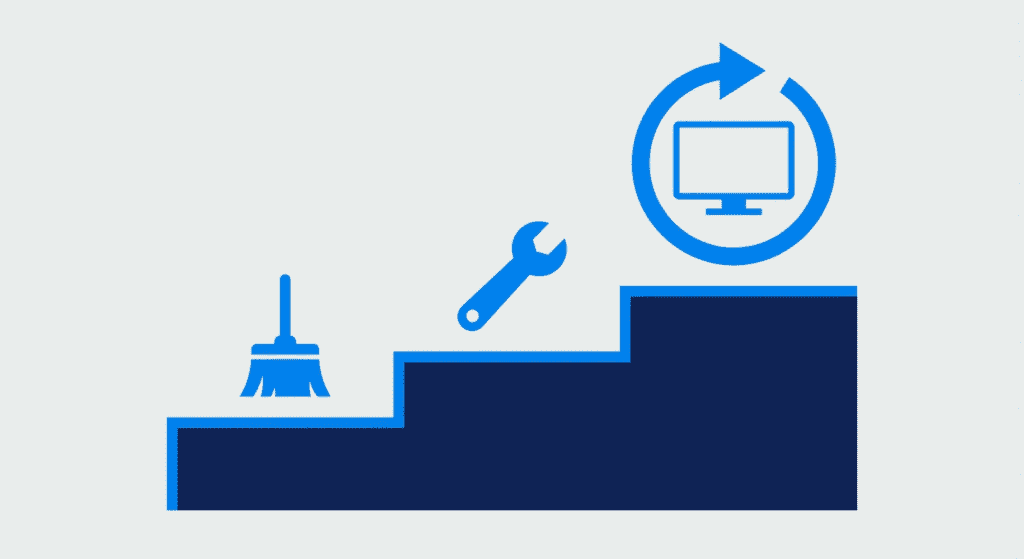
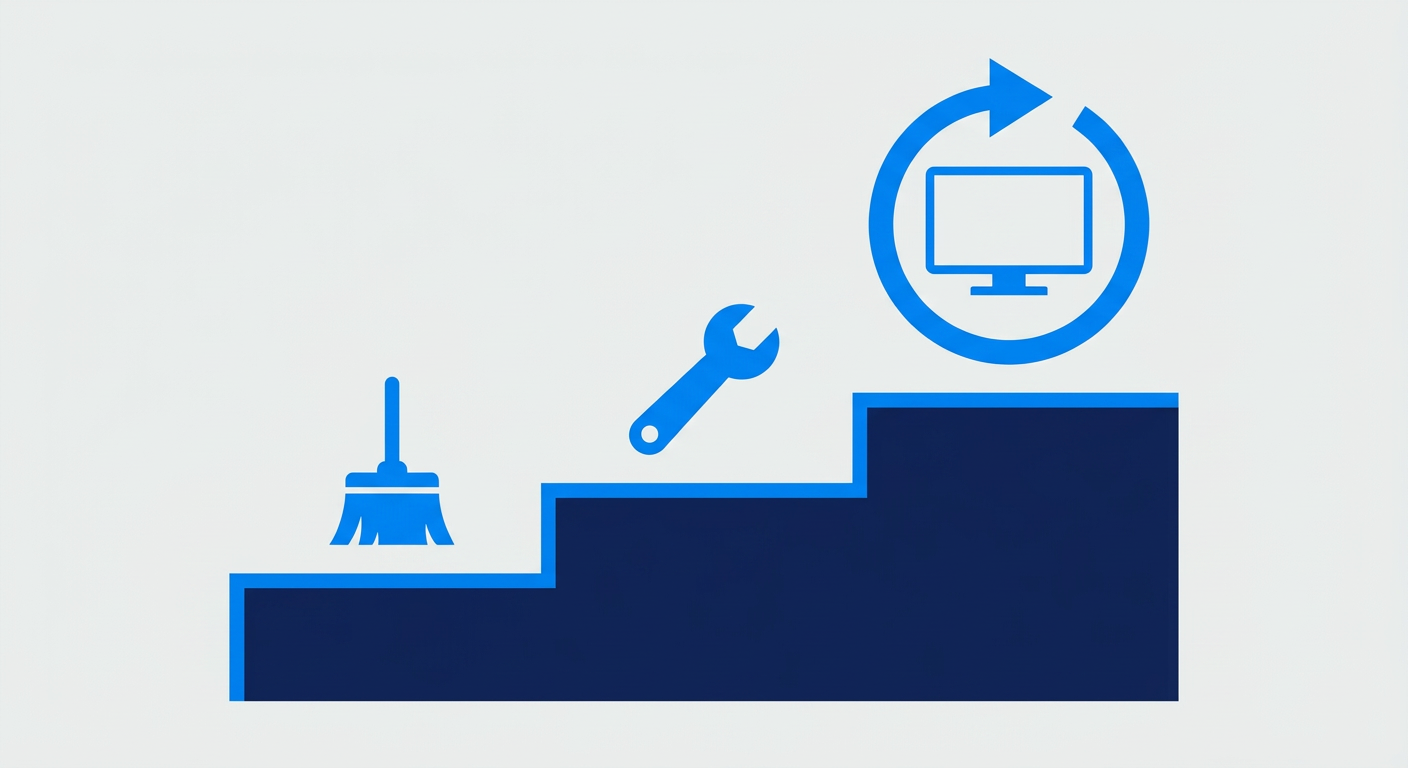
- The escalation ladder
- What each step keeps and loses
- Reset this PC: Keep my files or Remove everything
- Before you start: backup, BitLocker and licence
- What a reset does not fix
- When a clean install makes sense
- Frequently asked questions
- How this guide was checked
- Sources
PC cleaner vs Windows reset: when each one fits
If you are weighing a PC cleaner vs Windows reset, start with the symptom, not the tool. A cleaner deletes files it classifies as clutter, such as temporary files and caches. A reset reinstalls Windows and decides what happens to your personal files and apps. The two solve different problems, so choosing the wrong one either wastes time or removes more than you meant to delete.
This guide uses an escalation ladder. Clean when clutter is the problem, repair when Windows misbehaves, run a repair install when system files are damaged but your apps should stay, and reset only when the lighter steps fail. Stop at the first step that fixes the symptom. Each step up the ladder carries more risk to your data than the one below it.
The steps here were compared with Microsoft's documentation. Where a Microsoft page does not state something, this guide says so instead of filling the gap with a guess.
What a PC cleaner does and does not do
A PC cleaner typically scans for temporary files, caches, leftover installer files and sometimes registry entries, then offers to delete them. Some also manage startup items. Freeing space can help when a nearly full drive slows a PC, and that is the job a cleaner does most directly. For the wider picture of cleaner tools, read the PC cleaner guide for Windows 10 and 11.
A cleaner is not a repair tool. It removes files. It does not check whether Windows system files are intact, replace a damaged component or fix a boot problem. If a cleaner removed something Windows depends on, running it again will not bring that file back, and it cannot tell which of your files you still need. If a cleaner has left Windows with boot problems or missing system files, our guide to what to check when a cleaner has broken Windows 11 sets out the checks. If it has made the PC slower rather than broken it, see why a cleaner can leave a PC slower.
That is why the order matters. A cleaner is a sensible first step only for clutter you can see and approve. Once Windows itself behaves oddly, the question changes from what to delete to what to check, and the next sections cover that.
Stop before approving a bulk delete
Review every item a cleaner lists. Do not approve bulk deletes of files you do not recognise, anything in your Documents, Desktop or Downloads folders, or registry changes. If files are already gone, read what to do after a PC cleaner deleted important files before you reinstall anything.
Symptom table: what to try first
Match your symptom, try the first step, and escalate only if it fails. This table is a diagram of the ladder, not a list of guaranteed fixes.
| Symptom | Try first | Escalate to |
|---|---|---|
| Drive nearly full, Windows otherwise works | Built-in storage and cleanup tools, then review large files | A cleaner only after you have checked its list |
| Slow after installing software or many startup items | Review startup apps and remove what you do not need | System file repair, then a repair install |
| Crashes or freezes that began after a recent update | Uninstall the recent update | System file repair, then a repair install |
| Errors about damaged or missing Windows files | System File Checker and DISM | A repair install that keeps apps and files |
| Problems that began after a driver change | Roll back or uninstall the driver | System Restore, then a repair install |
| Windows will not start, or loops on automatic repair | Startup Repair, then back up your files | Reset this PC, Keep my files |
| Windows broken after running a cleaner | Check for lost files and damaged system files | A repair install; reset only if that fails |
| Malware suspected | Malware removal before any reinstall | Reset with Remove everything, only after a verified backup |
Each row is a starting point. If the first step does not change the symptom, move to the escalation column and stop there rather than trying every step at once.
Decision tree
Read the tree from the top. Each question has one next step, and the hardware branch sends you away from software steps on purpose.
- Does Windows start?
- No: run Startup Repair first. If it fails, back up what you can and go to the reset questions below.
- Yes: continue.
- Is the PC only full or cluttered, with no errors? Free space with built-in tools first. Use a cleaner only after you have reviewed its list.
- Did the problem start after a recent update or driver change? Uninstall that update or driver, then test.
- Do Windows features or system files report errors? Run System File Checker and DISM, then consider a repair install.
- Is the problem still there after a repair install? Back up your files, then reset this PC with Keep my files.
- Is the drive failing, or is the PC overheating? A reset will not fix either. Go to the hardware section below.
The escalation ladder
The ladder below is a checklist of rungs in order. Stop at the first rung that solves the symptom. The diagram is a plain list, not a screenshot.
- Clean: remove clutter with built-in tools.
- Repair: uninstall a recent update, run system file repair, or use System Restore.
- Repair install: reinstall Windows over itself and keep apps and files.
- Reset this PC: reinstall Windows and choose Keep my files or Remove everything.
- Clean install: wipe the drive and install Windows from installation media.
Step 1: clean, for clutter only
Use built-in cleanup and storage tools to free space and find large files. Review what the tools list before you delete anything. Compare the built-in options with a third-party cleaner in Storage Sense and Disk Cleanup compared with a PC cleaner. If the symptom remains after cleaning, move on rather than cleaning harder. More cleaning does not repair Windows.
Step 2: repair before you reinstall
Start with the smallest repair. If the problem began after a recent update, Microsoft's recovery options page lists uninstalling updates as a repair step and says your files and apps are not affected. If Windows will not open normally, starting in Safe Mode may give you a way to reach that update removal. For a Windows that runs but reports damaged files, system file repair with SFC and DISM is the next check.
System Restore returns system settings to an earlier restore point. Read how to use System Restore in Windows for what it changes and what it leaves alone. If Windows will not start, use Startup Repair, and if the PC is stuck in a loop, see how to fix the automatic repair loop.
Step 3: repair install, keeping apps and files
A repair install runs Windows setup over the existing installation. Microsoft's installation media page describes choosing Keep personal files and apps during setup. Microsoft's fix-issues page describes reinstalling the current version of Windows, which it says repairs system files and components and preserves apps, files and settings. Keep the PC on power and connected to the internet for the whole process, as that page advises. The full steps are in how to repair Windows 11 without losing files.
Two cautions apply. Setup screens change between versions, so follow the wording you see rather than a remembered path. And a repair install is not a backup: the files you cannot replace should already be copied to another place before you start.
Step 4: reset this PC
Reset this PC reinstalls Windows and lets you choose Keep my files or Remove everything. Microsoft describes it as reinstalling Windows, so treat it as a heavier step than a repair. Use it when the repair steps have failed and you have a backup. The steps are in how to reset Windows 11 and keep your files.
Step 5: clean install
A clean install wipes the drive and installs Windows from media. It is the last rung, and it has its own section below.
What each step keeps and loses
This table summarises Microsoft's wording for each option. It is a comparison aid. The exact list for each option is on the Microsoft page for that option, and where this table says a detail may need checking, it means the Microsoft page did not settle it in the material reviewed.
| Step | What it keeps | What it removes or changes |
|---|---|---|
| PC cleaner | Everything you did not approve for deletion | Whatever you approved, including files Windows or an app may need |
| Uninstall a recent update | Personal files and apps, per Microsoft's recovery options page | The update itself |
| System file repair (SFC and DISM) | Personal files, apps and settings | Damaged Windows files are replaced |
| Repair install (keep apps and files) | Personal files and installed apps | Windows components are replaced; drivers and settings may need checking afterwards |
| Reset this PC, Keep my files | Personal files | Apps and settings; confirm the exact list on Microsoft's reset page |
| Reset this PC, Remove everything | Nothing on the drive being reset | Personal files, apps and settings |
| Clean install | Nothing on the drive being wiped | Everything on that drive, which is the point of the step |
Data-loss warning
Two steps can remove your data: Remove everything and a clean install. A repair install that keeps files can still go wrong. Copy anything you cannot replace to a second drive before you start any step below a repair.
Reset this PC: Keep my files or Remove everything
Microsoft describes Reset this PC as reinstalling Windows, with a choice between keeping personal files and removing everything. You can start it from the recovery settings, or from the Windows Recovery Environment if Windows will not open normally.
Keep my files
This option keeps personal files but reinstalls Windows. Microsoft's reset pages are where to confirm which apps and settings are removed. Expect apps to be removed and settings to change, and check the exact list on the page before you choose. Make a backup first, even though this option keeps files. If the reset fails partway, see the guide to a reset that fails.
Remove everything
This option removes personal files, apps and settings on the drive being reset. Use it only when you have a verified backup and no repair step has worked. Microsoft's reset page is the reference for what it covers and which drive it affects.
Cloud download or Local reinstall
Microsoft's reset steps offer Cloud download or Local reinstall. Read the reset page for what each option needs, including whether an internet connection is required. This guide does not describe their mechanics beyond that, because the material reviewed did not set them out in full.
Before you start: backup, BitLocker and licence
Back up first
Back up before any step that can delete files. Our guide to backing up a Windows PC, files and system image covers the options. A recovery drive helps when the PC will not start. Microsoft's recovery options page describes reinstalling from a recovery drive as removing personal files, apps and settings, so treat a recovery drive as a repair tool, not as a backup. For setup, see how to create a Windows 11 recovery drive.
BitLocker recovery key
If the drive is encrypted with BitLocker, Microsoft's reset page says you need your BitLocker recovery key to finish a reset from the Windows Recovery Environment. Find and save the key before you start, somewhere you can reach without the PC.
Licence and sign-in
Microsoft's installation media page includes a product key step, with an option for people who do not have a key. Whether your licence reactivates after a clean install is not confirmed by the pages checked for this guide. Check Microsoft's activation pages before you wipe anything, and have your sign-in details ready.
Power, network and interruptions
The Microsoft pages checked here do not give durations, so this guide gives none. Keep the PC plugged in and connected to the internet, as Microsoft's fix-issues page advises for a reinstall. Avoid interrupting a reset. This guide did not confirm Microsoft's exact wording on that point, so check the reset page before you start.
What a reset does not fix
A reset reinstalls Windows software. It does not repair hardware. If a drive is failing, a reset will not stop the errors, and the drive can fail during the reinstall. Check drive health with how to check your hard drive or SSD health before you reinstall anything.
Overheating can cause shutdowns and crashes that look like software faults. A reset will not cool the PC. If heat is the likely cause, see how to fix a PC that keeps overheating.
Faulty memory can cause random crashes and blue screens. Reinstalling Windows does not test or replace RAM. If the same crashes return after a clean reinstall, treat hardware as the suspect and not the software.
When a clean install makes sense
A clean install is the last rung. It suits a PC where a repair install and a reset have both failed, or where you want a completely fresh system before giving the PC away. Microsoft's installation media page says a clean install deletes everything, including files, apps and settings, so back up first. The steps are in how to clean install Windows 11 from a USB drive.
If you are preparing a PC to sell, cleaning and wiping are different tasks. See how to clean a PC before selling it for that job. If malware is suspected, remove it before deciding on any reinstall, using how to remove a virus or malware from a Windows PC. Reset only if the problem remains.
Do not clean install just because a single driver or app misbehaves. Identify the cause first. A reinstall will bring the same driver back if it is the source of the problem.
Frequently asked questions
Is a PC cleaner the same as resetting Windows?
No. A PC cleaner deletes files it has identified as clutter. Reset this PC reinstalls Windows and lets you keep or remove your personal files. They do different jobs.
Will Reset this PC with Keep my files delete my documents?
Microsoft describes Keep my files as keeping personal files. Apps and settings are handled differently, so check Microsoft's reset page for the exact list. Back up before you start in any case.
What is the difference between a repair install and a reset?
A repair install runs Windows setup over the existing installation and can keep apps and files. A reset is started from the recovery options and lets you choose Keep my files or Remove everything. Compare what each option keeps on Microsoft's pages before choosing.
Should I run a PC cleaner before a reset?
It is not needed. A reset does not depend on a cleaner, and cleaning first can delete files you later need. Skip it unless disk space is the only problem.
Does a reset fix a failing hard drive?
No. Reinstalling Windows writes to the drive, and a failing drive can fail during the process. Check its health before you reinstall.
Do I need a BitLocker key to reset my PC?
Microsoft's reset page says you need the BitLocker recovery key if the device is encrypted and you complete the reset from the Windows Recovery Environment. Find the key before you start.
Can a reset remove malware?
The Microsoft pages checked here do not present a reset as a malware cure. Treat a reset as a reinstall, not a guarantee. If you suspect infection, remove it first, then decide whether a reset is still needed.
More help: browse the PC repair guides on this site, or use the Repair Assistant to narrow down your symptom.
How this guide was checked
The escalation ladder, the keep and lose table and the reset options were compared with the Microsoft pages listed in Sources. Steps were not run on a real PC, and the article was not tested on a phone or in a browser. Where a Microsoft page gave no duration or detail, this guide gives none. Some Microsoft wording was read from search summaries of those pages rather than from the full text, so re-check the exact steps on the live page before you follow them.